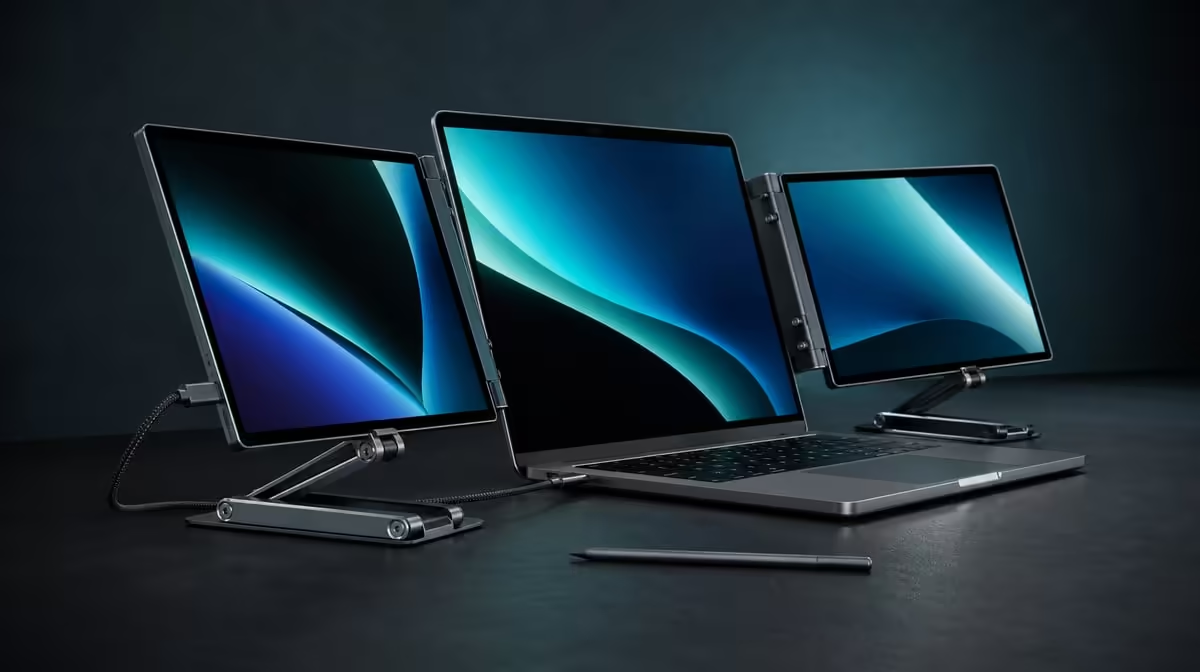
Pressure response and ten-point control belong to the same touch system, but they measure different things. Understanding pressure touch and 10-point control helps buyers test force variation, simultaneous contacts and screen placement without swapping the terms.
Quick Answer
Pressure-sensitive input lets compatible software react to changing force, while 10-point control lets the Delta register up to ten contacts at once. The R11,999 dual QHD monitor supports both, but the compatible tool, laptop mapping and application determine how each behaviour appears in real work.
✍️ Pressure describes changing force
Open a pressure-aware creative control on one Delta panel and use a compatible input tool. Make repeated strokes that move from light to firmer contact. Look for clear, repeatable variation rather than an attractive line produced once.
No pressure-level count or particular bundled pen is confirmed. Keep the test tied to the tool and software that will be used after purchase.
Evetech's portable-monitor range is best compared with the creator's actual application and input method in view.
Verify position before force
Draw slow horizontal and vertical lines and tap small controls. Force variation may look right even when the stroke misses its target. Correct screen assignment first.
Repeat on the second panel with unchanged application settings. Dual-screen support requires evidence from both interactive surfaces.
Choose a visible pressure response
Use a brush, line or parameter whose change can be observed directly. Compare several light, medium and firmer actions without inventing numerical levels.
Save the sample and settings. It becomes a useful reference after a software update, relocation or changed tool.
Test stability under the working hand
Adjust the ergonomic stand to the creative angle and make strokes near the screen edges. Watch for movement that could imitate inaccurate input.
Reposition the complete laptop-and-monitor station if the user reaches awkwardly. Physical support belongs in the pressure test.
✋ Ten points count simultaneous contacts
Begin with a single tap and drag. Once placement is correct, use an application that visibly supports a two-finger action. Add more contacts gradually only where the program provides a meaningful response.
The number ten states capacity. It does not promise that every app will use ten fingers, identify several users or assign a pressure value to each contact.
Map each screen independently
Tap the centre, corners and edges of the first panel, then the second. Move a labelled window between them and repeat its gesture.
If touch follows the wrong screen, preserve the accurate visual desktop and correct input assignment. Do not rearrange every display rectangle without evidence.
Learn gestures in a safe file
Use a disposable canvas or copy of a document while adding contacts. Several fingers can trigger an unexpected command when the application interprets them differently from the user's assumption.
Record only the gestures the program demonstrates. Move to important work after the sequence becomes predictable.
Compare multi-touch with normal controls
Perform a short navigation or business action with fingers, then repeat it through the laptop's usual pointer and keyboard method. Count errors and hand movement.
Ten-point control earns value when supported gestures make a recurring job easier. Unused capacity should not carry the purchase.
🎨 Combine the capabilities deliberately
A creator can navigate a QHD canvas with fingers, switch to a compatible pressure tool for expressive input and return to selection. Test this complete sequence in the intended program.
Watch for accidental marks, lost focus or a gesture that remains assigned to another panel. The best workflow may combine both features or reserve each for a separate task.
Evetech's broader PC-monitor category is relevant when the user needs more viewing space but not direct input.
Keep definitions visible
Create two columns. Under pressure, record force variation, compatible tool and app control. Under ten-point touch, record simultaneous contacts, supported gestures and useful maximum.
This simple separation prevents marketing shorthand or memory from turning one capability into the other.
Move the application between panels
Place the same creative window on each 2560 x 1600 screen and run the mixed-input sequence. Confirm that fingers and pressure follow the active workspace.
Use readable scaling throughout. Tiny controls create selection difficulty that should not be mistaken for a failed touch sensor.
Add the laptop screen when it has a role
If the built-in display stays active, place a reference or private control there and map the desktop accurately. Move the pointer across every boundary.
Check that touch never lands on the laptop display unexpectedly. A three-screen visual layout adds another coordinate relationship to the test.
🔄 Preserve behaviour through change
Rotate one panel within the intended 180-degree range and let gravity sensing settle. Test corner taps, a supported gesture and a pressure-aware stroke. Return to landscape and repeat.
Restart the laptop, reopen the reference application and verify both input types again. Save the successful screen order, tool and app version.
Use Evetech's monitor best-seller collection for current market context around the R11,999 Delta. Check availability when ready to buy.
Diagnose in the right order
When input changes, confirm the picture, screen identity and a single finger tap. Continue with a simple line, multi-contact gesture and pressure response in that sequence.
This isolates the failed layer and avoids changing orientation, display mapping and creative settings at the same time.
Review a completed project
Finish a small representative task with the chosen input combination and compare it with the normal method. Count corrections and setup time as well as creative control.
The feature pair is worthwhile when it supports accurate work repeatedly. A convincing demo does not outweigh a workflow that needs constant repair.
Keep the evidence current
After application or operating-system changes, reopen the saved pressure sample and gesture test. Repeat them on both panels before important work.
Update the record only after the setup passes. This preserves a known reference while recognising that software interpretation can change.
Use visual feedback during diagnosis
Choose a simple test app that shows contact position and pressure variation. Add one finger or force change at a time so the action producing an unexpected result remains visible.
Repeat with the window on the other panel. Clear feedback separates a screen assignment problem from a gesture the application does not support.
Check input over a longer session
Use the mixed finger-and-pressure sequence for a representative block, not only three demonstration strokes. Note whether the stand shifts, touch focus changes or the user begins reaching awkwardly.
Return after a break and repeat the reference sample. A stable input system should remain accurate after ordinary app switching and pauses.
Preserve important files
Learn unfamiliar gestures on copies and save active projects before multi-contact testing. Keep destructive commands out of the reference sequence.
Once the application behaviour is understood, repeat the proven actions in real work. This protects the project while still testing the feature under normal conditions.
Frequently Asked Questions
What does pressure-sensitive touch measure?
It describes input that compatible software can vary in response to changing force.
What does the ten-point figure count?
It counts up to ten simultaneous touch contacts.
Can one interaction use both capabilities?
Yes, compatible workflows can combine finger gestures with a separate pressure-aware tool.
Why should the terms not be swapped?
Contact count and force response describe different input properties.
How should pressure response be verified?
Use a compatible tool in a control that visibly changes through force.
How should ten-point control be tested?
Map single touch first, then add supported contacts gradually.
Ready to test force and contact count as separate input tools?
Compare Evetech's portable touch monitors with your laptop mapping, creative software and compatible tool ready.