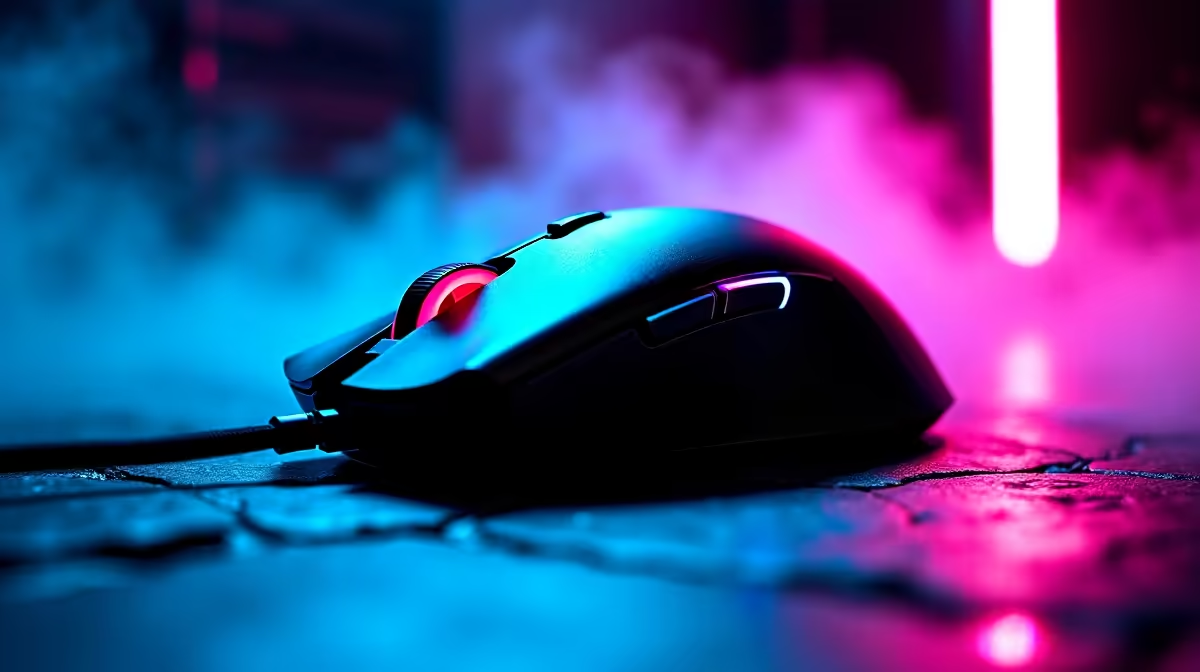
You’re in a tense 1v3 clutch in Valo. You line up the perfect shot… but your palm is uncomfortably warm, almost sweaty. It’s not the pressure getting to you; it's your mouse. That awesome glowing logo that looks so cool on your desk is slowly cooking your hand. 🥵 This distracting heat from high RGB logo brightness is a common issue, but don’t stress, we’ve got the expert fixes to get you back to comfortable, peak performance.
Understanding RGB Mouse Heat
So, why does your palm get so warm? It's simple physics. The LEDs (Light Emitting Diodes) that create that vibrant colour on your mouse generate a small amount of heat as a byproduct of light. When these LEDs are concentrated under a logo directly beneath your palm, with little ventilation, that heat builds up. While it’s not dangerous, the excessive warmth from the RGB logo brightness can be incredibly distracting and even affect your grip during long gaming sessions.
For some gamers, this is a minor annoyance. For others, it’s a performance killer. If you find yourself constantly readjusting your grip because of a hot spot, it’s time to sort it out. Luckily, you don't have to ditch the glow entirely.
Easy Fixes for That Hot Logo 🔧
Before you consider swapping out your mouse, let's try some simple software adjustments. Most major brands provide powerful customisation tools that give you direct control over the RGB logo brightness and behaviour.
Dive Into Your Mouse Software
Almost every major gaming mouse comes with its own software suite (like Razer Synapse, Logitech G HUB, or Corsair iCUE). This is your command centre.
- Open the Software: Find the application for your mouse brand.
- Find Lighting Controls: Navigate to the section that controls illumination. This is often labelled "Lighting," "Aura Sync," or "Lightform."
- Adjust the Zone: Modern software often lets you control individual lighting zones. Find the zone corresponding to the palm logo and simply turn its brightness down to 10-20%, or switch it off completely. You can often keep the other RGB elements, like a scroll wheel or side strips, fully lit.
- Save to Profile: Save your new settings to an on-board memory profile so your changes stick, even if you plug the mouse into a different PC.
Many of today's wireless mice are optimised for power efficiency, which often means their default lighting is less intense, generating less heat to begin with.
Pro Tip: Create a 'Competition' Profile
Set up a gaming-specific profile in your software with the logo light off and performance settings maxed out. You can create another 'Desktop' profile with all the flashy lights on. Switch between them with a single click before you jump into a match!
If software fixes don't cut it, you could also look into physical solutions like new mouse grips, which add a thin layer between your palm and the hot plastic.
Is It Time for a Cooler Upgrade?
Sometimes, an old mouse is just… old. If you're using a model from a few years ago, the LED technology might be less efficient, or the design might not have accounted for heat dissipation. If you’ve tried the software fixes and you’re still feeling the burn, it might be the perfect excuse to upgrade.
When shopping, look for mice where the main RGB flair is on the sides, the scroll wheel, or as an underglow effect—anywhere but directly under your palm. Whether you prefer the unmatched reliability of a classic wired mouse or the freedom of a wireless model, there are fantastic, cool-running options available. Evetech has a massive range of gaming mice designed for comfort and performance, ensuring heat is never on your list of worries. 🚀
Find Your Perfect, Cool-Running Mouse
Don’t let a hot mouse compromise your clutch moments. Explore our massive selection of high-performance gaming mice designed for comfort and precision. Check out the latest gaming mouse deals and grab an upgrade that feels as cool as it looks.