Quick Answer
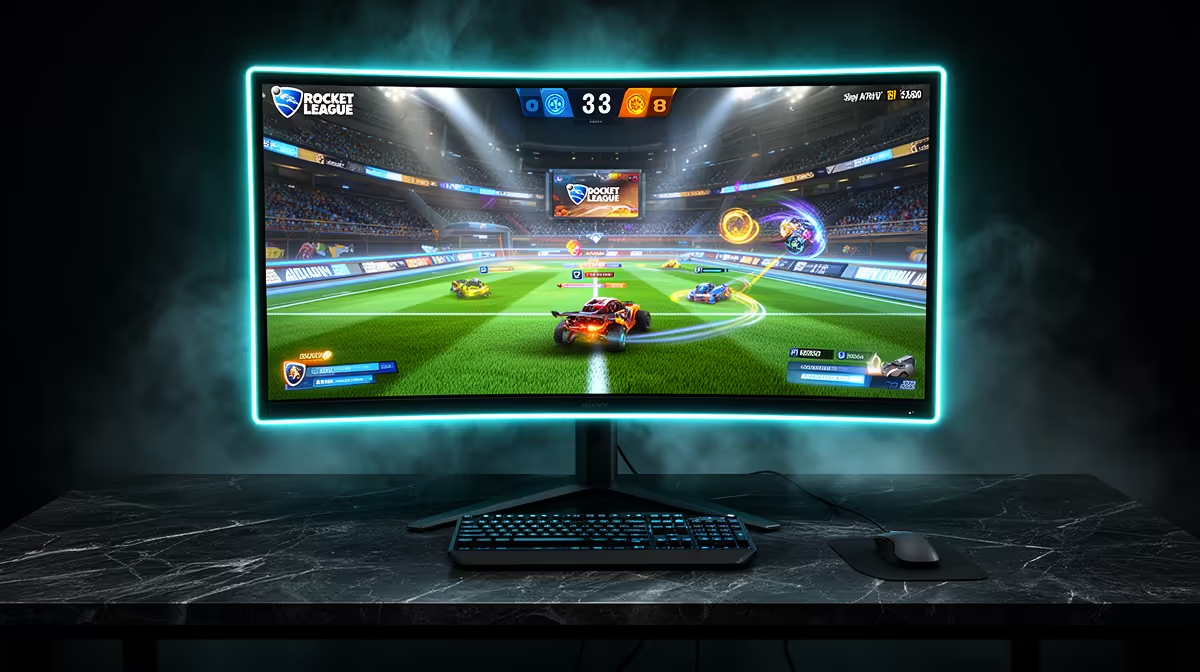
A Rocket League monitor setup should match frame rate to panel refresh: 1080p 144-180 Hz is the sweet spot for competitive play, while 1440p makes sense only if the GPU can hold high fps. A named shortlist such as AOC 24G2, ASUS TUF 24-inch 165 Hz, or MSI G274QPF gives SA players a practical place to start without overbuying.
Monitor Settings That Matter
Use DisplayPort where possible, enable the monitor refresh rate in Windows, and turn on adaptive sync if the panel supports it. Keep overdrive on a middle setting to avoid obvious ghosting. Test settings in one familiar match type and keep the change if it improves control, clarity, or reaction timing.
Hardware Shortlist
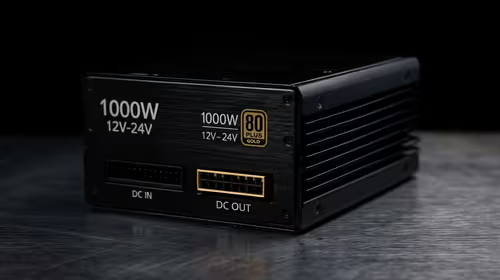
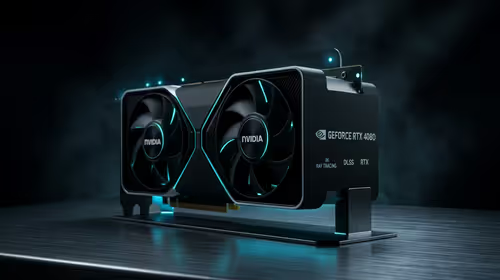
Plan around AOC 24G2, ASUS TUF 24-inch 165 Hz, or MSI G274QPF. Broad local pricing sits around R2,500-R7,000, with wired options usually giving better value and wireless options adding desk comfort. Pair the gear with a PC that can actually feed it: an RTX 4060-class 1080p system should hold strong esports fps, while a heavier game may need medium settings for stable 60 fps.
SA Setup Checks
Latency and room noise matter as much as the accessory. Use Ethernet where possible, keep the router close if you rely on Wi-Fi, and avoid USB hubs that loosen during play. In shared homes or digs, a closed-back headset and a compact controller stand can keep the setup tidy without taking over the desk.
FAQ
Is this accessory worth buying for Rocket League?
Yes, if it fixes a specific control, audio, or display limit you notice every session. It is less useful if the PC is already missing the frame-rate target.
What is the minimum PC performance target?
Aim for stable 60 fps first, then raise refresh or graphics settings. Competitive players should prioritise 1080p high fps over prettier settings.
Should I choose wired or wireless gear?
Wired is usually cheaper and simpler for a fixed desk. Wireless is useful when the room is cramped, but keep batteries charged and the receiver close.