Is your internet feeling a bit sluggish? You're paying for high-speed fibre, yet downloads crawl and that crucial headshot in Valorant registers a second too late. Before you call your ISP, there’s a simple, free fix you probably haven't tried. Optimising your DNS in South Africa can dramatically boost your home network's speed and security. It’s one of the most effective tweaks you can make in under five minutes. Let's get it sorted.
Understanding DNS in South Africa: The Internet's Unsung Hero
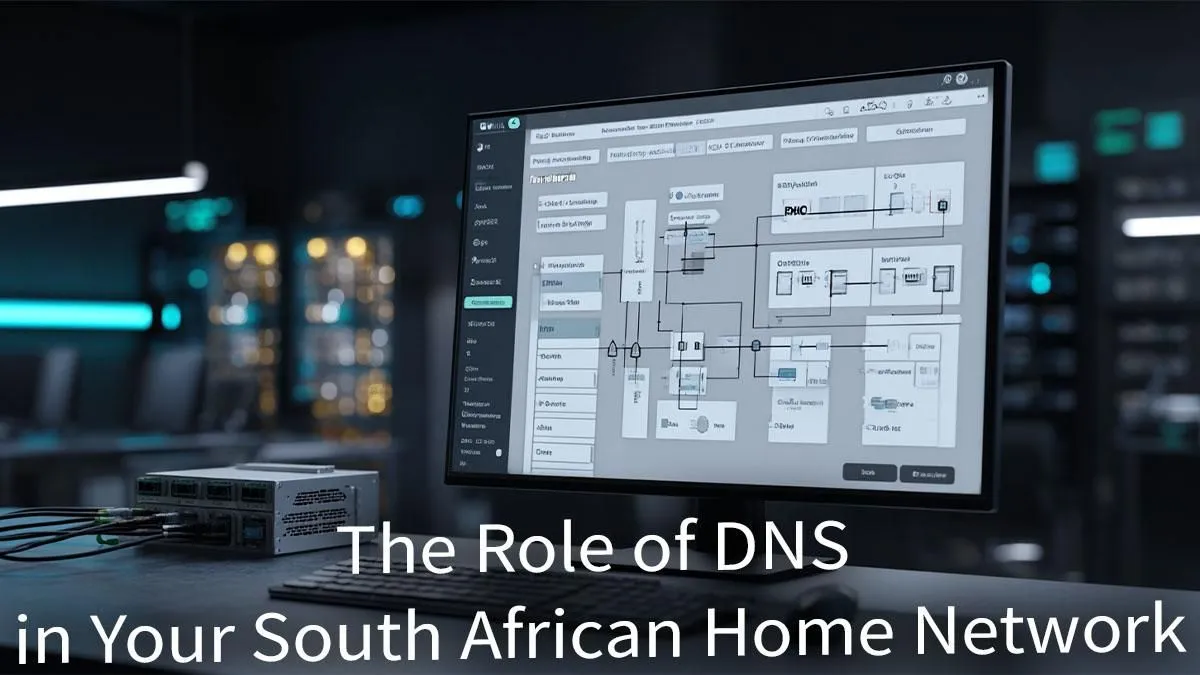
So, what is this "DNS" thing anyway? Think of the Domain Name System (DNS) as the internet's phonebook. When you type evetech.co.za into your browser, your computer doesn't know where that is. It asks a DNS server, "Hey, where do I find evetech.co.za?" The server looks it up and replies with a numerical IP address (like 104.26.4.24), which your computer uses to connect.
By default, you're using your Internet Service Provider's (ISP) DNS servers. They work... but they're often not the fastest or most private option. A slow DNS response adds a tiny delay to everything you do online, from loading a webpage to connecting to a game server. For gamers, this can be the difference between victory and defeat.
Finding the Fastest and Most Secure DNS for SA Gamers 🚀
Switching to a third-party DNS provider is easy and can offer significant benefits. These services are often faster, more reliable, and can even add layers of security, like blocking malicious websites. Here are the top contenders for the best DNS in South Africa:
- Cloudflare (1.1.1.1): Blazing fast and privacy-focused. Cloudflare promises not to sell your data or log your browsing history. It's a fantastic choice for both speed and peace of mind.
- Google Public DNS (8.8.8.8): A rock-solid, reliable classic. It’s known for its stability and security, making it a safe bet for any home network.
- OpenDNS (208.67.222.222): Offers excellent security features, including phishing protection and optional content filtering, making it great for families.
Of course, even the best DNS settings can't overcome a weak hardware foundation. If your router is constantly dropping connection or struggling to cover your whole home, a DNS tweak won't solve the core issue. A modern unit is essential for a stable online experience, and you can explore some powerful wireless routers right here.
A Quick Guide to Changing Your DNS Settings 🔧
You can change your DNS settings on individual devices or, even better, on your router to cover every device on your network. Here’s a quick guide for Windows 11:
- Open Settings: Press
Windows Key + I. - Navigate: Go to "Network & internet" > "Ethernet" (or "Wi-Fi," depending on your connection).
- Edit DNS: Find "DNS server assignment" and click "Edit".
- Enter New Servers: Change the setting from "Automatic (DHCP)" to "Manual". Turn on IPv4, and enter your chosen DNS servers. For Cloudflare, you'd put
1.1.1.1 in "Preferred DNS" and 1.0.0.1 in "Alternate DNS". - Save and You're Done!
If you've followed these steps and still have Wi-Fi dead zones in your house, a simple DNS fix won't bridge that physical gap. That's where wireless range extenders become essential for pushing a strong signal to every corner.
Pro Tip: Flush Your Cache! ⚡
After changing your DNS servers, it's a good idea to clear your computer's old DNS records. Open Command Prompt as an administrator and type ipconfig flushdns, then press Enter. This forces your PC to use the new, faster DNS for all future lookups, ensuring you feel the speed boost immediately.
Beyond DNS: Why Your Hardware is the Real Bottleneck
Optimising your DNS is a brilliant software-level improvement. But let's be honest... it's like putting high-performance fuel in a twenty-year-old car. You'll see a small improvement, but the engine itself is the real limit. Your networking hardware is that engine.
An old router, a weak Wi-Fi card, or a poor network setup will always hold you back. For competitive gaming, the lowest latency comes from a direct, wired connection. If your PC is far from the router, a high-quality wireless adapter with a strong antenna can make a world of difference compared to the basic Wi-Fi built into your motherboard. Upgrading your gear is the most reliable way to crush lag for good.
Ready to Build a Lag-Free Network?
A simple DNS change can work wonders, but it's only half the battle. For a truly dominant online experience, your hardware needs to keep up. Explore our complete range of wireless networking gear and build the ultimate foundation for speed and stability.