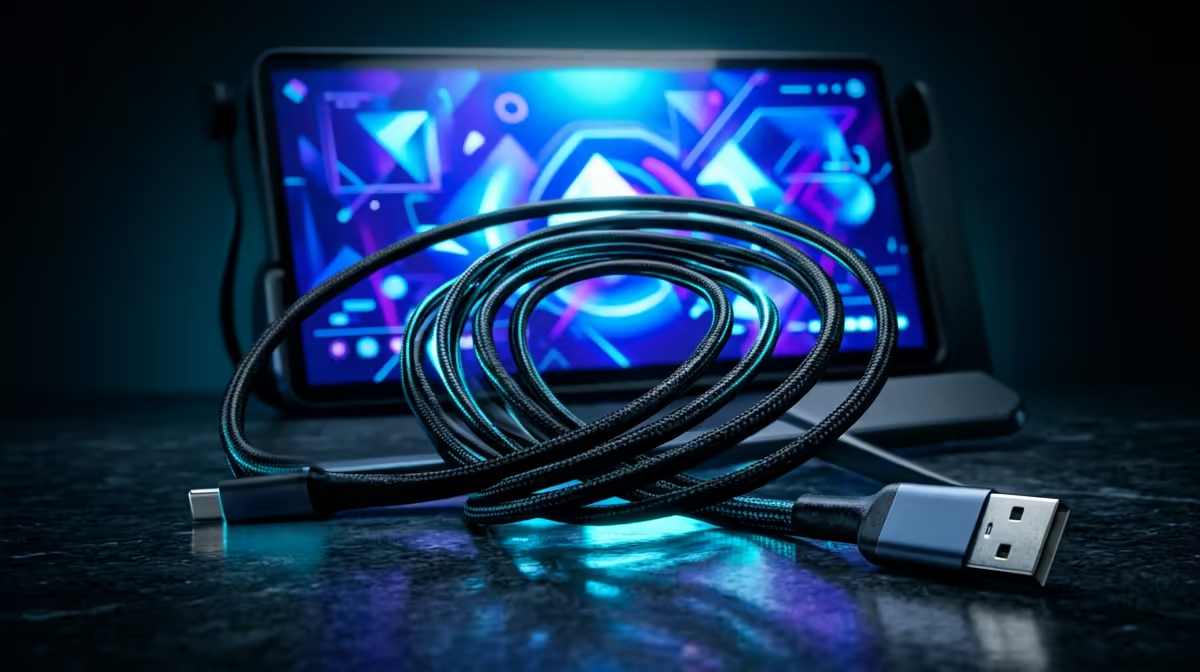
You unbox a portable monitor, plug it into your laptop with the cable in the box, and the screen lights up dimly but stays black. Nothing is broken. The USB-C cable for a portable monitor that shipped in the box is almost certainly charge-only, and a charge-only cable powers the panel but carries no video. The fix is a full-feature USB-C cable, and understanding the difference saves a return and a lot of frustration.
Quick Answer
A portable monitor needs a full-feature USB-C cable that carries DisplayPort Alt Mode video alongside power and data over a single connection. Many bundled cables are charge-only, which is why the screen powers on but shows nothing. If your portable monitor lights up but stays blank on USB-C, swap the cable before you suspect the monitor.
Why "Charge-Only" Cables Exist and Trip People Up
Not all USB-C cables are wired the same way, even though the connector is identical. A charge-only cable contains just the conductors needed for power, leaving out the high-speed pairs that carry video and fast data. Manufacturers ship them because they are cheaper to make and perfectly fine for charging a phone, which is all most people use them for.
The problem is that the plug looks exactly like a full-feature cable. There is no visual cue telling you what is inside, so a charge-only cable sitting in a drawer is indistinguishable from a video-capable one until you try to push a display signal through it. With a portable monitor, the result is the classic symptom: the panel receives power and switches on, the backlight glows faintly, but no image ever appears because the video data has nowhere to travel.
This is the single most common portable-monitor setup mistake, and it sends working monitors back to the shelf as faulty when the cable was the only thing wrong.
What "Full-Feature" Actually Means
A full-feature USB-C cable carries three things over one connection: power to run the monitor, data for any touch or USB functions, and most importantly video via DisplayPort Alt Mode. DisplayPort Alt Mode is the standard that lets a USB-C port reroute some of its high-speed lanes to carry a DisplayPort video signal, so a single cable does the job that used to need a separate video lead. The current line-up in the portable monitor range at Evetech is built around exactly this single-cable convenience, which is why getting the cable right matters so much.
The catch is that your laptop's USB-C port also has to support DisplayPort Alt Mode for video to flow. Most modern laptops do, but not every port on every machine is wired for it. If your laptop port supports it and you use a full-feature cable, one connection runs the whole monitor. If either piece is missing, you fall back to a separate HDMI connection and a power cable.
Spotting a video-capable cable
There is no foolproof marking, but a few cues help. A cable advertised for "video", "4K", "Thunderbolt", or "USB 3.2/4" carries the high-speed pairs and will pass DisplayPort Alt Mode. A cable sold only as a "charging cable" or "fast charge" lead usually does not. When buying, look explicitly for DisplayPort Alt Mode or video support in the listing rather than assuming.
Power, Length and Resolution: the Practical Details
Beyond carrying video, a few specs decide whether the experience is smooth. Power delivery matters if your laptop is meant to charge the monitor, or if the monitor draws power through the same cable; a cable and source that deliver enough wattage keep the panel bright and stable without a second power lead.
Cable length is a quiet gotcha. High-speed video over USB-C is sensitive to length, and very long passive cables can drop the signal or force the resolution lower. For a portable monitor on a desk or beside a laptop, a short cable (under a metre or so) is the safe choice and keeps the full resolution and refresh rate intact. If you need a long run, that is where active cables or a separate video connection come in.
Resolution and refresh rate ride on the same bandwidth. A full-feature cable on a capable port comfortably drives a typical portable monitor at its native resolution. If you are running a higher-resolution panel, confirm the cable and port support the bandwidth so you are not silently capped at a lower mode. To compare panel resolutions and the connection each model expects, the monitor best sellers give a quick read on what current buyers are pairing with their laptops.
Single-Cable Setup Versus the Two-Cable Fallback
The dream scenario is one cable doing everything, and on the right gear it works exactly that way. A laptop with a DisplayPort Alt Mode port, a full-feature cable, and a monitor that draws its power over the same line means you plug in once and the screen comes alive, powered and displaying, with nothing else attached. This is the setup most portable monitors are designed around and the reason the format is so popular for working on the move.
The fallback exists for two reasons. Some laptop USB-C ports do not support video at all, and some monitors need more power than a single laptop port can supply. In either case you split the connection: video over HDMI (often with a mini-HDMI to HDMI cable for the monitor's small port) and power from a separate USB-C charger or power bank. It is less elegant but completely reliable, and it is the safety net when single-cable mode will not work on your particular combination.
Knowing which path your hardware takes before you travel saves a frustrating moment in a meeting room. Test the full single-cable setup at home first. If it lights up and displays from one cable, pack just that cable. If it needs the two-cable approach, pack both leads and the charger so you are never caught with a powered but blank screen away from your desk.
Frequently Asked Questions
Why does my portable monitor power on but show no picture?
The cable is almost certainly charge-only, carrying power but not video. Swap it for a full-feature USB-C cable that supports DisplayPort Alt Mode and the image should appear, assuming your laptop port also supports video output.
How can I tell if a USB-C cable carries video?
Check the listing for DisplayPort Alt Mode, video, 4K, Thunderbolt, or USB 3.2/4 support. A cable sold purely as a charging lead usually lacks the high-speed pairs needed for video.
Does my laptop need to support anything special?
Yes. The USB-C port has to support DisplayPort Alt Mode for single-cable video. Most modern laptops do, but if yours does not, you connect the monitor over HDMI with a separate power cable instead.
Will any USB-C cable that charges my phone work?
Not for video. A phone-charging cable may be charge-only, which powers the monitor but leaves the screen blank. You need a video-capable full-feature cable.
Does cable length affect a portable monitor?
It can. Long passive USB-C cables may drop the video signal or cap the resolution. A short cable under about a metre is the safe choice for full resolution and refresh rate.
A portable monitor is only as good as the cable feeding it. Browse the portable monitors at Evetech and make sure you pair yours with a full-feature USB-C cable that carries video, so it is one connection, picture on, ready to work.