Plugging a desktop graphics card into a laptop is no longer exotic, but the way you connect it splits into two camps with very different priorities. The Thunderbolt 5 enclosure versus OCuLink dock decision turns on a single trade-off that catches people out: the Razer Core X V2 sends up to 140W of power back down a single USB-C cable to charge the laptop while the graphics card runs, whereas a bare OCuLink dock pushes more raw PCIe bandwidth but carries no host power at all, leaving you to charge the laptop separately.
Quick Answer
A Thunderbolt 5 enclosure like the Razer Core X V2 delivers graphics and up to 140W of laptop charging over one USB-C cable, so a single connection does everything. An OCuLink dock provides higher PCIe throughput for slightly better graphics performance but supplies no power to the laptop, meaning you plug in a second charger. Choose Thunderbolt 5 for one-cable convenience, OCuLink for maximum bandwidth.
The Core Trade-Off: Power Versus Bandwidth
This is the whole decision in one line. Thunderbolt 5 carries data and power together. OCuLink carries data only, and more of it.
The Razer Core X V2 and similar Thunderbolt 5 enclosures use a single USB-C cable to do two jobs at once: pipe the graphics signal between laptop and card, and feed up to 140W back to charge the laptop. You arrive at your desk, plug in one cable, and your laptop charges while it drives a desktop GPU. That single-cable docking is the entire appeal.
OCuLink takes a different path. It is a direct PCIe connection that offers higher throughput than Thunderbolt 5, which translates to slightly better graphics performance because less bandwidth is lost in the link. The catch is that OCuLink moves data and nothing else. There is no power delivery in the standard, so your laptop runs on its own charger plugged in separately. You trade the clean single-cable setup for more bandwidth.
Whichever route you pick, the graphics card itself is the part that determines real performance. Evetech's external GPU and docking hardware covers the enclosures and docks that make this kind of setup possible.
Cables and Connection
The cabling experience is the most visible difference day to day. Thunderbolt 5 uses the familiar USB-C connector, and a single cable handles everything. It is the same plug you already use for other peripherals, and the cable carries both the GPU data and the charging current.
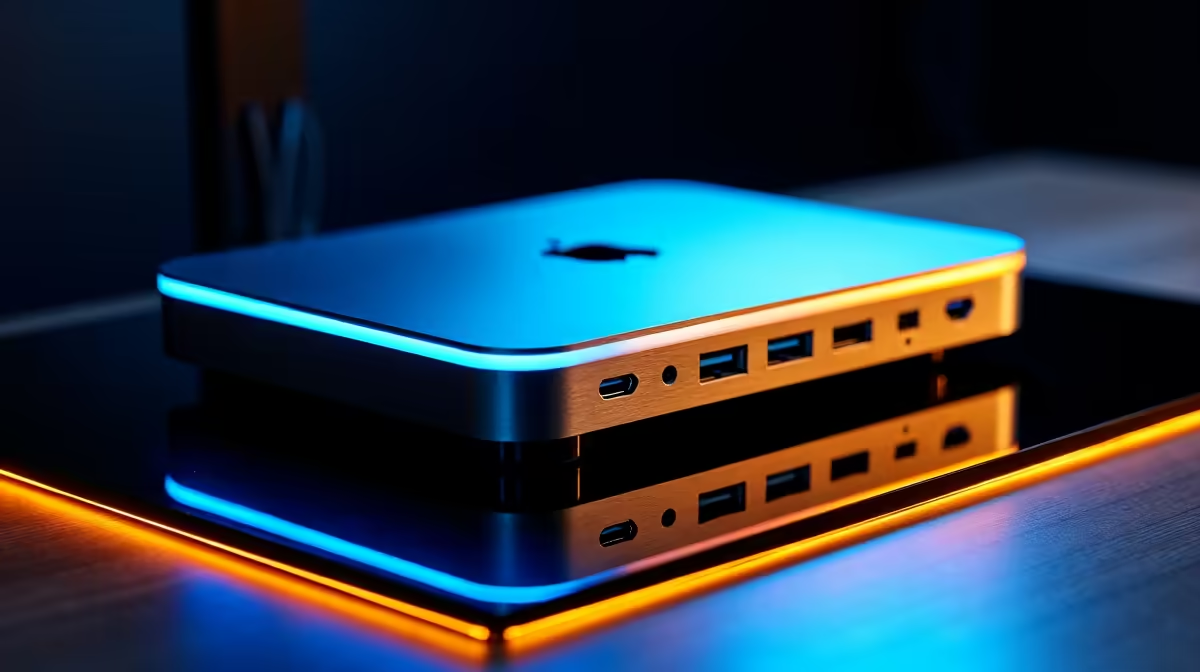
OCuLink uses a dedicated connector that is less common and not the USB-C you are used to. The link is robust and high-bandwidth, but it is a more specialised cable, and because it provides no power you are always managing a second connection for the charger. For a setup you dock and undock often, the extra cable is a real, if small, daily friction.
Frames: Performance in the Real World
On paper OCuLink wins on bandwidth, and in raw throughput it does deliver more than Thunderbolt 5. In practice the gap in frame rates is often modest, because an external graphics card is rarely limited purely by the link, and other factors in the chain shape the final result. OCuLink's higher ceiling helps most when you are pushing a powerful card hard.
Thunderbolt 5 narrows the historical performance gap considerably compared with older Thunderbolt versions, so the bandwidth penalty is smaller than it once was. For most users the difference between the two in actual games is less dramatic than the spec sheet suggests, which is why the power and cabling questions often matter more than the frame counts. The card you choose carries far more weight, so the top-selling graphics cards are worth checking before you settle on an enclosure.
Laptop Compatibility Comes First
Before either option matters, your laptop has to support the connection. Thunderbolt 5 enclosures need a laptop with a Thunderbolt 5 port, and while the standard is backward compatible with earlier Thunderbolt and USB-C ports, you only get the full bandwidth and the 140W charging when both ends are Thunderbolt 5. Plug a Thunderbolt 5 enclosure into an older port and it still works, but with the older port's limits.
OCuLink is more demanding on this front. It requires a laptop with an OCuLink port, which is far less common and tends to appear on specific gaming and workstation models rather than mainstream machines. If your laptop has no OCuLink port, that route is closed regardless of its other merits, which often makes the decision for you before performance even enters the conversation. Check exactly what ports your laptop has before choosing, because the dock you can use depends on it.
Pairing the Right Graphics Card
The external dock is only the bridge, and the card you put in it does the actual work. There is little sense pairing a top-tier card with a connection that throttles it, or a modest card with the highest-bandwidth dock you can find. Match the two: a powerful card benefits more from OCuLink's extra throughput, while a mid-range card sees little difference between the two links, making Thunderbolt 5's convenience the easy call.
Power matters here as well. A bigger card draws more, and the enclosure or dock must supply enough power to feed it. Check that the unit's power rating comfortably covers the card you intend to run, because an external setup is only as capable as the weakest link in the chain, whether that is the cable, the dock's power supply, or the laptop's port.
Which One Suits You
Pick a Thunderbolt 5 enclosure like the Razer Core X V2 if you value a clean, single-cable dock that charges your laptop as it powers the GPU. It suits anyone who docks and undocks a laptop daily and wants one plug to do everything, accepting a small bandwidth trade-off for the convenience.
Pick an OCuLink dock if you want the highest possible PCIe throughput and you do not mind a second cable for charging and a less common connector. It suits performance-focused users running a strong card who want to squeeze out every frame the link can carry, and who keep the setup mostly stationary.
Frequently Asked Questions
Does an OCuLink dock charge my laptop?
No. OCuLink carries data only and provides no host power, so you must charge the laptop with its own charger plugged in separately. This is the main practical drawback against a Thunderbolt 5 enclosure.
How much power does the Razer Core X V2 deliver?
The Razer Core X V2 returns up to 140W to the laptop over the single USB-C cable while also carrying the graphics signal. That is enough to charge most laptops as they run a desktop GPU through the enclosure.
Is OCuLink faster than Thunderbolt 5?
OCuLink offers higher raw PCIe throughput, which can mean slightly better graphics performance. In actual games the difference is often modest, because the link is rarely the only factor limiting an external card.
Which is better for a laptop I dock every day?
A Thunderbolt 5 enclosure, because a single USB-C cable handles both graphics and charging. You dock with one plug and your laptop charges automatically, which is far more convenient than OCuLink's separate power cable.
Can I use any graphics card in these docks?
Both enclosures and docks accept standard desktop graphics cards, subject to physical size and power limits of the unit. The card you pick matters more for performance than the link type, so choose the dock around the GPU you intend to run.
Turning a laptop into a desktop-class gaming rig? Compare enclosures and docks in the docking station range at Evetech and match one to the graphics card you want to run.