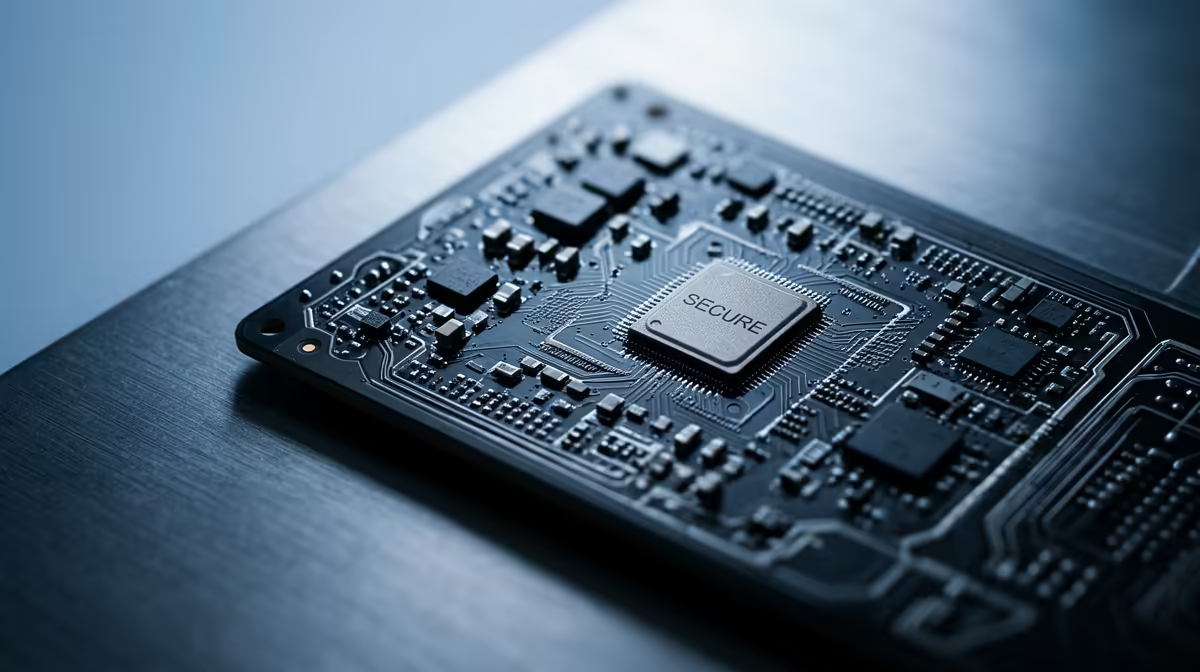
A TPM 2.0 check is sensible for a homeschooling family when confirming Windows 11 readiness, device encryption or the security condition of a used computer. It is not a reason to replace a working machine without checking the full operating-system requirements. The result should guide a supported upgrade plan, not become a stand-alone shopping label.
Check firmware and support status
Open the Windows security information and firmware settings to see whether a compatible trusted platform module exists and is enabled. Do not clear it casually because encryption keys may depend on its current state. Back up recovery keys and important school files before changing firmware. Windows 10 support ended on 14 October 2025, so an unsupported family computer needs a deliberate security decision rather than indefinite postponement.
Evaluate the complete learning device
Confirm processor support, memory, storage health, camera, microphone, Wi-Fi and battery condition alongside TPM status. The verified ASUS ExpertBook P1503 costs R9,858 and includes a Core i5-13420H, 8GB memory, 512GB storage and Windows 11 Pro, providing a current comparison point rather than proof of every security setting. Verify the exact configuration before purchase.
Test all learner accounts, printing, video lessons and accessibility tools after any firmware or operating-system change. Keep recovery information with the responsible adult, not inside the computer that may need recovery. That small administrative step matters more than repeatedly running the same compatibility checker.
Checking a family computer for Windows 11? > Ask Evetech for a supported replacement option if the full hardware assessment shows the current device has reached its limit.