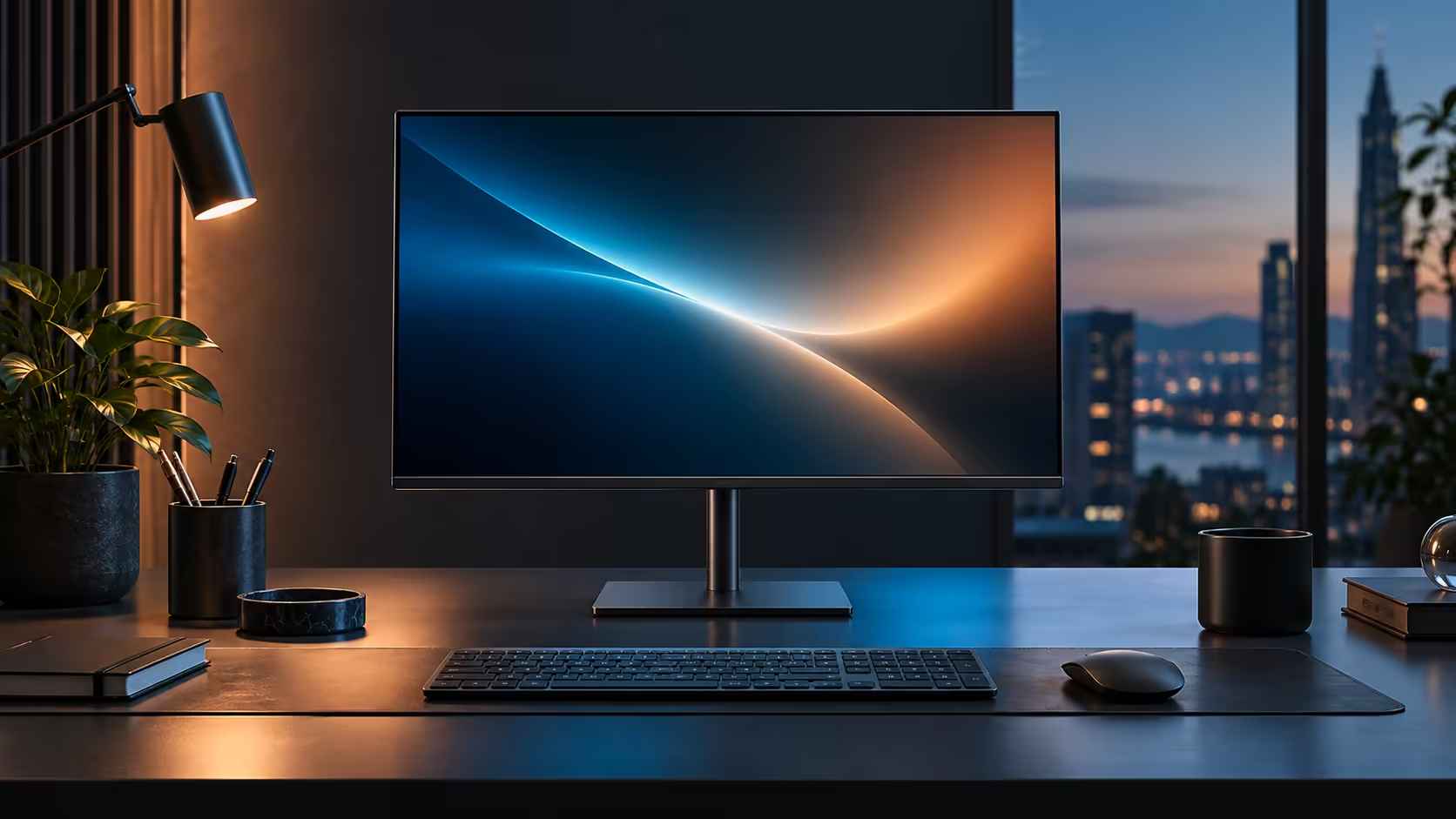
Sharp office text is a pixel-density question dressed up as a screen-size question, and most buying guides get the two confused. The right pairing of size and resolution matters more than either number alone, and the 23.8-inch QHD Dell Pro 24 Plus P2425DE at R6,099 sits inside the band that keeps small type genuinely crisp.
Quick Answer
Aim for roughly 110 to 140 pixels per inch, a band that 23.8 inches of QHD lands squarely inside. That pairing keeps 10pt type clean at an arm's length without leaning on heavy Windows scaling. The panel doing it costs R6,099.
🔢 Why pixels per inch matters more than either spec alone
A resolution number by itself tells you nothing about sharpness until it is measured against the physical screen size it is spread across.
Pixels per inch, or PPI, is resolution divided by physical diagonal size, and it is the number that actually determines how crisp text looks. A 1920 x 1080 panel at 21 inches has meaningfully higher PPI than the same resolution stretched across a 27-inch screen, and a 2560 x 1440 panel at 23.8 inches reaches close to 123 PPI, comfortably inside the 110 to 140 range where small office fonts stay sharp without any scaling adjustment. Quoting resolution alone, without the screen size it is displayed on, is close to meaningless for judging sharpness.
🎯 The 110 to 140 PPI sweet spot, explained
This range is not arbitrary; it reflects how human eyes actually resolve detail at typical desk viewing distances.
Below roughly 100 PPI, individual pixels and the edges of small text characters start becoming faintly visible at normal reading distance, which is the "fuzzy" look people associate with older, lower-resolution monitors. Above roughly 150 PPI, the improvement in sharpness becomes harder to perceive without magnification, meaning you are paying for resolution the eye can no longer distinguish from a slightly lower figure. The 110 to 140 PPI band sits right where sharpness gains are still clearly visible but resolution is not being wasted beyond what normal vision can register at an arm's length.
📐 How screen size changes which resolution you actually need
The same PPI target requires a different resolution depending on how large the panel physically is.
A smaller 23.8-inch screen reaches the 110 to 140 PPI band at QHD's 2560 x 1440. Stretch that same panel size to 27 inches and PPI drops to around 109, sitting right at the low edge of the comfortable band, while stretching to 32 inches at the same resolution drops PPI to roughly 92, noticeably below it, which is why larger QHD panels often benefit from sitting further back to compensate, or from a higher resolution like 4K to hold sharpness at the bigger size. Matching screen size and resolution together, rather than maximising either independently, is what actually produces sharp text.
🖱️ Getting the sharpest result from the pairing you choose
Once you have picked a screen inside the right PPI band, Windows scaling decides whether you actually see the benefit.
The scaling percentage lives under Display settings, reached from the desktop's own right-click menu, sitting just below your monitor's resolution. Running at 100% scaling on a panel inside the 110 to 140 PPI band gives the sharpest, most space-efficient result; scaling up to 125% trades a small amount of that sharpness back for larger text, which some people prefer for comfort over maximum desktop space. Panels sitting inside this range fill the office monitor range, monitor best sellers shows which ones shoppers are actually taking home, and the wider monitor category covers other sizes in the same band.
Frequently Asked Questions
What pixel density is considered sharp for office text?
Roughly 110 to 140 pixels per inch is the range where small fonts stay crisp at a normal desk viewing distance without needing heavy Windows scaling.
Is a higher resolution always sharper regardless of screen size?
No. Resolution has to be considered alongside physical screen size, since the same pixel count spread across a larger panel produces lower pixel density and softer detail.
Does a 32-inch QHD monitor look blurry compared with a 24-inch one?
Not blurry, but noticeably lower in pixel density, roughly 92 PPI against 123 PPI at 23.8 inches, which is a real, visible difference in text sharpness at close range.
Should I always run my monitor at 100% Windows scaling?
Only if the resulting text size is comfortable for you. 100% gives the sharpest and most space-efficient result on a panel inside the ideal PPI band, but a higher scaling percentage is a reasonable trade for larger, easier-to-read text.
Does eyesight change what counts as a sharp PPI figure?
Slightly. Someone with excellent close-up vision may notice softness a little earlier than the 110 PPI mark, while others are comfortable somewhat below it; the 110 to 140 range is a practical average, not a hard boundary.
Is a higher PPI always better regardless of cost?
Not necessarily. Past roughly 150 PPI at normal desk viewing distances, further increases are harder for most people to perceive, so the extra cost of chasing a higher figure buys diminishing visible benefit.
Does laptop screen PPI need to match an external monitor's PPI?
No. Windows handles two displays with different pixel densities without issue, though text and icons may appear a slightly different physical size between the two until scaling is adjusted per screen.
🖨️ Testing sharpness yourself before you commit to a purchase
A spec sheet number is useful, but seeing the actual panel in person, or reading real-world reviews of the specific model, confirms it holds up outside a calculator.
Open a plain document with 10 or 11-point text on any candidate monitor and look closely at the edges of individual letters from your normal seated distance. On a panel genuinely inside the 110 to 140 PPI band, character edges should look clean and defined rather than slightly fuzzy or surrounded by a faint halo. This simple check, done in a shop or against a review sample, is a more reliable gut check than trusting the PPI number alone, since panel coating, sub-pixel layout and anti-glare treatment can all shift how sharp a given pixel density actually looks in practice.
Ready to pick a monitor size and resolution that actually stays sharp?
Check the pixel density the pairing produces, not just the resolution number on its own.