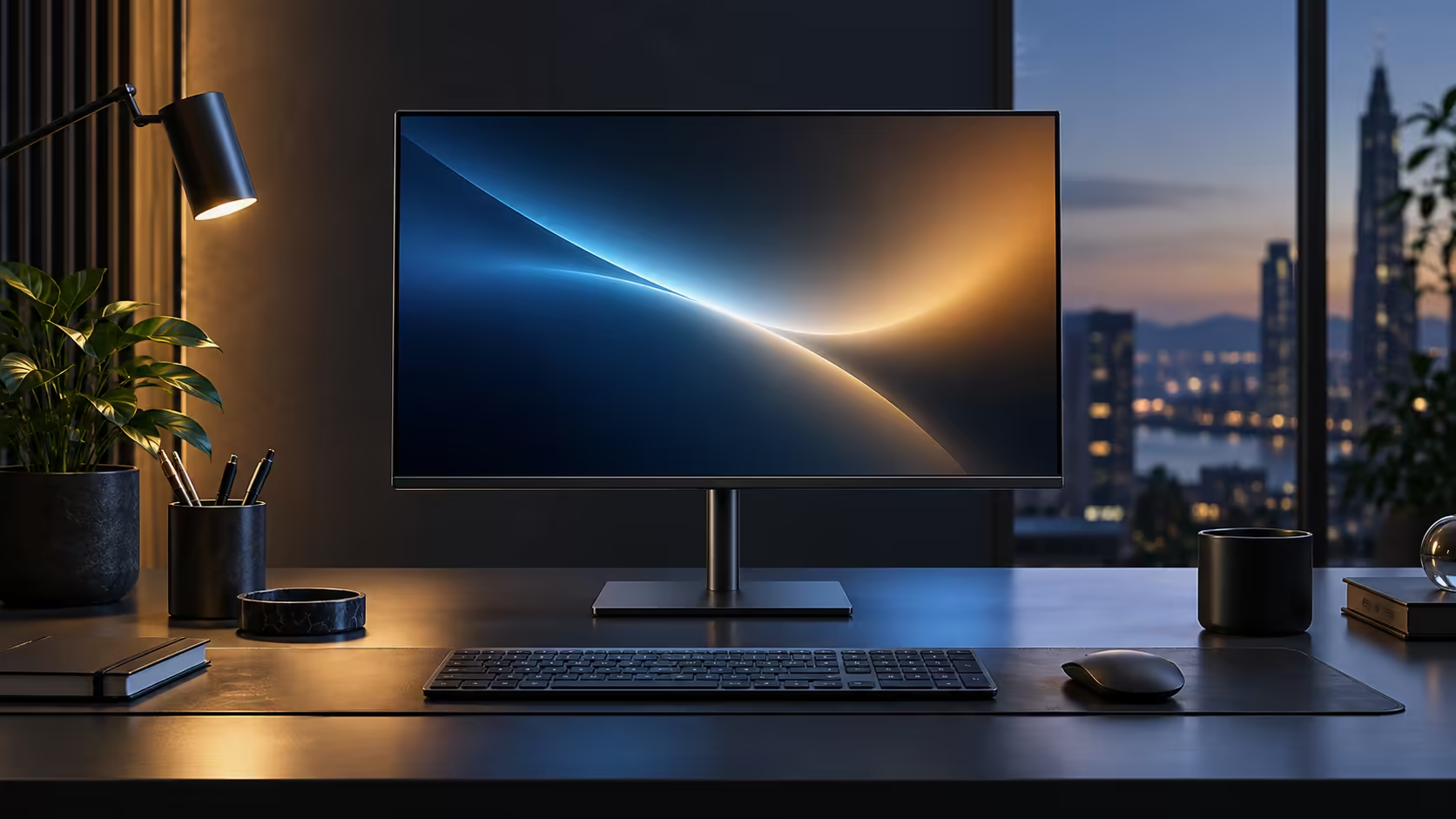
Most buying guides list monitor specs in the wrong order for a laptop-based desk, leading with resolution when the first real question is whether the cable will actually run the laptop's power at the same time. A USB-C monitor built for a work laptop needs checking in a specific sequence, and the 23.8-inch Dell Pro 24 Plus P2425DE answers every item on it for R6,099.
Quick Answer
Check charging wattage first, then resolution, refresh rate, the port list and what the stand adjusts. A 90W link runs most business laptops on one cable without a separate charger. The 23.8-inch Dell Pro 24 Plus P2425DE covers that whole list at R6,099.
⚡ Charging wattage, checked first
This is the one spec that decides whether the "one cable" promise actually holds for your specific laptop.
Look up your laptop's original charger wattage, usually printed on the brick itself or in the laptop's own specifications. A monitor supplying at least that much power keeps the laptop charging normally while docked; one supplying less will still charge a laptop under light use but may lose ground slowly during a demanding task like a video call plus a large file transfer at once. The Dell Pro 24 Plus P2425DE supplies up to 90W, which comfortably covers laptops that shipped with a 65W charger and most that shipped with 90W chargers too.
🖥️ Resolution and refresh rate, in that order
Once charging is settled, these two decide how the screen actually feels to use day to day.
QHD's 2560 x 1440 gives noticeably more desktop space and sharper text than Full HD at the same screen size, which matters for anyone running two documents or a spreadsheet with many columns side by side. Refresh rate matters less for typical office work, though 100Hz over 60Hz smooths scrolling and dragged windows in a way people notice without always being able to name why. Neither spec is worth much without checking that your laptop's graphics can actually drive it over a single USB-C cable at the intended resolution and rate.
🔌 The port list that decides what else you can retire
Every extra port on the monitor is one less separate accessory cluttering the desk.
An RJ45 Ethernet socket removes the need for a USB network dongle. Downstream USB ports take a keyboard, mouse and webcam permanently. A DisplayPort output lets a second monitor daisy chain from the first, useful if your setup might grow later. Count what you currently plug into the laptop directly, and check the monitor's port list covers each of those before assuming a hub monitor replaces everything.
🪑 What the stand actually adjusts
The cheapest-looking spec on the list is often the one people regret skipping.
Height adjustment alone fixes the majority of neck strain complaints, and it is worth confirming a monitor has it before checking for tilt, swivel or pivot on top. Compare the current office monitor range against a docking station if your laptop's USB-C port turns out not to carry video, and check current laptop deals if the laptop itself needs replacing alongside the monitor.
🧪 Testing your specific laptop before you commit to a monitor
The single most useful thing you can do before buying is confirm your laptop's USB-C port actually behaves the way you expect, rather than assuming from its specification sheet alone.
Look up the laptop model's official specifications and search specifically for "DisplayPort Alt Mode" or "USB-C with video output," since not every USB-C port on every laptop carries a picture, even when the same port charges the laptop perfectly well. If you already own a USB-C cable and any external display, plugging in and checking whether a picture appears at all confirms video support directly. If it works, the next check is Settings, System, Display, to see what maximum resolution and refresh rate Windows offers for that connection, which tells you whether the port can drive the monitor's full QHD 100Hz specification or only a reduced mode.
🔍 Reading a monitor's own specification sheet accurately
Once you know what your laptop supports, matching it against the monitor's own listed specifications avoids a mismatch discovered only after delivery.
Look specifically for the monitor's Power Delivery wattage, its DisplayPort or HDMI version numbers, and whether USB-C video input is listed separately from USB-C charging, since some budget monitors accept USB-C for power only and require a separate HDMI or DisplayPort cable for the picture itself. The Dell Pro 24 Plus P2425DE carries video, data, network and 90W of charging over the single USB-C connection, which is the specific combination a laptop-based desk needs to work as a true one-cable setup rather than one cable plus a second video lead.
📋 A short checklist worth keeping while you compare monitors
Rather than trying to hold every spec in your head at once, work down a fixed list for each model you are considering.
Confirm the charging wattage against your laptop's own charger rating first, since this is the spec most likely to disappoint if skipped. Confirm the resolution and refresh rate second, checking your laptop can actually output that combination over USB-C. Confirm the full port list third, matching it against what currently plugs directly into your laptop. Confirm the stand's adjustment range last, since this is the cheapest spec to check and the easiest one to regret ignoring once the monitor is already on the desk.
Frequently Asked Questions
What is the single most important spec to check first?
Charging wattage against your laptop's original charger rating. Everything else about the monitor works regardless, but a wattage mismatch is the thing most likely to disappoint you daily.
Does resolution matter more than refresh rate for office use?
Generally yes. Higher resolution gives more usable desktop space every single day, where refresh rate mainly smooths motion during scrolling and dragging.
Can any USB-C monitor charge any USB-C laptop?
No. Both the monitor's Power Delivery output and the laptop's USB-C input have to support charging, and the wattage ceiling on either side limits the connection.
Is a built-in Ethernet port worth prioritising?
If your household relies on shared Wi-Fi for video calls, yes. If you already have a strong, uncontested wireless connection, it is a smaller factor.
Ready to check a monitor against your specific laptop before buying?
Confirm charging wattage first, then work down the rest of the list in order.