Open a heavy architectural scene or a dense sculpt and the slowdown rarely starts where people expect. The viewport stutters, the save dialog hangs, and a render that should take minutes never finishes. Most users blame the GPU or the CPU. The real culprit, almost every time, is RAM. Once a scene's working data outgrows physical memory, the operating system starts shuffling pages to disk, and that single shift drags everything to a crawl long before either processor is genuinely maxed out.
Quick Answer
RAM is the first bottleneck on large 3D scenes because once scene data exceeds installed memory, the OS swaps to disk, and disk is orders of magnitude slower than RAM. For serious 3D work, 32GB is a sensible floor and 64GB or more is the comfortable target for heavy scenes. Adding RAM usually delivers a bigger jump than upgrading the GPU.
What Actually Fills Your Memory
A 3D scene in memory is far larger than the file on disk. Mesh vertices and faces, UV data, texture maps loaded uncompressed, simulation caches, undo history, and the render engine's own buffers all live in RAM simultaneously. A single 8K texture set can occupy hundreds of megabytes once decoded, and a scene with dozens of them adds up fast.
Geometry and subdivision
Subdivision surfaces multiply polygon counts behind the scenes. A model that looks like a few hundred thousand polygons can balloon into tens of millions once subdivided at render level, and each of those polygons carries position, normal and UV data in memory.
Textures and caches
Textures are the quiet memory killers. They load uncompressed for rendering, so a folder of 4K and 8K maps consumes vastly more RAM than its file size suggests. Physics and fluid simulations add cache data on top, and that cache often has to stay resident across the whole timeline.
Why Swapping Collapses Performance
When the OS runs out of physical RAM it does not stop. It moves the least-used memory pages to a swap file on storage, freeing space for active data. The problem is the speed gap. Even a fast NVMe SSD is far slower than DDR5, and a mechanical drive is slower still by a wide margin. The moment your scene starts swapping, every operation that touches swapped data waits on the disk instead of memory, and the application appears to freeze.
This is why a machine with a powerful GPU and only 16GB of RAM can feel slower in a heavy scene than a modest machine with 64GB. The GPU never gets the chance to be the limiter, because the system is stuck moving data back and forth from disk.
The CPU and GPU are downstream of memory
A CPU can only process data that is resident in RAM. A GPU can only render geometry and textures that fit in its VRAM, which is itself fed from system RAM. If system memory is the chokepoint, faster cores and more CUDA units sit idle waiting. That is the precise reason memory becomes the first wall you hit.
How Much RAM Prevents the Wall
There is no single right number, but the brackets are clear. For hobby modelling and light scenes, 16GB gets by. For professional Blender, Maya or 3ds Max work with real texture detail, 32GB is the practical floor. Heavy archviz, VFX, or large simulation work wants 64GB, and studios pushing film-grade scenes go to 128GB or beyond.
Dual-channel configuration matters too. Two matched sticks feed the CPU faster than one larger stick, so a balanced kit beats a single high-capacity module. Builders putting together a workstation will find prebuilt options worth comparing in the PC best sellers, where memory-heavy configurations are easy to spot. And if you are speccing a creator rig from scratch rather than upgrading, it pays to plan RAM headroom before settling on a GPU.
For creators also moving into physical prototyping, browsing the 3D printer selection rounds out a workflow that takes scenes from screen to printed object.
Memory Speed and Configuration
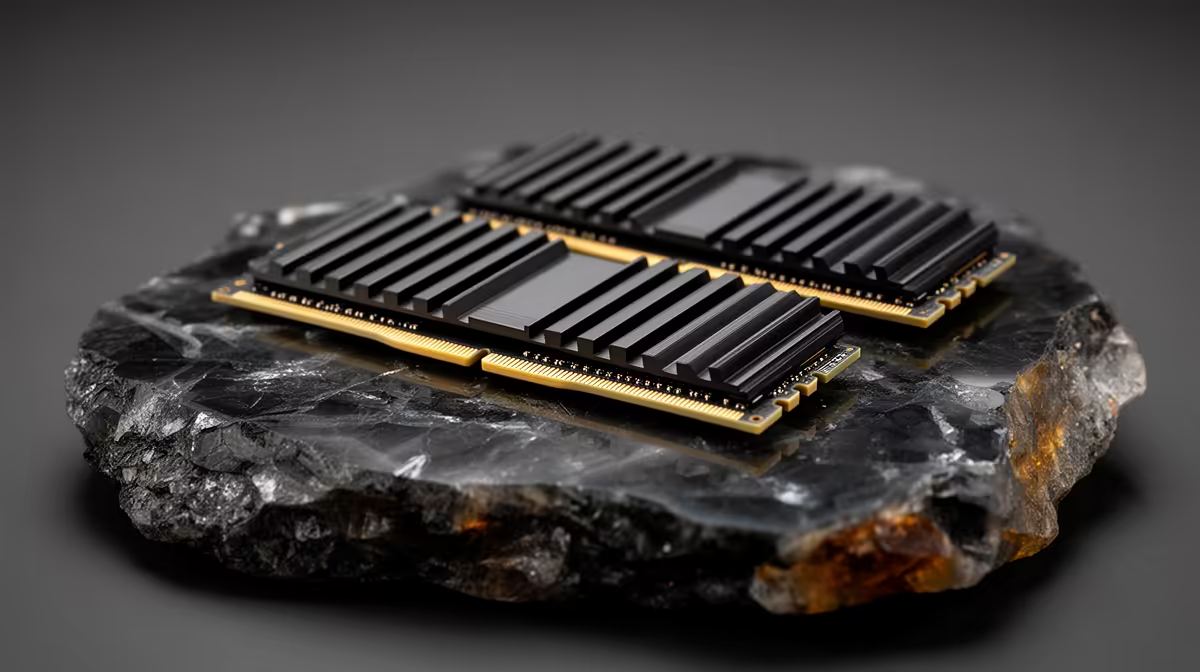
Beyond capacity, memory speed matters for bandwidth-sensitive workloads. DDR5 offers a significant bandwidth improvement over DDR4 at equivalent capacity, and on platforms that support it, the difference is most visible when working with large uncompressed textures and dense geometry that cycle in and out of the CPU cache frequently.
Populating all available memory channels is the other configuration lever. Most consumer motherboards support dual-channel, and filling both slots rather than relying on a single stick gives the CPU noticeably faster access to data. This is a free performance gain that costs nothing beyond buying a matched kit rather than a single high-capacity module.
For SA buyers, DDR5 kits have come down considerably in price over 2025, making the step from DDR4 to DDR5 a realistic upgrade rather than a premium one on current AM5 and Intel platforms. If you are building new, DDR5 is the sensible default. Upgrading an existing system? Filling the second memory slot with a matching stick is often the fastest way to extend the life of a machine that has started to feel slow on heavy scenes.
Practical Ways To Reduce Memory Pressure
If you cannot add RAM immediately, a few habits help. Work with proxy or lower-resolution stand-in geometry and swap to full detail only at render time. Keep texture resolution proportionate to how close the camera gets. Clear simulation caches you are not using, and trim undo history limits. Close browser tabs and background apps that quietly hold gigabytes. These reduce the resident footprint and delay the point where swapping kicks in, but they are stopgaps. The durable fix is simply more memory.
When you are ready to upgrade, the accessories and component range at Evetech covers the supporting hardware that keeps a memory-upgraded workstation running cleanly, from cooling to cabling.
Frequently Asked Questions
How much RAM do I need for serious 3D work?
For professional modelling and rendering, 32GB is a practical minimum and 64GB is comfortable for heavy scenes. Light hobby work manages on 16GB, while VFX and large simulations benefit from 128GB.
Does more RAM speed up rendering directly?
Not the per-frame render speed itself, but it prevents the catastrophic slowdown of disk swapping on large scenes. Enough RAM lets the CPU and GPU work without waiting on storage.
Is GPU VRAM the same as system RAM?
No. VRAM is dedicated memory on the graphics card for rendering, while system RAM holds the scene the application is working with. Both can bottleneck, but system RAM usually fills first on large scenes.
Can a fast SSD replace RAM for 3D work?
No. An NVMe SSD reduces the pain of swapping but is still far slower than RAM. It is a fallback, never a substitute for adequate physical memory.
Does dual-channel RAM matter for 3D?
Yes. Two matched sticks in dual-channel feed the CPU faster than a single module of the same total capacity, which helps in memory-intensive workloads.
If your 3D scenes are stalling, the fix usually starts with memory. Compare DDR5 kits and memory-heavy workstation builds at Evetech to give your CPU and GPU the headroom they need to actually do their jobs.