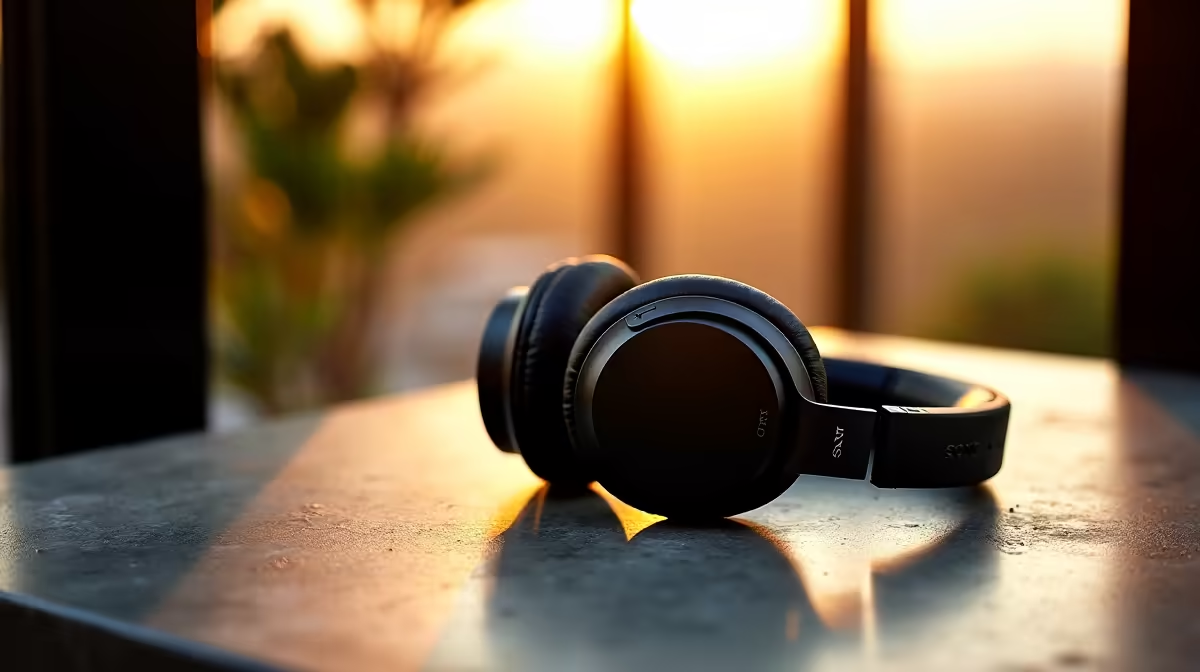
Tired of getting tangled in cables mid-clutch? Or yanking your headset off when you stand up? We've all been there. Making the jump to wireless audio feels like a massive upgrade, but the thought of a complicated setup can be off-putting. The good news is, a modern wireless headphones setup is incredibly simple. You can be free from wires and enjoying crystal-clear audio in just a few minutes. Let's get you sorted. ⚡
Your First Step: Understanding Wireless Tech
Before diving into the setup, it helps to know what you're working with. Most gaming headsets use one of two technologies: Bluetooth or a dedicated 2.4GHz USB dongle.
- Bluetooth: This is the universal standard. It's fantastic for versatility, allowing you to connect to your PC, laptop, phone, or tablet with ease. If you need one headset for gaming, music on the go, and taking calls, a versatile Bluetooth headset is a brilliant choice.
- 2.4GHz RF (USB Dongle): This is the gamer's choice. By using a dedicated USB dongle, these headsets create a direct, low-latency connection to your PC or console. This means zero noticeable audio delay… crucial for hearing those footsteps in competitive shooters.
The Ultimate Wireless Headphones Setup Guide
Getting your new gear running is easier than you think. Whether you've gone for Bluetooth or a 2.4GHz model, the process for a complete wireless headset setup is straightforward.
Setting Up via 2.4GHz Dongle (The Gamer's Choice)
This is the definition of "plug-and-play" and our recommended method for a flawless gaming experience.
- Plug It In: Take the USB dongle that came with your headset and plug it into a free USB port on your PC or console.
- Power On: Turn your wireless headset on.
- Wait a Second…: The headset and dongle are pre-paired. They will automatically connect within seconds. You'll usually hear a beep or see a solid light to confirm.
- Confirm Output: Your PC should automatically switch audio to the headset. If not, just click the sound icon in your taskbar and select your new headset from the list. That's it! 🚀
Setting Up via Bluetooth (The Universal Method)
Connecting via Bluetooth takes one extra step but opens up a world of device compatibility.
- Enter Pairing Mode: Turn on your headset and activate its Bluetooth pairing mode. This usually involves holding the power button for a few extra seconds until a light starts flashing. Check your user manual if you're unsure.
- Open PC Settings: On your Windows PC, go to
Settings > Bluetooth & devices > Add device. - Select & Connect: Choose "Bluetooth" from the list. Your PC will scan for nearby devices. Click on your headset's name when it appears.
- Done! Your PC will confirm the connection, and your wireless headphones setup is complete.
Pro Tip: Signal Integrity
For the best 2.4GHz performance, plug your USB dongle into a front-panel port on your PC. This avoids potential signal interference from other cables and the metal case at the back, ensuring your connection stays rock-solid when the action heats up.
Creating a Truly Wireless Zone ✨
Why stop at just the headset? A clean, cable-free desk not only looks better but feels less cluttered, helping you focus. You can extend your wireless freedom across your whole audio setup.
For music and media on the move, a pair of True Wireless (TWS) earbuds are perfect for tucking into a pocket or laptop bag. And for those times when you want to fill the room with sound, a set of quality wireless speakers can complete your rig without adding to the cable spaghetti behind your monitor. An easy setup for all your audio gear is the new standard.
Ready to Cut the Cord for Good?
A clean setup and immersive audio are just a click away. Explore our massive range of top-tier wireless gaming headsets at Evetech and find the perfect match for your playstyle.