You’ve lined up the perfect shot in Apex Legends. The enemy is in your sights, one click away from being sent back to the lobby. You press the button… and your aim stutters. That dreaded lag spike hits, and the moment is lost. If you're experiencing frustrating wireless mouse signal issues, you're not alone. Here in South Africa, interference can be a real pain. But don’t worry, we’ve got your back with a guide to a lag-free fix.
Understanding Common Wireless Mouse Signal Issues
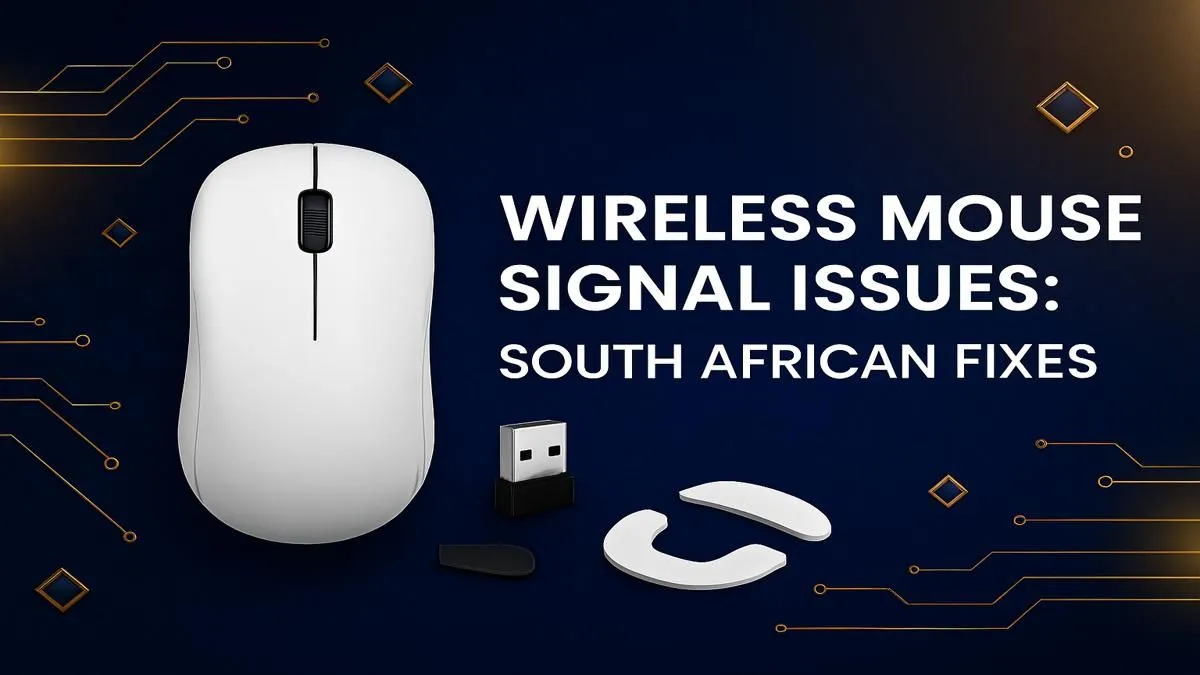
Before we dive into the fixes, let's quickly diagnose the problem. Most wireless mouse lag stems from one of three culprits: signal interference, distance, or low power. Your mouse communicates with your PC via a 2.4GHz radio frequency, a band it shares with Wi-Fi routers, Bluetooth devices, and even your neighbour's microwave. When that signal gets disrupted, you experience stuttering, jumping, or a completely unresponsive cursor. This guide will help you troubleshoot these wireless mouse signal issues for good.
Physical Interference: The Unseen Enemy
The most common cause of a poor wireless signal is physical obstruction or interference from other electronic devices. Your gaming setup itself could be the problem.
- Distance and Line-of-Sight: Is your PC tower tucked away under your desk? The metal case and wooden desk can weaken the signal. Try moving the USB dongle to a front-panel port or using a USB extension cable to get it closer to your mousepad.
- USB Port Crowding: Plugging your mouse dongle right next to other high-bandwidth devices (like a USB 3.0 external drive) can cause electronic "noise." Give your mouse dongle some breathing room.
- Other Wireless Devices: Routers, cordless phones, and Bluetooth speakers are major sources of signal interference. Try to keep them at least a metre away from your mouse and its receiver for a more stable, lag-free experience. While you're optimising your desk space, consider your comfort too; a good ergonomic wrist rest can make a huge difference during long sessions.
Pro Gamer Tip ⚡
Always plug your wireless mouse dongle directly into your PC or a powered USB hub. Avoid using passive (unpowered) USB hubs, as they often can't provide the stable power and bandwidth needed for a flawless, lag-free connection, especially during intense gaming moments.
Software and Driver Fixes for a Lag-Free Connection
If you've sorted out the physical environment and still face problems, the issue might be on the software side. Outdated drivers or incorrect settings can mimic the symptoms of signal interference.
Keep Your Drivers Updated
Mouse manufacturers frequently release firmware and software updates that improve performance and fix connectivity bugs. Head to the official website for your mouse brand (e.g., Logitech G Hub, Razer Synapse) and ensure you have the latest version installed. A simple update is often the quickest fix for persistent stuttering. Sometimes, a full peripheral refresh is the best solution. If your keyboard is also feeling a bit tired, you might find amazing value in a new keyboard and mouse combo, ensuring perfect compatibility.
Check Your Power Settings 🔋
Windows has power-saving features that can sometimes be a little too aggressive, cutting power to USB ports to save energy.
- Go to Device Manager in Windows.
- Expand the Universal Serial Bus controllers section.
- Right-click on your USB Root Hubs and select Properties.
- Go to the Power Management tab.
- Uncheck the box that says "Allow the computer to turn off this device to save power."
This can prevent Windows from throttling the connection to your mouse receiver, solving many intermittent wireless mouse signal issues. A responsive setup is key, and that extends to your entire rig. If you're thinking of an upgrade, you can find the cheapest gaming keyboard in South Africa right here to pair with your newly-fixed mouse.
When It's Time for an Upgrade
You’ve tried everything, but the lag persists. Sometimes, the hardware itself is the problem. Older wireless mice may lack the advanced signal-hopping technology of modern gaming mice, making them more susceptible to interference. If your mouse has served you well for years, it might simply be time for an upgrade. A new mouse can offer a stronger, more stable connection, a better sensor, and a more ergonomic design.
Investing in your setup doesn't have to break the bank. You can often find some of the best gaming keyboard deals to complement your new mouse. For those who love to tinker, customising your board with fresh keyboard keycaps or responsive new keyboard switches can make your entire battlestation feel brand new. ✨