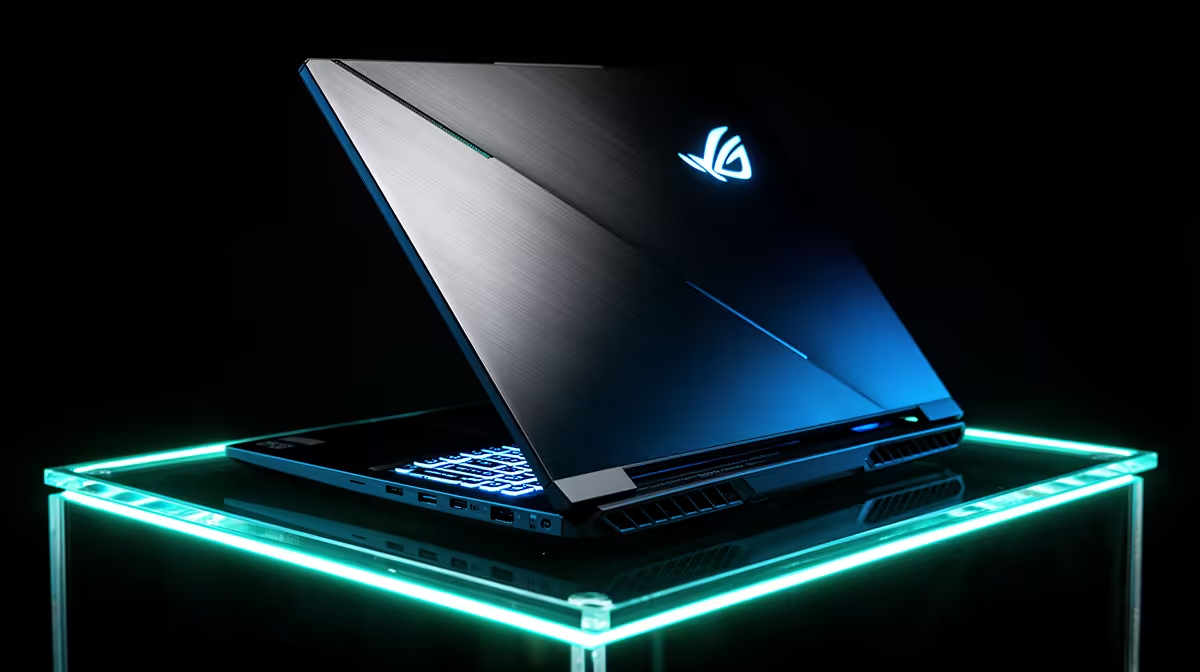
So, you've got a killer Lenovo gaming laptop, but you're not hitting those silky-smooth frame rates you crave? Whether you're battling through an unexpected outage in Joburg or chasing wins from a dorm in Cape Town, every frame counts. Don't just accept stuttering and lag. This guide will show you how to optimize your Lenovo gaming laptop performance, squeezing every drop of power from your machine and getting you back in the game. Let's get started. 🚀
The Software Foundation for Peak Performance
Before you even touch your in-game settings, the biggest performance gains are often found in your system's software. Getting this right is the essential first step to optimize your Lenovo gaming laptop performance.
### Driver Updates are Non-Negotiable
Outdated graphics drivers are the number one cause of poor gaming performance. Think of them as the instruction manual telling your hardware how to run the latest games.
- NVIDIA (GeForce): Use the GeForce Experience app to download the latest "Game Ready" drivers.
- AMD (Radeon): Use the AMD Software: Adrenalin Edition to keep your drivers fresh.
- Intel (Arc/Iris Xe): Use the Intel Driver & Support Assistant.
Keeping these updated ensures compatibility and often includes specific performance improvements for new titles.
### Master Lenovo Vantage & Windows Settings
Your laptop comes with powerful built-in tools. Use them!
- Lenovo Vantage: Open this app and find the "Thermal Mode" setting. For gaming, always switch it to Performance Mode (often represented by a red icon). This cranks up the fan speed and pushes more power to your CPU and GPU.
- Windows Power Plan: Go to Settings > System > Power & Battery. Set the Power Mode to "Best Performance".
- Game Mode: Ensure Windows Game Mode is enabled (Settings > Gaming > Game Mode). It helps prioritise system resources for your game.
These simple tweaks tell your machine to focus all its energy on what matters... winning. Machines like the versatile Lenovo IdeaPad 3 Gaming laptop see a significant boost from just these basic optimisations.
Fine-Tuning Your Graphics for Maximum FPS
Now we dive into the graphics control panel. This is where you can make granular adjustments that have a massive impact on how your games look and run. A proper setup here is key for any Lenovo laptop optimization.
Start by right-clicking your desktop and opening the NVIDIA Control Panel or AMD Radeon Software. Under the "Manage 3D settings" tab, focus on these key options for a quick performance boost:
- Power Management Mode: Set to "Prefer maximum performance".
- Texture Filtering - Quality: Set to "High performance".
- Vertical Sync (V-Sync): Turn this off here to reduce input lag. You can enable it in-game if you experience screen tearing.
These settings tell your GPU to prioritise raw speed over visual fidelity, which is exactly what you want for competitive gaming. For high-end machines like those in the Lenovo Legion gaming laptop range, you have more headroom to keep quality settings higher while still enjoying incredible frame rates.
Quick FPS Boost Tip ⚡
In your game's graphics settings, the two biggest performance hogs are often 'Shadow Quality' and 'Anti-Aliasing'. Dropping shadows from 'Ultra' to 'High' or 'Medium' can net you a 10-15% FPS gain with minimal visual difference. Try turning Anti-Aliasing down a notch or switching to a performance-focused version like DLSS or FSR if your laptop supports it.
Taming the Heat... The Silent FPS Killer 🌡️
Ever noticed your game starts smooth but gets choppy after 30 minutes? That's likely thermal throttling. When your laptop gets too hot, it automatically slows down the CPU and GPU to prevent damage. Keeping it cool is essential for sustained performance.
Here are a few practical ways to manage heat:
- Elevate Your Laptop: Don't play with your laptop flat on a desk or, even worse, on a blanket. Use a laptop stand or even a book to lift the back, allowing air to circulate underneath.
- Clean Your Vents: Dust is the enemy. Every few months, use a can of compressed air to gently blow dust out of the intake and exhaust vents.
- Use a Cooling Pad: A good cooling pad with fans can actively lower temperatures, giving you more thermal headroom.
Newer models, including the excellent Lenovo LOQ gaming laptops, feature advanced cooling systems designed to minimise throttling right out of the box.
Knowing When an Upgrade is the Best Optimization
You can tweak software and manage heat all day, but sometimes, your hardware is the bottleneck. If you've followed all these steps and still aren't getting the performance you need in modern titles, it might be time to consider an upgrade.
Two key areas make a huge difference:
- RAM: Moving from 8GB to 16GB of RAM is a massive leap for modern gaming, reducing stuttering and improving multitasking.
- Storage: If you're still using a hard disk drive (HDD), upgrading to a Solid State Drive (SSD), especially an NVMe SSD, will drastically cut down loading times.
Ultimately, the best way to optimize your Lenovo gaming laptop performance might be to invest in a newer machine with the latest-gen CPU and GPU. The performance gains from new architecture often outweigh any software tweak you can make. If that's the path for you, exploring the full range of Lenovo gaming laptops available in South Africa is the perfect next step.
Ready for a Performance Upgrade? Tweaking your current rig can work wonders, but sometimes the ultimate optimization is brand-new hardware. From entry-level heroes to esports-dominating beasts, explore our incredible range of laptop specials and find the perfect machine to conquer your world.