Troubleshooting Your Wireless Connection Issues
Nothing kills a win streak like a frozen character. If your 2.4GHz dongle keyboard is not working, you are likely staring at a screen while your teammates scream in the chat. Whether it is a dead battery or a signal clash, these USB port tips and fixes will help you get back into the action. You do not need a degree in IT to solve this... just a bit of patience.
Solve Signal Interference and USB Port Clashes
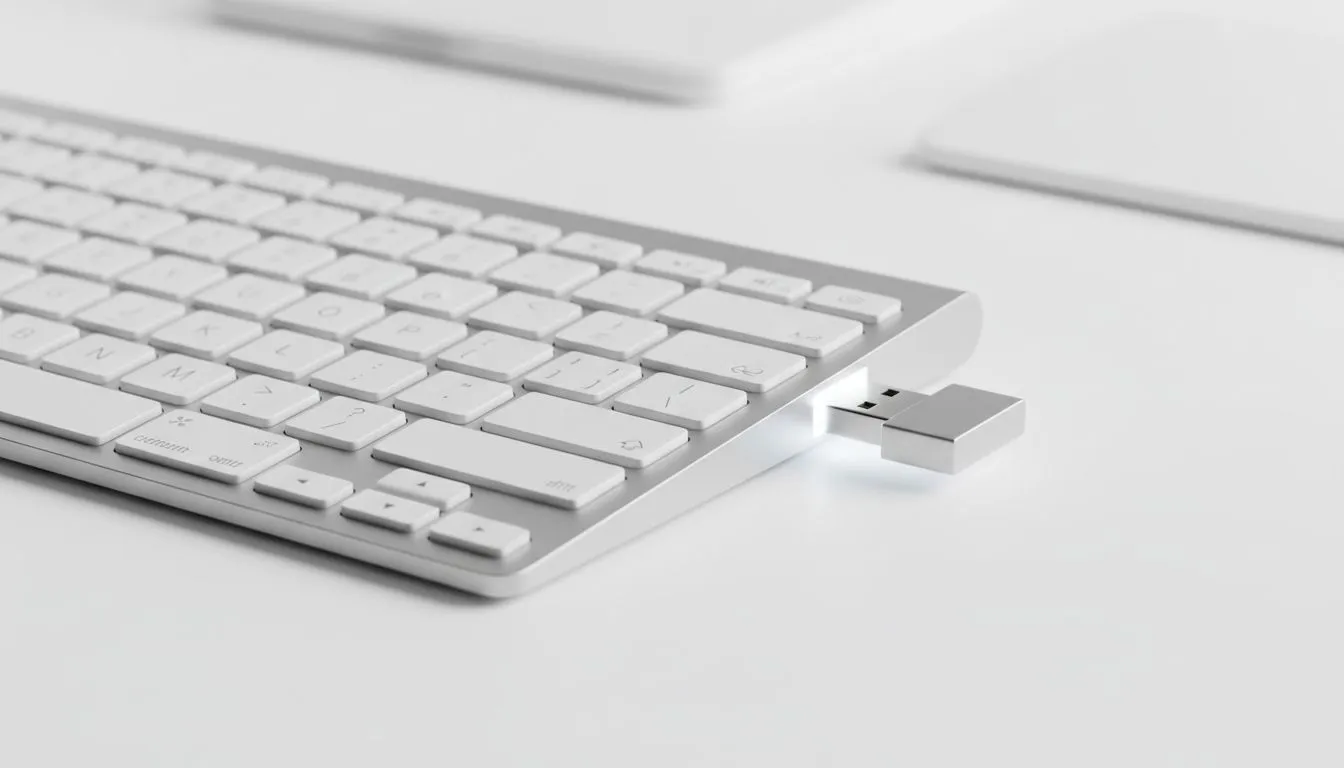
The most common reason for a wireless keyboard failing is signal interference. Most peripherals use the 2.4GHz band, which is incredibly crowded. If your dongle is plugged into a USB 3.0 port (the blue ones), it might be suffering from radio frequency noise. This is a known hardware limitation where USB 3.0 ports emit interference that can drop your connection.
Try moving your receiver to a USB 2.0 port instead. If your PC is tucked under a desk, the metal chassis might be blocking the signal. Using a wireless setup requires a clear line of sight for the best performance. If the lag persists, it might be time to consider the reliability of wired alternatives for your competitive sessions.
Signal Strength Pro Tip ⚡
If your desk is far from your PC, use a USB male-to-female extension cable to bring your 2.4GHz dongle closer to your keyboard. Placing the receiver just a few centimetres away from your device eliminates almost all interference from other electronics like routers or microwaves.
Refreshing Drivers and Re-pairing Your Device
Sometimes the software is the culprit. Windows might have installed a generic driver that is not communicating correctly with your hardware. Open your Device Manager, find your keyboard, and uninstall the driver. After a quick restart, Windows will attempt to reinstall the correct files.
If you are using high-end gear, like a Razer Gaming Keyboard, ensure that your Synapse software is fully updated. Many modern boards also allow for a manual re-pairing process... usually by holding a specific combination of keys while plugging the dongle back in. For those who prefer a more enthusiast-grade experience, Glorious Keyboards often provide firmware update tools that can resolve "ghosting" or disconnection issues immediately.
When to Consider a Replacement
If you have tried every port and updated every driver but your 2.4GHz dongle keyboard is still not working, the internal radio might have failed. Electronics in South Africa can take a beating from power surges and heat. If your budget is tight, you can find the cheapest gaming keyboard in South Africa right here at Evetech. Upgrading to a newer model often brings better battery life and improved "Type-C" charging, making your old micro-USB gear feel like a relic of the past.
Ready to Find Your Perfect Match?
Dealing with a "2.4GHz Dongle Keyboard Not Working" error is frustrating, but a fresh upgrade can solve your woes instantly. Explore our massive range of gaming keyboard specials and find the perfect mechanical or wireless deck to conquer your favourite games.