


650W PSU Planning for RTX 5090 Builds in SA
650W for RTX 5090 needs a full-build check, not a simple yes. Review GPU guidance, CPU draw, transient load, connectors, PSU quality, and upgrade plans before deciding.
Read moreBlender PC requirements split by render engine: Cycles runs OptiX-accelerated GPU rendering on RTX cards roughly 35% faster on an RTX 5090 than a 4090.
Blender does not have one set of requirements, it has two, because the answer changes completely depending on whether you render on the GPU or the CPU. The Blender PC requirements split right down that line: Cycles flies on an NVIDIA RTX card through OptiX acceleration, while CPU rendering scales with raw core count. Picking the wrong hardware for your engine wastes money.
For GPU rendering, Blender Cycles uses OptiX on RTX cards and runs roughly 35 percent faster on an RTX 5090 than a 4090. For CPU rendering, performance scales with core count, where a high-core Threadripper pulls ahead. Choose your hardware around the engine you actually use.
Cycles can render on either, but they are not equal in speed or strengths.
GPU rendering through OptiX taps the RT cores on NVIDIA RTX cards and is dramatically faster for most scenes. The catch is VRAM: your scene, textures and geometry must fit in the card's memory, so heavy production scenes demand a card with generous VRAM. CPU rendering is slower but uses system RAM, which is far easier to expand, so it handles enormous scenes that overflow a GPU.
Blender itself is light to install. A minimum practical setup is a modern multi-core CPU, 16 GB of system RAM, and a dedicated GPU with at least a few gigabytes of VRAM that supports current graphics APIs. That gets you modelling and light Cycles renders without pain. The workstation graphics card range covers the cards that clear this bar comfortably and then some.
For serious Cycles work, aim higher: an RTX card with ample VRAM for your scene sizes, 32 GB or more of system RAM, and a fast NVMe SSD for caching and large project files. The OptiX speed on a current RTX card is the single biggest lever for shorter render times. If your scenes routinely exceed GPU memory, lean on a high-core CPU and plenty of RAM instead. To see how these components come together in complete, ready-to-render systems, the PC best sellers at Evetech show the configurations SA creators are buying right now.
GPU rendering through OptiX is far faster for most scenes, so it is the default choice if your scene fits in VRAM. Switch to CPU rendering for scenes too large for your GPU's memory, since system RAM is easier to expand.
Enough to hold your scene, textures and geometry at once. Light work manages on a few gigabytes, but heavy production scenes with high-resolution textures need a card with generous VRAM to avoid spilling out of memory.
For CPU rendering, yes, performance scales closely with core count, which is why high-core Threadripper chips excel there. For GPU rendering the CPU matters less, though it still helps with simulation, modelling and scene prep.
It is not required to run Blender, but RTX cards unlock OptiX acceleration in Cycles, which is the fastest path to short render times. Non-RTX GPUs and CPUs still render, just more slowly.
16 GB is a workable minimum, but 32 GB or more is recommended for production scenes, simulations and CPU rendering of large projects. RAM is also your fallback when scenes outgrow GPU memory.
Building a Blender workstation? Match your render engine to the right hardware by comparing the Evetech workstation graphics card range at https://www.evetech.co.za/PC-Components/workstation-graphics-cards-307.
GPU rendering through OptiX is far faster for most scenes, so it is the default choice if your scene fits in VRAM. Switch to CPU rendering for scenes too large for your GPU's memory, since system RAM is easier to expand.
Enough to hold your scene, textures and geometry at once. Light work manages on a few gigabytes, but heavy production scenes with high-resolution textures need a card with generous VRAM to avoid spilling out of memory.
For CPU rendering, yes, performance scales closely with core count, which is why high-core Threadripper chips excel there. For GPU rendering the CPU matters less, though it still helps with simulation, modelling and scene prep.
It is not required to run Blender, but RTX cards unlock OptiX acceleration in Cycles, which is the fastest path to short render times. Non-RTX GPUs and CPUs still render, just more slowly.
16 GB is a workable minimum, but 32 GB or more is recommended for production scenes, simulations and CPU rendering of large projects. RAM is also your fallback when scenes outgrow GPU memory.
650W for RTX 5090 needs a full-build check, not a simple yes. Review GPU guidance, CPU draw, transient load, connectors, PSU quality, and upgrade plans before deciding.
Read more
How to fix FPS drops Windows 11 RX 9070 XT starts with GPU drivers, overlays, power plans, and frame pacing checks. For SA gaming PCs, verify chipset updates, HAGS, refresh rate, thermals, and per-game graphics settings.
Read more
How to fix FPS drops on X870E motherboard starts with BIOS, chipset drivers, PCIe settings, and memory stability. SA gamers can check EXPO, resize BAR, thermals, display refresh, and background apps before replacing components.
Read more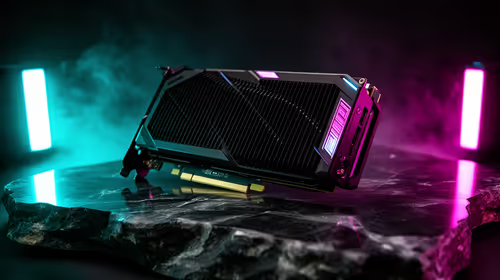
RTX 5060 is popular with SA students because it can fit gaming, coursework, and creative app needs in one setup. Compare total system price, cooling, RAM, storage, and screen quality before picking a desktop or laptop.
Read more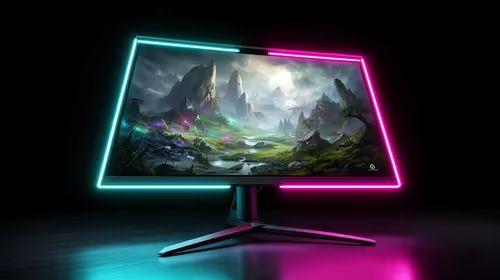
1440p is the sweet spot for SA gamers because it balances sharp visuals, high frame rates, and GPU cost better than 4K. It is a practical monitor target for players who want smoother upgrades without the heavier hardware demands of 4K.
Read more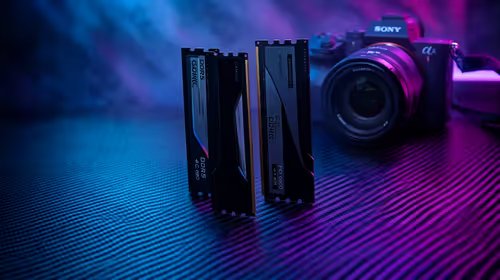
RAM pricing for Midrand gamers can shift with exchange rates, supply, specs, and model tier. Treat the title as a buying prompt, then compare SA warranty, timing, and build priorities.
Read more
From 1 October 2026, WhatsApp Business Platform service replies in South Africa are expected to cost about $0.0076, or 12 cents, per delivered message.
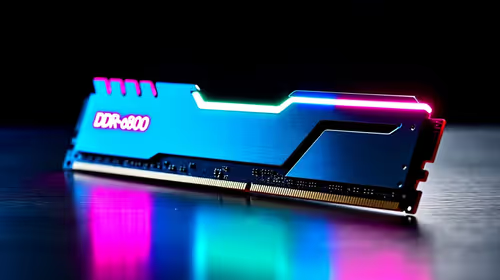
DDR5-8000 RAM Kits pros and cons depend on the build, budget, and workload. Weigh gaming needs, platform fit, power, cooling, warranty support, and South African pricing context before shortlisting it.
Wi-Fi 6E vs Wi-Fi 6 depends on AAA single-player gaming needs, platform limits, and budget fit. Compare compatibility, latency, upgrade path, and real setup constraints before choosing for an SA build.
Ryzen 9 9950X3D dead pixel checks should isolate the panel first. Run colour fills, inspect the monitor menu, test another cable or input, and capture proof before linking it to the SA CPU upgrade.

YouTube will count public views from the first frame across video formats from 24 August, while earnings and eligibility remain tied to engaged viewing.
Canonical expects Ubuntu on WSL users to outnumber native Ubuntu desktop users before the end of 2026. The software is open source and runs inside supported Windows PCs.
Telkom's daily bundles pair WhatsApp access with 10 all-network voice minutes. The R15 option includes 300MB, while the R17 option uses a fair-use threshold.
A 10,000-hour test found similar image retention across older and newer OLED TVs, while newer panels were brighter and more efficient. Local OLED monitors started at R9,999.

Windows 11 update KB5121003 is linked to crashes in several multiplayer games on versions 24H2 and 25H2. Check the build, report the fault and avoid risky file or update changes unless the problem is confirmed on your PC.

Comsol's standalone 5G network covers about one million Gauteng homes and starts commercial ISP service in September. Early packages range from R275 to R875 a month, but coverage and fair-use rules still decide the real value.

Sennheiser's Momentum True Wireless 5 adds user-replaceable batteries, 12-hour playback and a $299.95 launch price. There is no confirmed South African date, so compare longevity with live earbuds from R199 to R2,999.

AVerMedia's GC531 and GC535 are professional HDMI capture devices for continuous streaming, with RGB24 capture up to 2K30 and 4K30. South African creators should compare them with live 4K capture cards from R2,099.