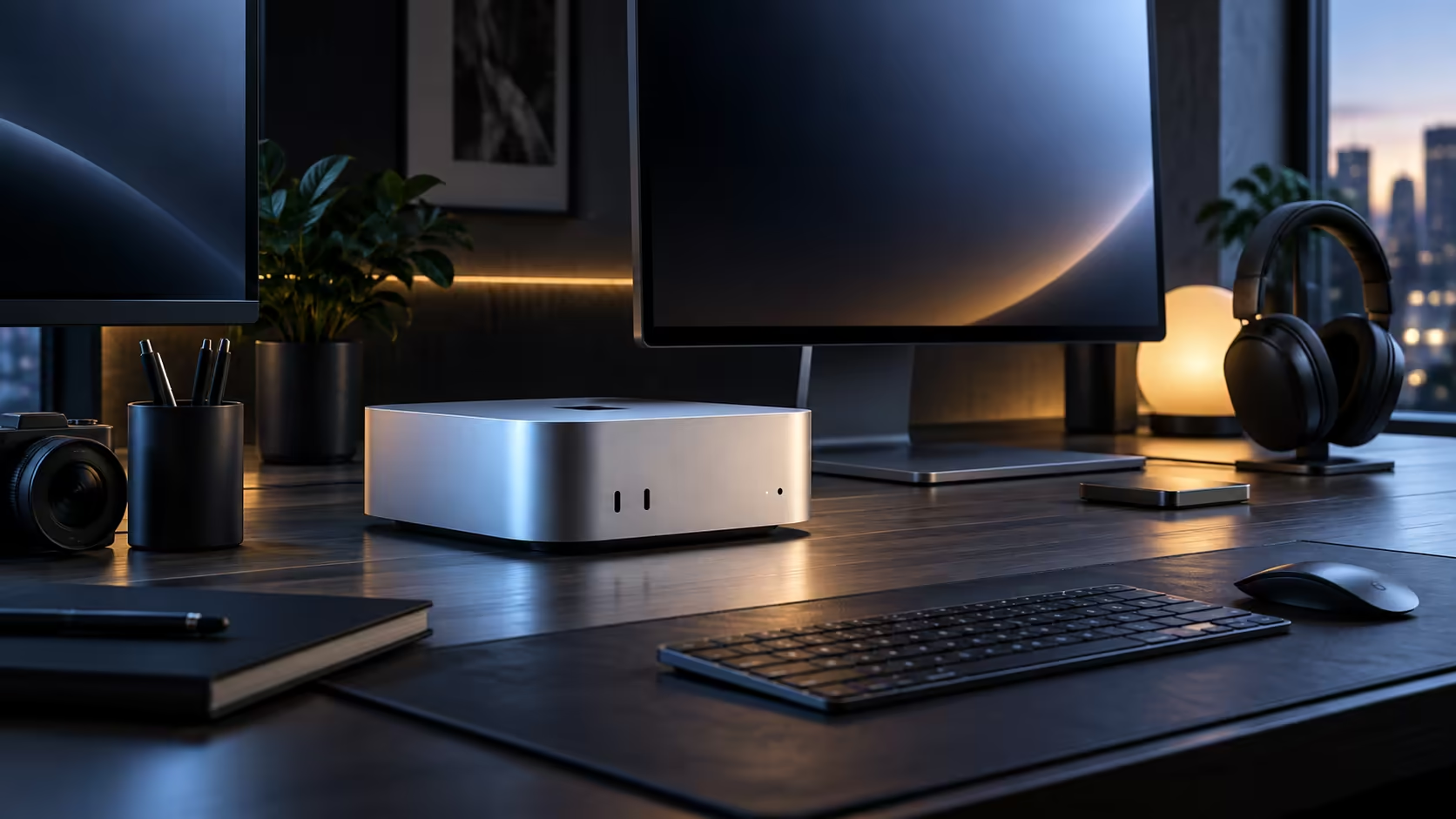
Ports on the back of a Mac Mini M6 are not the number that decides how many screens it drives. Thunderbolt 4 carries DisplayPort video over the same USB-C shape as a charging cable, HDMI drives a screen directly, and the actual display ceiling is set by the chip rather than the socket count. The R21,699 build gives you both kinds of output to work with.
Quick Answer
The M6 offers three USB-C ports with Thunderbolt 4 support plus a dedicated HDMI output, so the physical connections for more than one external screen are there. Exactly how many the chip drives at once is a number Apple publishes per model rather than something the port count can tell you, so look it up before buying a third monitor for this R21,699 machine.
🔌 What each port is actually for
Two of the five USB-C style ports on the back are plain USB-C, and three support Thunderbolt 4, which carries video, data and 100W of charging power depending on the accessory. The single HDMI output drives a screen directly with no adapter needed. A data-only USB-C hub plugged into a Thunderbolt port for the sake of "more ports" adds nothing for a monitor, because the hub itself does not create video bandwidth that was not already there.
🖥️ Why the socket count is not the display count
A chip's display engine has a fixed number of pipelines, and that number does not always match how many video-capable ports sit on the case. Apple documents the exact limit for each Mac chip, including the M6, on its own specifications page, and that is the figure worth reading before ordering stands and cables for a third monitor. Resolution and refresh rate share the same budget too, so a plan that works at 60Hz on two screens is not automatically the same plan at 120Hz on three.
🧰 If your compact desktop needs to match a specific display plan
Not every mini PC on the market handles displays the same way, and if a fixed three-screen layout is the actual requirement, it is worth checking the display specification of any compact desktop before ordering it, rather than assuming ports equal screens. The wider mini PC range is a useful place to compare that figure model to model before settling on the M6 for a specific desk.
If two screens cover your desk today, Thunderbolt 4 and HDMI handle that without any extra hardware; compare the current Mac Mini configurations before deciding which one to buy.
Frequently Asked Questions
How many screens can a Mac Mini M6 actually drive?
Apple publishes the exact figure per chip on its own specifications page. Check it there before planning a layout with more than two monitors.
Does HDMI or Thunderbolt give a better picture?
Neither is inherently sharper; Thunderbolt over USB-C also carries data and charging on the same cable, which HDMI does not.
Will a USB-C hub add another display output?
Only if the hub itself contains extra video hardware. A basic data hub cannot create bandwidth the chip does not already provide.
Does resolution affect how many monitors I can add?
Yes. Higher resolutions and refresh rates use more of the same bandwidth budget, so the safe screen count can shrink as you push either figure up.
Ready to plan your Mac Mini desk before you buy the cables?
Confirm the display limit for the M6 first, then browse monitors sized to match it.