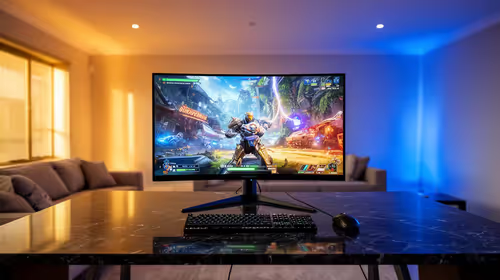
Capping a 144Hz VRR display around 141fps is a common way to stay below its upper adaptive-sync boundary. The three-frame gap is a practical convention, not a law. Frame-limit accuracy, game pacing and the monitor's real VRR range decide the best value.
Quick Answer
Start two or three frames per second below the maximum refresh rate, then verify the result with the monitor refresh indicator or a trusted overlay. For 144Hz, test 141 or 142fps. Keep the cap only when frame times stay clean and the display does not hit its fixed-refresh ceiling.
Browse Evetech's gaming display range and compare models on the monitor best-seller page. Confirm the exact adaptive-sync range over the input and resolution you use.
Why Leave a Gap
Frame limiters are not perfectly exact. A 144fps target can produce brief frames above the ceiling. Once output reaches the top of the VRR range, the system follows its V-Sync and tearing policy instead of varying refresh in the same way.
A small gap absorbs limiter variation and keeps most frames inside the window. It does not raise performance or fix a PC that often falls below the lower boundary.
Choose One Limiter
Use the game's limiter when it produces clean pacing. A driver limiter can help games with a poor internal option. RivaTuner Statistics Server offers another path. Avoid stacking several caps because their timing can interact.
Set the cap for each refresh mode. A 165Hz monitor needs a different ceiling from 144Hz, and a laptop may switch when unplugged. Frame generation also changes which FPS counter represents rendered and displayed frames, so follow the feature maker's cap guidance.
Pair VRR With the Right Sync Policy
G-SYNC and FreeSync setups have vendor-specific recommendations for V-Sync and low-latency modes. Follow the current driver guidance for your hardware. In-game V-Sync, driver V-Sync and a frame cap can produce different latency and tearing results.
Test a horizontal pan near the ceiling. Watch for a tear line, sudden latency shift or frame-time spikes. If 141fps still touches the boundary, lower the cap one step. If a precise 142fps limit stays inside it, the extra gap is unnecessary.
Check the Lower Boundary Too
The upper cap solves only one edge of the VRR range. If the game drops below the lower limit, the display may enter low-frame-rate compensation. That can work well, but uneven crossings can flicker or judder.
Tune the heavy scene so its base rate remains stable, then decide whether a lower cap offers better pacing than chasing the ceiling. A locked 120fps can feel cleaner than a 141fps target that the PC reaches only in quiet rooms.
FAQ
Must a 144Hz monitor be capped at exactly 141fps?
No. Test a small gap and confirm that your limiter stays inside the display's VRR ceiling.
Does the cap prevent all tearing?
It helps avoid the upper boundary. Sync settings, frame pacing and lower-range behaviour still matter.
Should I cap generated FPS or base FPS?
Use the frame-generation and driver guidance for that feature, and verify which counter the limiter sees.
Set one limiter a few frames below the monitor ceiling, verify the live refresh never pins at maximum and adjust by measured pacing instead of a fixed rule.