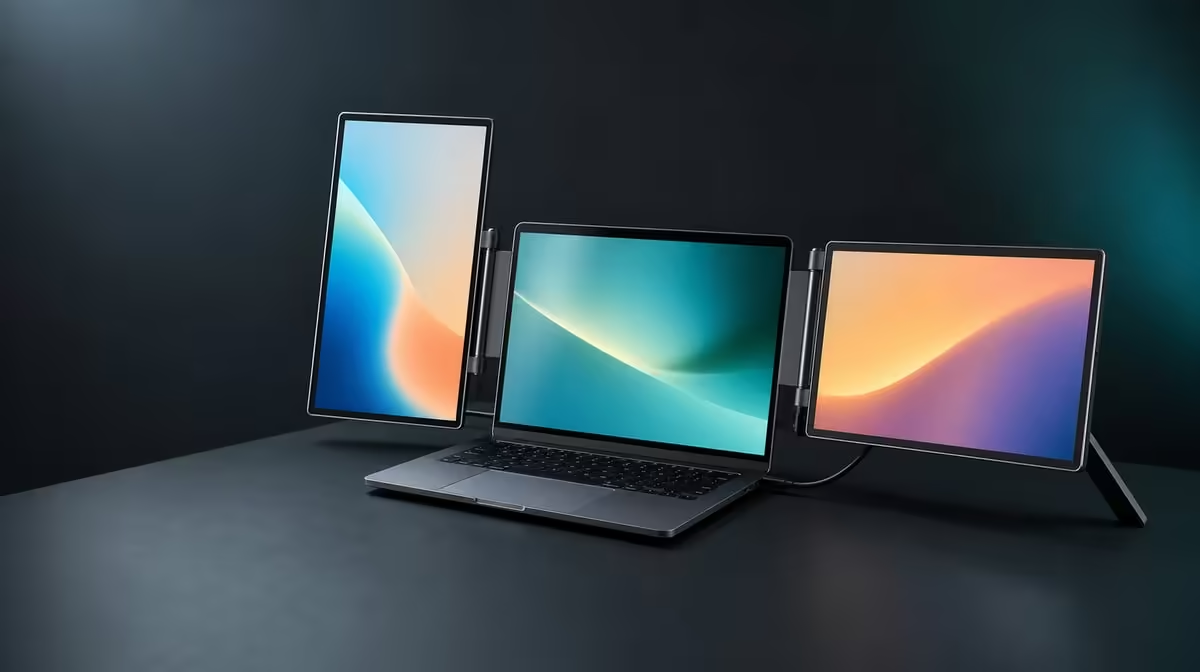
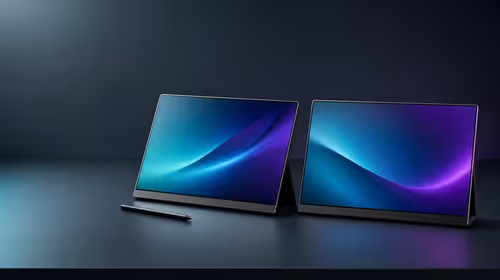
An upside-down picture can come from a software lock, an unsettled sensor or a mismatch between the physical panel and the laptop's screen map. To fix gravity-sensing screen orientation, return the Delta to a known position before changing settings or moving application windows.
Quick Answer
Place the affected panel in its normal landscape position, allow gravity sensing to settle and confirm the laptop's orientation setting matches the physical screen. The R11,999 Delta Pro Touch supports 180-degree auto-rotation, but image direction, touch mapping and stand balance still need separate confirmation.
🧭 Establish a reliable starting position
Stop rotating the panel and close any window that keeps rearranging itself. Set both 16-inch screens in the normal working position beside the laptop, confirm 2560 x 1600 output and identify each display in the operating-system map. Put a differently labelled window on every active screen.
Wait for the image to stop changing. If it remains incorrect, check whether the laptop or application has locked orientation. Change one setting only, then observe the result. Moving the panel repeatedly while toggling several controls makes the cause difficult to isolate.
Compare portable monitors at Evetech through the positions the laptop workflow actually uses, not merely through the presence of a rotation feature.
🔄 Test one physical move at a time
Move only the affected Delta screen to the orientation being diagnosed within its 180-degree span. Pause after each movement and watch the picture. Keep the second panel and laptop still so they remain useful references.
Once the image points the right way, move a window across the screen boundary and back. Confirm the operating-system rectangles still match the physical arrangement. Gravity sensing changes direction, while the laptop decides how the display belongs to the wider desktop.
👆 Re-map touch after the image settles
Tap the centre and four corners of the rotated screen. A correct-looking picture can still send contact to another panel or to the previous orientation. Drag slowly near an edge and check that the pointer follows the finger.
Repeat a short test on the stationary panel. Add multi-finger gestures only in software that supports them. Pressure response belongs in a later creative-app check with a compatible tool; it should not be used to diagnose basic orientation.
Evetech's wider PC-monitor category helps compare a fixed screen when physical mode changes would rarely be used.
🧱 Check the stand and save the mode
Apply normal touch near the rotated panel's outer corners and watch the ergonomic stand. Reposition the complete monitor-and-laptop workspace if the screen shifts or a cable pulls during movement. Clear the surrounding area before returning to landscape.
Save a note for the successful panel position, display order and application layout. Restart the laptop, repeat the most-used rotation and verify that the image and touch recover together.
Review Evetech's monitor best sellers for current alternatives around the R11,999 decision, then confirm availability at purchase time.
Distinguish a rotated app from a rotated desktop
Open a plain window outside the program that first looked wrong. If the desktop and test window follow the panel while one application does not, review that program's own orientation or layout behaviour. Keep the system display map unchanged during this comparison.
Move the application to the second Delta panel and back. This shows whether the behaviour follows the software window or the physical screen, giving the next correction a much narrower target.
Rehearse the return to landscape
Close important work, rotate the panel to the recorded baseline and wait for the image. Put each labelled window back in its normal role, then check touch at all four corners and along the shared screen edge.
Restart the laptop and perform the return once more. A saved orientation is dependable when the complete workspace recovers, not only when the picture turns correctly during one uninterrupted session.
Frequently Asked Questions
Why should the panel return to a known position first?
It provides a stable reference for separating sensor movement from a software orientation lock.
How long should gravity sensing be given?
Pause until the picture settles before changing another setting or moving a window.
Why can touch remain wrong after the image rotates?
The visible orientation and input mapping can be handled separately by the laptop.
What should be tested on the stand?
The chosen angle should remain stable during ordinary corner taps and drags.
When should the saved mode be retested?
Repeat it after a restart and after rebuilding the portable workstation elsewhere.
Ready to restore the correct picture and touch direction together?
Explore Evetech's portable monitors with the orientations, laptop layout and input tests your work needs.