Tapping a button and varying a brush stroke are separate input jobs. The pressure-sensitive input vs finger touch choice depends on whether the laptop application needs navigation and gestures, changing force or a deliberate combination of both.
Quick Answer
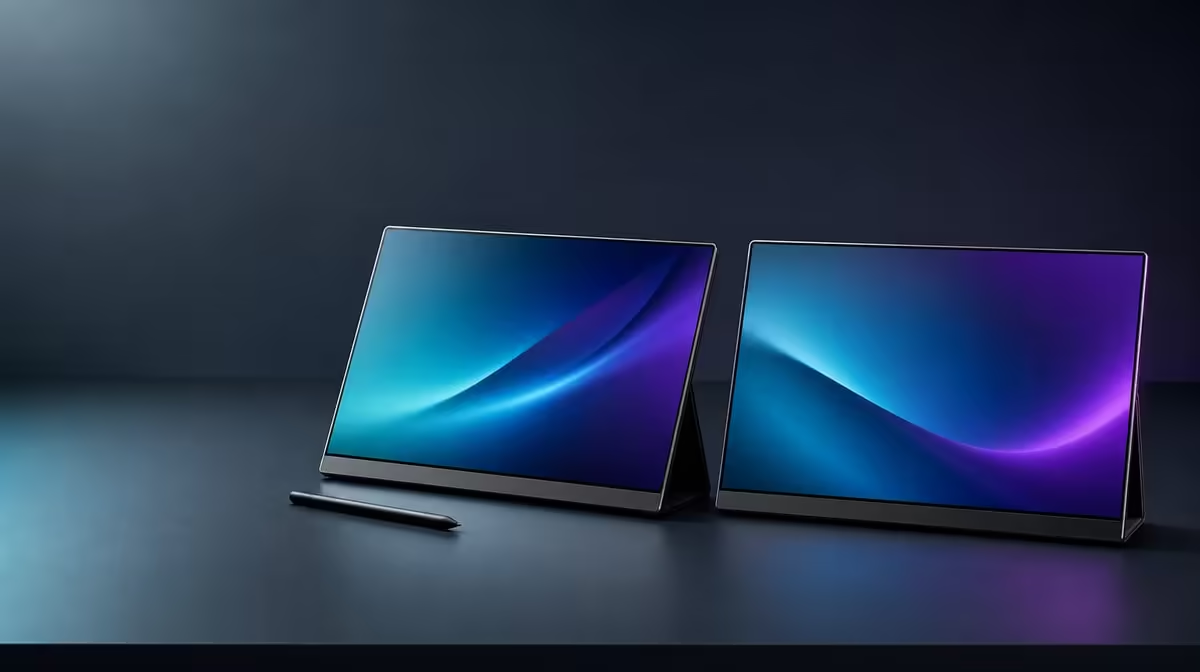
Finger touch is best suited to selection, navigation and multi-point gestures, while pressure-sensitive input can vary compatible creative controls. The R11,999 Delta Pro Touch supports 10-point touch and pressure response across two QHD panels, but the application and compatible tool determine what behaviour is available.
👆 Give fingers navigation work
Test taps, drags, scrolling and two-finger gestures in the intended application. Confirm contacts land correctly on each screen and remain mapped after the window moves from one Delta panel to the other.
Evetech's portable-monitor selection should be compared with the laptop software, because touch hardware alone cannot make an application recognise every gesture.
✍️ Give pressure a visible control
Choose a pressure-aware brush or parameter and make several strokes with a compatible tool. Look for repeatable variation, and check tool compatibility plus current package contents before choosing a pen.
✋ Use 10-point capacity carefully
The ten-point figure counts contacts, not force. Add fingers gradually in software that supports multi-touch and note what the program actually uses. Most workflows do not need all contacts constantly.
Compare Evetech's PC-monitor category if the work mainly needs viewing space and a separate input device.
🧭 Keep both panels stable
The ergonomic stand should resist normal touch and pressure input. Arrange the laptop and Delta screens so the user can reach them without leaning across the desk. Repeat input tests after auto-rotation.
The monitor best-seller page offers wider context around the R11,999 choice. Check live availability when ready to purchase.
Use finger touch for quick interface work and pressure input where compatible creative variation saves a real step. The better method can change inside the same application.
Test precision before variation
Draw a slow straight line and tap small controls with the compatible tool. Confirm that input lands where expected before judging pressure. A beautifully varied line in the wrong location still reflects an unusable mapping.
Repeat on the second panel and after moving the application. Keep the laptop display arrangement fixed during the comparison.
Build a mixed-input sequence
Navigate the canvas with finger gestures, choose a creative control and use the pressure-aware tool for the stroke. Return to finger selection. Count accidental marks or extra mode changes.
The best combination is the one the application handles consistently. Hardware support does not guarantee every program will distinguish the inputs in the same way.
Include orientation and support
Rotate a Delta panel to an intended drawing or review position, wait for the image and test input again. Check that the stand resists light and firmer contact without shifting.
If the panel moves, correct support before blaming input accuracy. Direct pressure changes the physical forces on the workstation.
Review value by creative frequency
Pressure response earns its part of R11,999 when a compatible creative task uses it repeatedly. Finger touch can still be valuable for general navigation, but it should not be counted as proof of pressure work.
Record which application, tool and panel passed. A future software or laptop change should trigger a new test, not inherit the old result automatically.
Recheck input after application updates
Keep a small canvas and a short gesture sequence as a reference test. After the creative software or laptop operating system changes, repeat finger navigation first, then pressure variation with the same compatible tool.
Compare the result with the recorded working profile. This distinguishes a changed software interpretation from a physical panel problem and avoids rebuilding the entire display layout when only one input path behaves differently.
Keep destructive gestures out of the first test
Use a disposable canvas or an unsaved copy while establishing input behaviour. Start with marks and controls whose effects are obvious and easy to reverse, particularly when several contacts may trigger an unfamiliar command.
Once the finger and pressure paths are predictable, repeat them in the real workflow. This protects important work while producing a clearer record of which action came from the application, the compatible tool or the laptop's touch mapping.
Frequently Asked Questions
Can finger touch create pressure variation?
Finger gestures and pressure-aware tool input should be tested as separate behaviours.
Is a pen included?
Review the current box contents, then match the pen to the laptop and creative software.
What does 10-point control measure?
It counts simultaneous touch contacts.
Why test inside the creative app?
Software decides which gestures and pressure behaviours it interprets.
Ready to match finger gestures and pressure input to separate creative jobs?
Compare Evetech's portable touch monitors using your laptop, compatible tools and the applications that must respond.