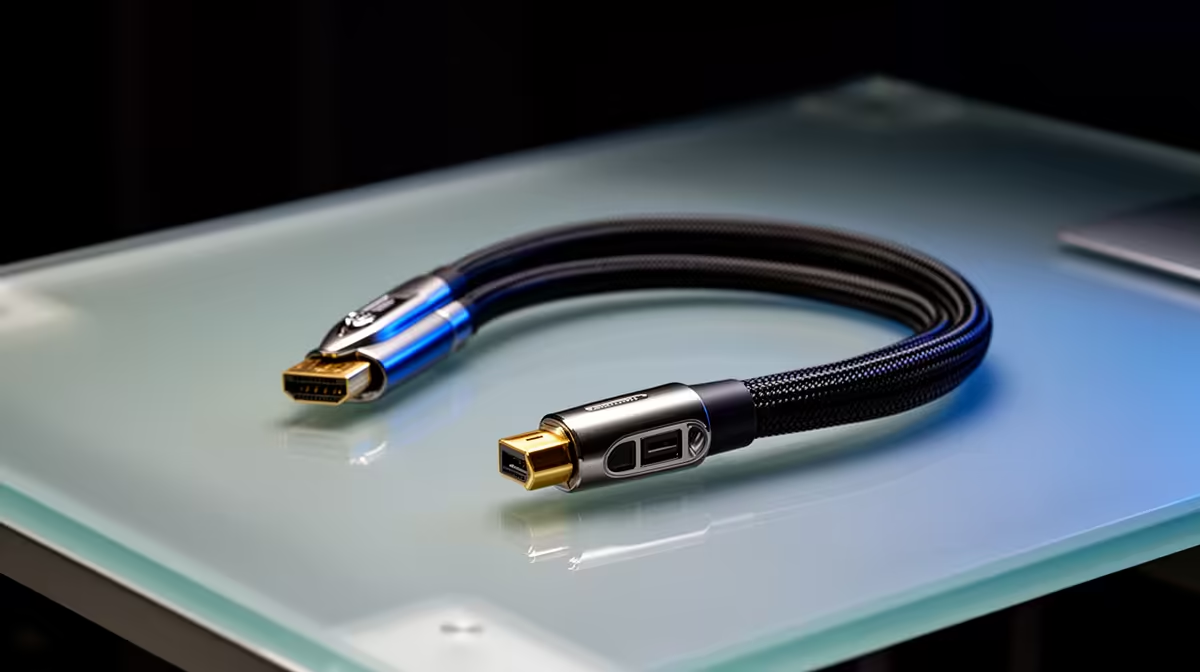
An HDMI 2.1 cable is worthwhile for DaVinci Resolve only when the graphics output and monitor use an HDMI mode that needs its bandwidth. Editing software does not demand a cable standard by itself. Resolution, refresh rate, colour format and display ports define the connection.
Check both devices before the cable
The verified facts do not contain a confirmed matching cable model or price. Check current Evetech availability for certified bandwidth, cable length, connector type, supported display modes and warranty. Read the graphics-card and monitor manuals because a newer cable cannot add a mode that either port lacks.
Set the intended resolution, refresh rate and colour depth, then play a representative timeline full-screen. Watch for signal drops, blank screens, flicker and incorrect colour. Test the same display with another known-good connection where possible. A cable problem should follow the cable rather than appear only under one software setting. Repeat the check after a cold start so the result covers more than one editing session.
Keep the run short enough for the desk, avoid tight bends and route it away from chair wheels. Secure heavy connectors so they do not strain laptop or monitor ports. Choose the newer standard when the selected display mode requires its bandwidth. For ordinary 4K editing at supported lower bandwidth, the correct existing cable may already provide a stable image.
Connecting a Resolve display? > Ask Evetech to compare current cables, monitors and graphics outputs.