


650W PSU Planning for RTX 5090 Builds in SA
650W for RTX 5090 needs a full-build check, not a simple yes. Review GPU guidance, CPU draw, transient load, connectors, PSU quality, and upgrade plans before deciding.
Read moreFix Avowed Stuttering: Performance. Step-by-step instructions with SA-specific tips, common pitfalls to avoid & expert recommendations.
Avowed stuttering is most commonly caused by shader compilation hitches, VRAM limitations, or CPU bottlenecks. Fixing it involves updating drivers, adjusting in-game settings, and enabling the right DirectX 12 options for your hardware configuration.
Avowed launched with some performance baggage, and stuttering has been one of the most reported issues since day one. Whether you are getting micro-stutters every few seconds or full frame-time spikes during combat, there are specific fixes that work - and some that people recommend incorrectly. This guide cuts through the noise.
Not all stuttering is the same in Avowed, and the fix depends on the cause. Shader compilation stutter happens when you enter a new area or trigger a new effect - frames freeze briefly then recover. This type improves significantly after your first playthrough of an area as shaders get cached. VRAM-related stutter looks different: frames drop suddenly and recover slowly, often paired with texture pop-in. If your GPU has 6GB or less of VRAM and you are running at 1440p or higher with high texture settings, this is likely your culprit. CPU bottleneck stutter produces irregular frame pacing rather than sharp drops - monitor CPU usage on all cores and look for threads hitting 100%. In Avowed, the engine can thread-saturate mid-to-high-end CPUs in busy combat scenarios.
Start with GPU driver updates - Avowed has received targeted driver support from both NVIDIA and AMD in post-launch patches. For NVIDIA users, make sure Resizable BAR is enabled in your BIOS and GeForce Experience is not capturing the game with unnecessary overlays. AMD users should enable Radeon Anti-Lag 2 if on an RX 7000 or newer card, and disable Enhanced Sync in Radeon Software as it compounds frame-time issues in this engine. Verify Avowed game files through your launcher to rule out corrupt shader cache data. Deleting the local shader cache folder and letting the game rebuild it on next launch resolves persistent stutter for many players - the folder is typically found in your AppData/Local directory under the game's name.
Switch from DirectX 12 to DirectX 11 if you are on an older GPU - counterintuitively, DX11 has less shader compilation overhead on some configurations. Disable Motion Blur entirely as it adds frame-time inconsistency without meaningful visual benefit. Set Texture Streaming to High rather than Ultra if your VRAM is under 8GB. Turn off Depth of Field and Volumetric Fog first when troubleshooting - these are known frame-time spikes in Avowed's engine. Frame generation (if available on your card) can smooth over minor stutter but will not fix underlying frame-time variance and can actually make input feel worse during the hiccups.
Q: Does Avowed stutter more on AMD or NVIDIA GPUs? A: Early reports showed more shader compilation stutter on AMD cards at launch, but patches have largely closed the gap. Both platforms benefit from driver updates released after the game launched.
Q: Will an SSD fix Avowed stuttering? A: If you are running Avowed from an HDD, moving to SSD will reduce texture streaming hitches and load-related stutter. It will not fix shader compilation stutter or VRAM overflow issues, which require settings changes.
Q: Is there a benchmark mode to test Avowed performance before playing? A: Avowed does not include a built-in benchmark. Use a short section near the game's opening area with a frame-time overlay from GPU software to get a representative performance picture before diving into your main playthrough.
Ready to Find Your Perfect Match? Upgrade to a gaming PC built to handle Avowed and beyond - check Evetech's latest deals.
How to Fix Avowed Stuttering: Performanc available at Evetech.co.za with local warranty and fast delivery.
How to Fix Avowed Stuttering: Performanc - check Evetech for latest stock and SA pricing.
Depends on your use case. How to Fix Avowed Stuttering: offers good value at current Rand pricing.
650W for RTX 5090 needs a full-build check, not a simple yes. Review GPU guidance, CPU draw, transient load, connectors, PSU quality, and upgrade plans before deciding.
Read more
How to fix FPS drops Windows 11 RX 9070 XT starts with GPU drivers, overlays, power plans, and frame pacing checks. For SA gaming PCs, verify chipset updates, HAGS, refresh rate, thermals, and per-game graphics settings.
Read more
How to fix FPS drops on X870E motherboard starts with BIOS, chipset drivers, PCIe settings, and memory stability. SA gamers can check EXPO, resize BAR, thermals, display refresh, and background apps before replacing components.
Read more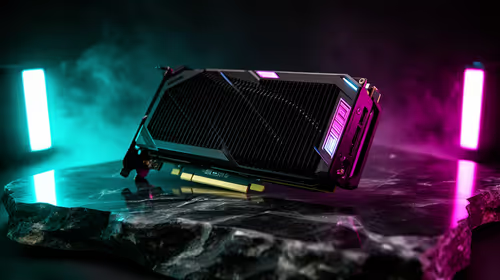
RTX 5060 is popular with SA students because it can fit gaming, coursework, and creative app needs in one setup. Compare total system price, cooling, RAM, storage, and screen quality before picking a desktop or laptop.
Read more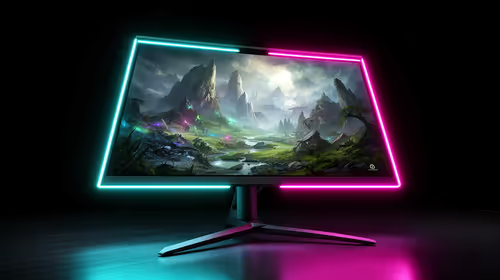
1440p is the sweet spot for SA gamers because it balances sharp visuals, high frame rates, and GPU cost better than 4K. It is a practical monitor target for players who want smoother upgrades without the heavier hardware demands of 4K.
Read more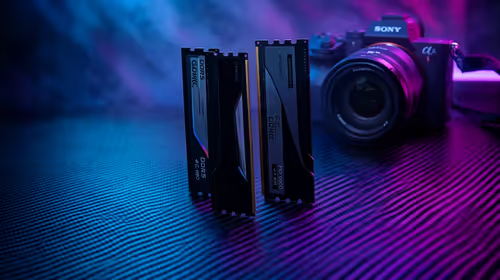
RAM pricing for Midrand gamers can shift with exchange rates, supply, specs, and model tier. Treat the title as a buying prompt, then compare SA warranty, timing, and build priorities.
Read more
From 1 October 2026, WhatsApp Business Platform service replies in South Africa are expected to cost about $0.0076, or 12 cents, per delivered message.
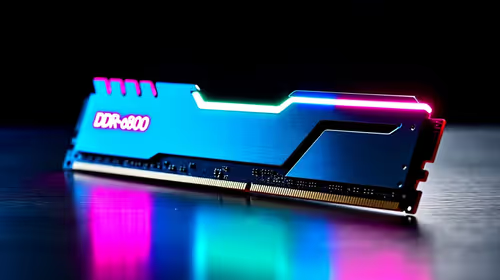
DDR5-8000 RAM Kits pros and cons depend on the build, budget, and workload. Weigh gaming needs, platform fit, power, cooling, warranty support, and South African pricing context before shortlisting it.

Wi-Fi 6E vs Wi-Fi 6 depends on AAA single-player gaming needs, platform limits, and budget fit. Compare compatibility, latency, upgrade path, and real setup constraints before choosing for an SA build.

Ryzen 9 9950X3D dead pixel checks should isolate the panel first. Run colour fills, inspect the monitor menu, test another cable or input, and capture proof before linking it to the SA CPU upgrade.

YouTube will count public views from the first frame across video formats from 24 August, while earnings and eligibility remain tied to engaged viewing.

Canonical expects Ubuntu on WSL users to outnumber native Ubuntu desktop users before the end of 2026. The software is open source and runs inside supported Windows PCs.

Telkom's daily bundles pair WhatsApp access with 10 all-network voice minutes. The R15 option includes 300MB, while the R17 option uses a fair-use threshold.

A 10,000-hour test found similar image retention across older and newer OLED TVs, while newer panels were brighter and more efficient. Local OLED monitors started at R9,999.

Windows 11 update KB5121003 is linked to crashes in several multiplayer games on versions 24H2 and 25H2. Check the build, report the fault and avoid risky file or update changes unless the problem is confirmed on your PC.

Comsol's standalone 5G network covers about one million Gauteng homes and starts commercial ISP service in September. Early packages range from R275 to R875 a month, but coverage and fair-use rules still decide the real value.

Sennheiser's Momentum True Wireless 5 adds user-replaceable batteries, 12-hour playback and a $299.95 launch price. There is no confirmed South African date, so compare longevity with live earbuds from R199 to R2,999.

AVerMedia's GC531 and GC535 are professional HDMI capture devices for continuous streaming, with RGB24 capture up to 2K30 and 4K30. South African creators should compare them with live 4K capture cards from R2,099.