


650W PSU Planning for RTX 5090 Builds in SA
650W for RTX 5090 needs a full-build check, not a simple yes. Review GPU guidance, CPU draw, transient load, connectors, PSU quality, and upgrade plans before deciding.
Read moreFix Death Stranding 2 Crashing on PC: Complete. Step-by-step instructions with SA-specific tips, common pitfalls to avoid & expert recommendations.
You have finally loaded up Hideo Kojima's latest masterpiece... only to stare at your desktop. Fixing Death Stranding 2 crashing on PC is frustrating when you just want to play. You have waited years for this highly anticipated sequel. Whether you face random freezes or immediate boot crashes, we have the ultimate troubleshooting guide. Let us sort out those technical BTs haunting your rig. 🚀
Before tweaking settings, ensure your hardware can actually handle the Decima Engine's glorious visuals. If your system is struggling, it might be time to look at some pre-built PC deals. Death Stranding 2 demands solid processing power and decent VRAM.
The most common culprit for Death Stranding 2 crashing on PC is outdated drivers. Both NVIDIA and AMD release game-ready updates specifically optimised for massive AAA launches. Use GeForce Experience or AMD Adrenalin to fetch the latest versions. If your GPU is ancient, you might want to buy graphics cards that can push high framerates.
Always use Display Driver Uninstaller (DDU) in safe mode before installing fresh drivers. It wipes out old, corrupted files that standard updates often leave behind... saving you hours of troubleshooting headaches.
Corrupted downloads happen... especially with our local internet dropping out during loadshedding. Head into Steam or the Epic Games Store and verify your installation files. Next, lower your in-game graphics settings. Turn down volumetric fog and shadow resolution. If you are gaming on the go, ensure your device is plugged in. Checking out the latest laptops in South Africa shows how far mobile GPUs have come.
Discord, Steam overlays, and RGB software often conflict with the game engine. Disable these overlays before launching your game. Your PC needs all its resources focused on rendering those stunning landscapes. If your rig consistently bottlenecks, browsing through the best gaming PC deals gives you incredible upgrade options starting from just a few thousand ZAR. ✨
Sometimes your system simply runs out of memory. This causes an immediate crash to the desktop. Increasing your Windows pagefile size can prevent this issue. Search for advanced system settings in your Windows taskbar. Navigate to the performance tab and adjust your virtual memory. Set the initial and maximum size manually. A good rule is setting it to 1.5 times your physical RAM.
South African summers are brutal on your gaming hardware. If your CPU or GPU overheats, your system will crash to protect itself. Keep a close eye on your thermals using software like MSI Afterburner. Dust buildup acts like a blanket over your components. Proper airflow is crucial for stable frame rates. If cooling is an issue, you can find great cooling upgrades among our weekly specials. ⚡
Ready to Find Your Perfect Match? Troubleshooting crashing games is complex, but for maximum power, choice, and value in South Africa, a proper hardware upgrade is hard to beat. Explore our massive range of desktop specials and find the perfect machine to conquer your world.
How to Fix Death Stranding 2 Crashing on available at Evetech.co.za with local warranty and fast delivery.
How to Fix Death Stranding 2 Crashing on - check Evetech for latest stock and SA pricing.
Depends on your use case. How to Fix Death Stranding 2 C offers good value at current Rand pricing.
650W for RTX 5090 needs a full-build check, not a simple yes. Review GPU guidance, CPU draw, transient load, connectors, PSU quality, and upgrade plans before deciding.
Read more
How to fix FPS drops Windows 11 RX 9070 XT starts with GPU drivers, overlays, power plans, and frame pacing checks. For SA gaming PCs, verify chipset updates, HAGS, refresh rate, thermals, and per-game graphics settings.
Read more
How to fix FPS drops on X870E motherboard starts with BIOS, chipset drivers, PCIe settings, and memory stability. SA gamers can check EXPO, resize BAR, thermals, display refresh, and background apps before replacing components.
Read more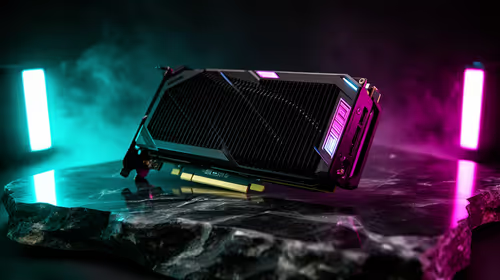
RTX 5060 is popular with SA students because it can fit gaming, coursework, and creative app needs in one setup. Compare total system price, cooling, RAM, storage, and screen quality before picking a desktop or laptop.
Read more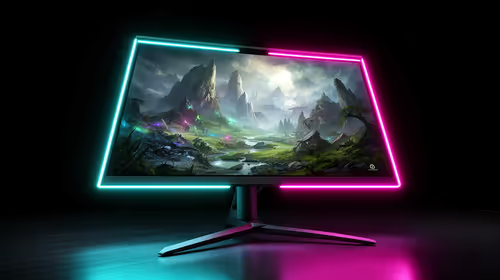
1440p is the sweet spot for SA gamers because it balances sharp visuals, high frame rates, and GPU cost better than 4K. It is a practical monitor target for players who want smoother upgrades without the heavier hardware demands of 4K.
Read more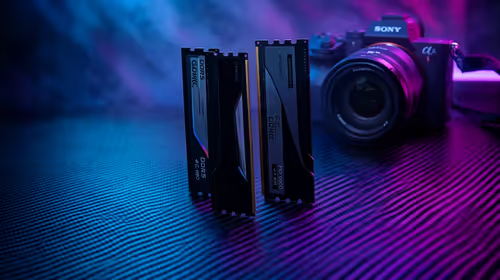
RAM pricing for Midrand gamers can shift with exchange rates, supply, specs, and model tier. Treat the title as a buying prompt, then compare SA warranty, timing, and build priorities.
Read more
From 1 October 2026, WhatsApp Business Platform service replies in South Africa are expected to cost about $0.0076, or 12 cents, per delivered message.
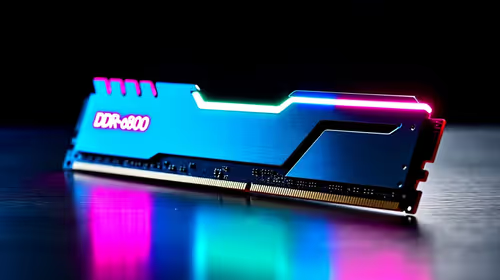
DDR5-8000 RAM Kits pros and cons depend on the build, budget, and workload. Weigh gaming needs, platform fit, power, cooling, warranty support, and South African pricing context before shortlisting it.

Wi-Fi 6E vs Wi-Fi 6 depends on AAA single-player gaming needs, platform limits, and budget fit. Compare compatibility, latency, upgrade path, and real setup constraints before choosing for an SA build.

Ryzen 9 9950X3D dead pixel checks should isolate the panel first. Run colour fills, inspect the monitor menu, test another cable or input, and capture proof before linking it to the SA CPU upgrade.

YouTube will count public views from the first frame across video formats from 24 August, while earnings and eligibility remain tied to engaged viewing.

Canonical expects Ubuntu on WSL users to outnumber native Ubuntu desktop users before the end of 2026. The software is open source and runs inside supported Windows PCs.

Telkom's daily bundles pair WhatsApp access with 10 all-network voice minutes. The R15 option includes 300MB, while the R17 option uses a fair-use threshold.

A 10,000-hour test found similar image retention across older and newer OLED TVs, while newer panels were brighter and more efficient. Local OLED monitors started at R9,999.

Windows 11 update KB5121003 is linked to crashes in several multiplayer games on versions 24H2 and 25H2. Check the build, report the fault and avoid risky file or update changes unless the problem is confirmed on your PC.

Comsol's standalone 5G network covers about one million Gauteng homes and starts commercial ISP service in September. Early packages range from R275 to R875 a month, but coverage and fair-use rules still decide the real value.

Sennheiser's Momentum True Wireless 5 adds user-replaceable batteries, 12-hour playback and a $299.95 launch price. There is no confirmed South African date, so compare longevity with live earbuds from R199 to R2,999.

AVerMedia's GC531 and GC535 are professional HDMI capture devices for continuous streaming, with RGB24 capture up to 2K30 and 4K30. South African creators should compare them with live 4K capture cards from R2,099.