Tired of frame drops ruining your clutch moments in CS2 or Warzone? When you have spent your hard-earned ZAR on a decent rig, you want every ounce of performance. Fortunately, Windows has hidden settings that squeeze out extra frames for absolutely free. Let us look at how to set up Game Mode and Hardware-Accelerated GPU Scheduling to boost your FPS and keep your gameplay silky smooth.
Why Tweak Your Windows Settings? 🚀
Game Mode is built directly into Windows 10 and 11. It prioritises your gaming processes... stopping background updates from hogging your CPU. It essentially tells your operating system to focus entirely on the game you are playing.
Hardware-Accelerated GPU Scheduling (HAGS) takes the load off your processor. It lets your graphics card manage its own video memory. Whether you are gaming on a bulky desktop or pushing the limits of modern gaming laptops, these tweaks actively reduce input latency.
Enabling Windows Game Mode
Turning this feature on is incredibly simple. Hit your Windows key and type 'Game Mode'. Click on 'Game Mode settings' when it pops up. Finally, toggle the switch to 'On'. That is literally it.
Microsoft designed this tool to automatically detect when you launch a title. If you recently picked up one of our optimised pre-built PCs, this setting might already be active... but it is always worth double-checking.
Activating Hardware-Accelerated GPU Scheduling ⚡
HAGS requires a bit more digging through your settings. Right-click your desktop and select 'Display settings'. Scroll down and click 'Graphics'. Under the 'Default settings' section, click 'Change default graphics settings'. Toggle 'Hardware-accelerated GPU scheduling' to 'On'. You will need to restart your PC for this to take effect.
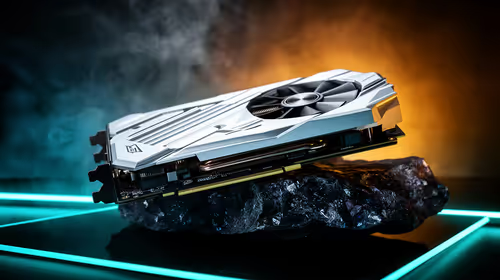
Note that you need a supported GPU for this option to appear. If you are running an older system, it might be time to upgrade your graphics card to take advantage of modern rendering tech.
Driver Update Pro Tip 🔧
Always ensure your Nvidia or AMD drivers are fully updated before enabling HAGS. Outdated drivers can sometimes cause stuttering when new Windows features are switched on.
Maximising Your Frame Rates
Knowing how to set up Game Mode and Hardware-Accelerated GPU Scheduling is just the start. These software tweaks are fantastic for squeezing out free performance. However, software can only push ageing hardware so far.
If you are still struggling to hit 60 FPS at 1080p, a hardware upgrade is your best bet. Browsing through top-tier gaming PCs gives you an idea of what modern components can achieve. Do not forget to keep an eye on our weekly specials to save thousands of ZAR on your next major rig upgrade.