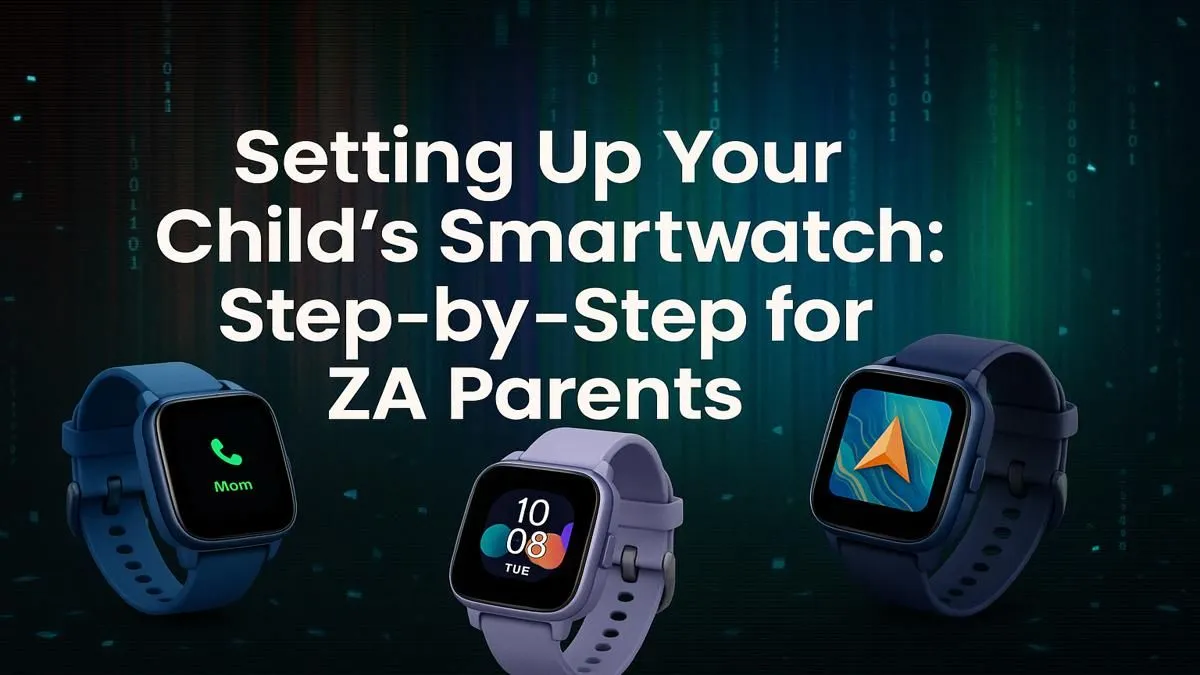
So, you’ve decided to get your child a smartwatch. Great choice! It’s a fantastic way to give them a bit of independence while giving yourself some much-needed peace of mind. But looking at the little box, you might be wondering… now what? Don’t worry. This guide is here to walk you through exactly how to set up a kids smartwatch in South Africa, from the SIM card to the safety settings. Let's get you connected. 🇿🇦
Before You Begin: The Pre-Setup Checklist
A smooth kids smartwatch setup starts before you even open the box. Getting these three things sorted first will save you a ton of hassle later.
1. Choose the Right Watch & SIM Card
First, you need the watch itself. You don't need to break the bank; there are many brilliant and affordable kids smartwatches under R1000 that offer core features like GPS tracking and two-way calling.
Next, the watch needs a SIM card to connect to a mobile network. You'll need a Nano-SIM with an active data plan and airtime. Vodacom, MTN, or Cell C all work perfectly. Remember, you'll need to RICA the SIM card in your name, so have your ID and proof of residence handy when you purchase it.
2. Charge It Up ⚡
This sounds obvious, but it’s crucial. Most smartwatches arrive with very little battery power. Connect it to the charger and let it reach 100% before you try to turn it on or install the SIM. A full battery prevents the device from shutting down during a critical firmware update or the initial pairing process.
3. Identify the Companion App
Every kids smartwatch pairs with a parent's control app on your smartphone (Android or iOS). The name of the app is usually printed on the box or in the user manual. Go ahead and download it from the Google Play Store or Apple App Store so it's ready to go.
The Step-by-Step Kids Smartwatch Setup Guide
With the prep work done, it's time for the main event. Follow these steps for a hassle-free setup.
Step 1: Install the Activated SIM Card
Make sure the watch is powered OFF. Locate the SIM card slot, which is usually protected by a small rubber or plastic cover. Gently insert the RICA'd Nano-SIM according to the diagram on the watch (the orientation matters!). Secure the cover to maintain any water-resistant seals. Now, you can power the watch on.
Step 2: Download and Register on the App
Open the companion app you downloaded earlier on your own phone. You’ll need to create a new account using your email address or phone number. This account is your master control panel for the watch, so choose a secure password you won't forget.
Quick Pairing Tip 📲
Most kids smartwatches use a QR code for quick pairing. You'll find it either on the watch screen during setup or on a sticker on the back. Simply open the companion app on your phone, select 'Add Device,' and scan the code. This is much faster than manually typing in long ID numbers!
Step 3: Pair the Watch with Your Phone
This is where the magic happens. In the app, find the option to "Add Device," "Bind Device," or "Scan QR Code." Follow the on-screen instructions to link the watch to your app account. Once paired, the watch will sync its time and date with the network and you should see signal bars appear on the watch face. Success!
Essential Safety Features to Configure 📍
The initial setup is done, but the most important part of setting up a kids smartwatch is customising the safety features.
SOS and Approved Contacts
First, program the SOS button. In the app, you can assign up to three emergency numbers (like yours, your partner's, or a grandparent's). If your child holds down the SOS button, the watch will call these numbers in sequence until someone answers.
Next, create a "whitelist" or "phone book" of approved contacts. This ensures that only pre-approved numbers can call the watch, and your child can only call out to those numbers. It's the perfect way to block spam and unknown callers. Many popular models, like those from Promate, offer robust and easy-to-use parental controls.
GPS Tracking and Geofencing (Safe Zones)
The GPS feature is likely why you bought the watch. In the app, you can view your child's location in real-time. Take it a step further by setting up "Geofences" or "Safe Zones." You can create a virtual perimeter around your home, their school, or a friend's house. The app will send you an instant notification if your child enters or leaves one of these designated areas.
And that's it! You've successfully completed the setup process for a kids smartwatch. It's a powerful tool for connection and safety, giving your child a taste of tech responsibility. Now you can both enjoy the benefits and security it brings. If you're still deciding on the right model, be sure to check out our full collection of smart watches to find one that fits your family's needs.
Ready to Give Your Child Independence (and Yourself Peace of Mind)?
Setting up a kids smartwatch is the first step towards a new kind of freedom. Explore our wide range of smartwatches and find the perfect device to keep your family connected and safe.