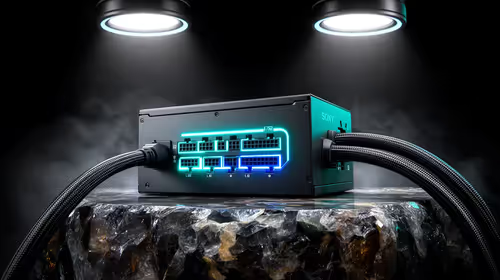
A wall of screens can show one convincing picture only when its timing plan is as deliberate as its content plan. NVIDIA RTX Pro Sync technology gives professional display builders Genlock, Frame Lock and NVIDIA Mosaic in one synchronisation component, with room to coordinate as many as eight RTX Pro GPUs and 32 displays.
Quick Answer
RTX PRO Sync coordinates high-resolution multi-display environments across Windows 10, Windows 11 and Linux, with one system scaling to 32 displays or projectors through NVIDIA Mosaic.
Synchronise a multi-display system by deciding which screens belong together, matching them to the participating RTX Pro GPUs, and then using the lock function required by the signal design. The PNY NVIDIA RTX Pro Sync card costs R19,599 and supports Mosaic alongside Genlock and Frame Lock.
🧭 Start with a display map
Draw the final canvas before selecting parts. Give every display a position, intended content region and owning GPU. That simple map exposes two limits early: the number of graphics processors taking part and the total number of screens that must stay coordinated. PNY's card supports a design containing up to eight NVIDIA RTX Pro GPUs and no more than 32 synchronised displays.
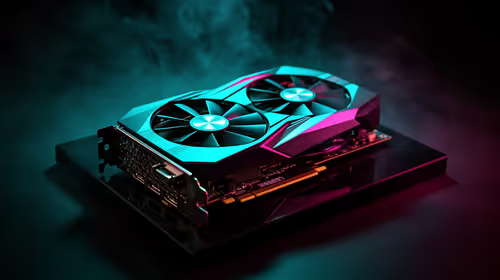
Those are ceilings, not targets. A smaller installation should be sized around its real outputs instead of being expanded merely because the hardware allows it. Compare the required professional GPUs through Evetech's workstation graphics card range, and keep the screen selection in a separate line of the plan.
⏱️ Give each sync feature one job
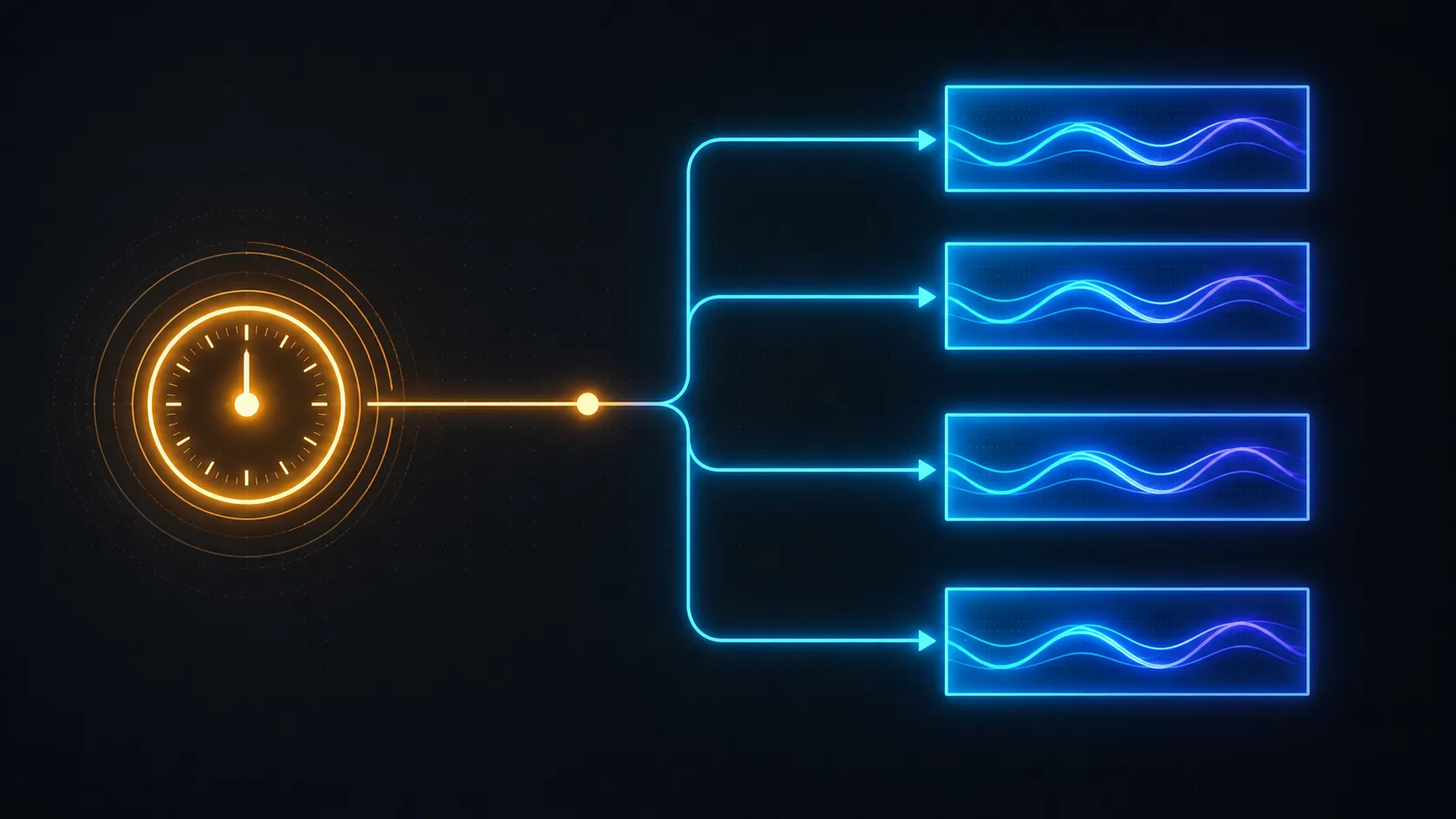
Genlock deals with alignment to a timing reference. Frame Lock keeps frames coordinated across participating graphics hardware. NVIDIA Mosaic addresses the multi-display arrangement rather than replacing either lock function. Treating these as three separate decisions prevents a broad word such as "sync" from hiding an unmet requirement.
Write the required function beside each signal group. If a wall needs shared timing, note Genlock. If several GPUs must present coordinated frames, include Frame Lock. If the visual surface is meant to operate as an arranged multi-screen canvas, account for Mosaic. The PNY RTX Pro Sync product combines all three for R19,599.
🧪 Test the whole visual path
Synchronization hardware does not choose monitors, mounting geometry or source content. Validate those parts together with the lock behaviour. Use moving edges, cuts and repeated patterns that make timing differences easy to see, then observe every boundary rather than watching only the centre screen.
Test the planned operating modes, not a convenient demo configuration. A system that will alternate between a single broad canvas and separated content zones should be checked in both states. Browse PC monitors with panel size, resolution and placement already marked on the display map.
📋 Keep a commissioning record
Once the wall behaves correctly, document the GPU-to-display assignment, enabled sync functions and the content mode used during acceptance. That record makes later fault-finding easier because a technician can compare the live arrangement with a known working baseline.
Allow room for the accessories that connect and support the finished system. Evetech's graphics card accessories page is the appropriate place to compare the surrounding component category after the architecture is fixed.
Plan one controlled change
Commissioning should also prove that a planned change can be made without losing the reference configuration. Choose one ordinary event, such as moving a content region to another approved display group, and record the condition before and after it. The exercise gives the operations team a practical way to distinguish an intentional layout change from a synchronization fault.
Keep that procedure beside the display map. If the wall is expanded later, the same observation can show whether the new group joins the existing timing and frame plan correctly.
The package supplies the internal synchronisation hardware as well as connection pieces: one primary card, four 12-inch sync cables and two longer 24-inch leads. A supported design can accommodate eight professional NVIDIA GPUs and two synchronisation cards. That makes cable reach, card placement and GPU allocation part of the initial system plan rather than details discovered after the screens are installed.
Frequently Asked Questions
Can one RTX Pro Sync card coordinate 32 screens?
It supports up to 32 synchronised displays. The actual design also has to remain within the card's ceiling of eight participating NVIDIA RTX Pro GPUs.
Does Mosaic perform the same task as Genlock?
No. Mosaic concerns the multi-screen visual arrangement, while Genlock concerns timing alignment. A project may require both roles.
Is Frame Lock useful in a one-GPU installation?
Frame Lock becomes especially relevant when frames must be coordinated across graphics hardware. Define that need from the system diagram before selecting the lock plan.
What belongs in the R19,599 budget line?
That figure is for the PNY NVIDIA RTX Pro Sync card. Monitors, RTX Pro GPUs and the rest of the installation should be costed separately.
Ready to map a synchronised display system?
Compare professional graphics hardware and the supporting component categories at Evetech once your GPU count, screen count and lock requirements are clear.