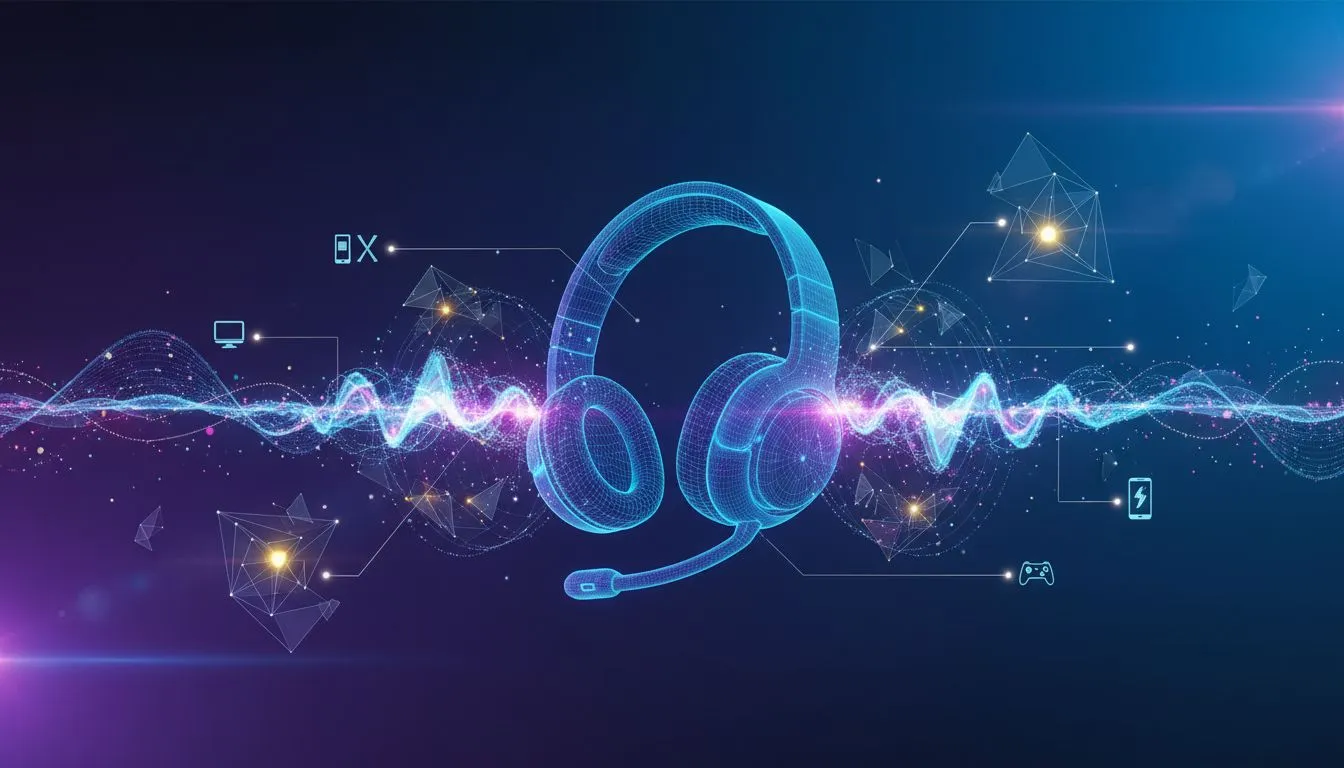
So, you've just unboxed your vibrant new Logitech G435 headset. Great choice! This feather-light headset packs a serious punch for its price, offering incredible versatility. But before you dive into your next match, let's get it connected. This guide makes the Logitech G435 setup a breeze, getting you from box to battle-ready in minutes, whether you're on PC, PlayStation, or your phone. Let's get you sorted. 🎧
Unboxing and First Steps
Inside the box, you’ll find three key items: your G435 headset, the LIGHTSPEED USB-A receiver, and a USB-C to USB-A charging cable. The first thing you should do is give the headset a good charge using the included cable. While it often comes with some battery life, starting with a full tank is always a good move. This headset is a standout in the world of Logitech gaming headsets for its simplicity and light-as-air feel.
Connecting Your G435: LIGHTSPEED vs Bluetooth
Your G435 offers two ways to connect: ultra-low-latency LIGHTSPEED wireless for gaming, and convenient Bluetooth for everything else. The G435 setup process is slightly different for each.
Connecting via LIGHTSPEED (For PC & PlayStation) ⚡
This is the best option for serious gaming, giving you a rock-solid, lag-free connection.
- Plug it in: Take the LIGHTSPEED USB receiver and plug it into an available USB port on your PC, PlayStation 4, or PlayStation 5.
- Power On: Press and hold the power button on the left earcup for about 1.5 seconds until you hear the power-on chime.
- Select Mode: The headset should connect automatically. If the indicator light is blue, it's in Bluetooth mode. Briefly press the mute button to switch to LIGHTSPEED mode (the light will turn cyan).
That's it! Your PC or console should now recognise the G435. The lightweight design is a massive plus for long gaming sessions, a feature many gamers look for when comparing options from brands like Corsair gaming headsets, which are known for their comfort.
Connecting via Bluetooth (For Mobile, Switch & More)
Bluetooth is perfect for listening to music on your phone or connecting to devices like the Nintendo Switch.
- Power On: Turn the headset on by holding the power button.
- Enter Pairing Mode: Press and hold the power and mute buttons together for about 3 seconds. The indicator light on the earcup will start blinking blue rapidly, showing it's ready to pair.
- Connect on Your Device: Open the Bluetooth settings on your phone, tablet, or other device. Select "Logitech G435" from the list of available devices to complete the pairing.
The unique colour options of the G435 also help it stand out, a design choice that rivals even the bold aesthetics seen on many Razer headsets.
Pro Tip: Protect Your Hearing 👂
The G435 has a hidden feature called Max Volume Mode. By default, it's set to 100dB. To protect your hearing, you can limit it to 85dB. To activate it, press and hold the mute button and the volume up (+) button for 3 seconds. The indicator light will flash orange three times. To switch back, hold mute and volume down (-).
Final Checks and Troubleshooting
Once connected, play some audio to test it out. You can adjust the volume using the buttons on the left earcup. If you have any issues, a simple power cycle (turning the headset off and on again) usually fixes things. The dual-connectivity is a premium feature, and it's impressive to see it executed so well, putting it in competition with wireless systems from other major brands like SteelSeries gaming headsets.
This straightforward Logitech G435 setup means you spend less time fiddling with settings and more time enjoying crisp, clear audio. Now that you're an expert, you can appreciate why finding the right gear is so important. If you're ever looking to upgrade or just browse, Evetech has some of the best great gaming headset deals in South Africa. ✨