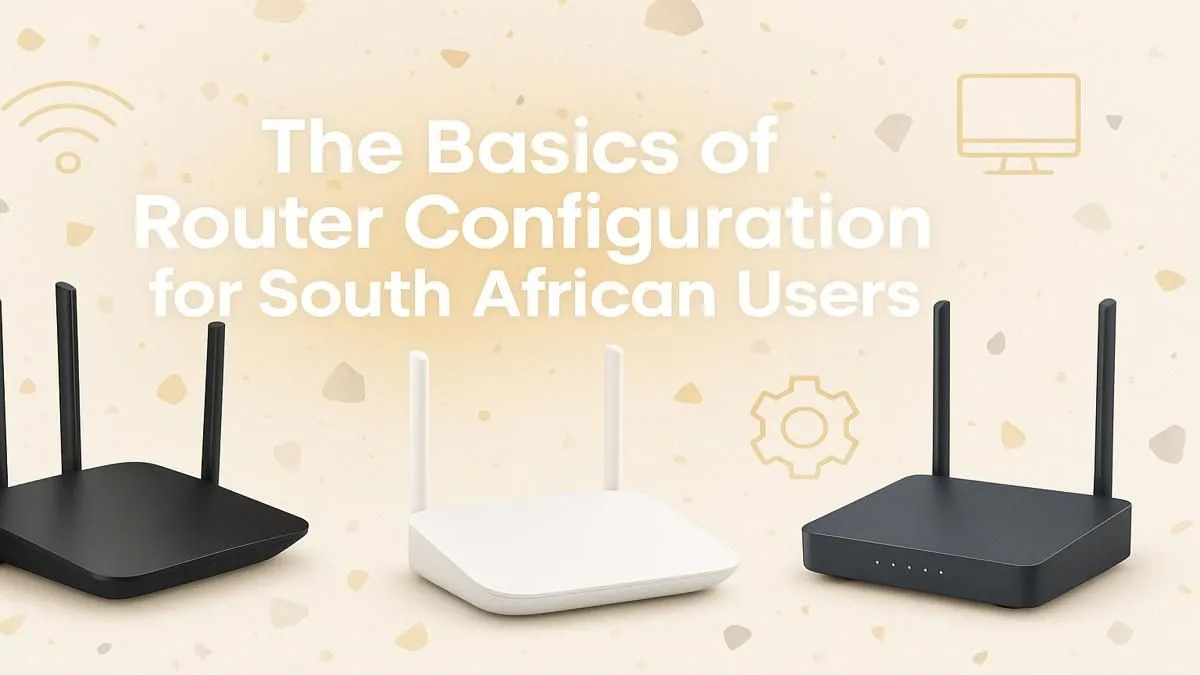
Tired of that dreaded buffering icon during a nail-biting CS:GO match or a Showmax binge? In South Africa, a fast fibre line is only half the battle. Your router is the unsung hero of your home network, and a proper setup can make a world of difference. This beginner's guide to router configuration in South Africa will walk you through the essential steps to unlock a smoother, faster, and more secure online experience. 🚀
First Steps: Connecting and Accessing Your Router
Before you can tweak any settings, you need to access your router's control panel. It sounds technical, but it’s surprisingly straightforward.
First, connect to your router. You can do this with an Ethernet cable for the most stable connection or simply by connecting to its default Wi-Fi network (the details are usually on a sticker on the router itself).
Next, open a web browser and type your router's IP address into the address bar. This is usually 192.168.1.1 or 192.168.0.1. You'll be prompted for a username and password, which are also typically found on the router's sticker (often "admin" for both).
Essential Router Configuration for Peak Performance
Once you're logged in, you'll see a dashboard with various options. Don't be intimidated! Focusing on these key areas will cover 90% of what you need for a solid home network setup. This basic router configuration is crucial for both security and speed.
Secure Your Network Immediately 🔒
The very first thing you should do is change the default login details. Leaving them as "admin" is like leaving your front door wide open.
- Change the Admin Password: Find a section called "Administration," "System," or "Tools." Create a new, strong password for logging into the router itself.
- Set a Strong Wi-Fi Password: Navigate to the "Wireless" or "WLAN" section. Set the security mode to WPA2 or WPA3 (if available) and create a complex password for your Wi-Fi network. This stops neighbours... or anyone else... from using your data. Getting these basics right is fundamental to having secure wireless networking at home.
Wi-Fi Channel Pro Tip ⚡
Your neighbour's Wi-Fi can interfere with yours, causing slowdowns. Use a free Wi-Fi Analyser app on your phone to see which channels are most congested. In your router's wireless settings, manually select a less crowded channel (like 1, 6, or 11 for 2.4GHz) to potentially boost your signal stability and speed.
Optimise Your Wi-Fi Signal
A few small tweaks can significantly improve your wireless coverage and performance.
- Rename Your Network (SSID): Change the default network name from something generic like "Telkom-D4A7" to something unique. This makes it easier to identify. If your router is dual-band, you can create separate names for the 2.4GHz and 5GHz networks (e.g., "MyHomeWiFi_2.4" and "MyHomeWiFi_5").
- Physical Placement: Keep your router in a central, open location, away from thick walls and other electronics like microwaves.
Even with perfect placement, large homes can have dead spots. In these cases, high-quality wireless range extenders can be a lifesaver, pushing a strong signal into every corner of your house. For older PCs without built-in Wi-Fi, a simple USB upgrade can make all the difference; you can find plenty of powerful wireless adapters to get them connected in minutes.
Is It Time for an Upgrade?
You've followed this router setup guide, but your connection still feels sluggish or drops frequently. What gives? Sometimes, the hardware itself is the bottleneck, especially if it's the free one your ISP provided years ago. If your router struggles with multiple devices, can't cover your home, or doesn't support modern speeds, it might be time for an upgrade. A modern router with Wi-Fi 6 technology can handle more connections and deliver faster, more reliable speeds. Exploring some of today's best wireless routers can reveal just how much performance you've been missing out on.
Ready for a Lag-Free Life?
A solid router configuration is key, but it's built on the foundation of great hardware. If your old router just can't keep up, it's time to unleash your internet's true potential. Explore our massive range of wireless routers and find the perfect upgrade to conquer your connection.