A failed USB-C display usually reflects a broken link in a chain rather than one mysterious fault. Solving USB-C portable monitor connection problems requires the source port, cable, power arrangement and display mode to be checked independently for each laptop or phone.
Quick Answer
Connection failure usually lies in the user's USB-C video capability, cable or power path; once valid input arrives, the monitor supplies Full HD at up to 120Hz.
Confirm that the exact laptop or phone port outputs external-display video, then use a cable built for that function and power the screen through its required arrangement. UPERFECT's R2,499 target is a 1920x1080 panel at 120Hz, while USB-C support must be checked on the unit before troubleshooting that route.
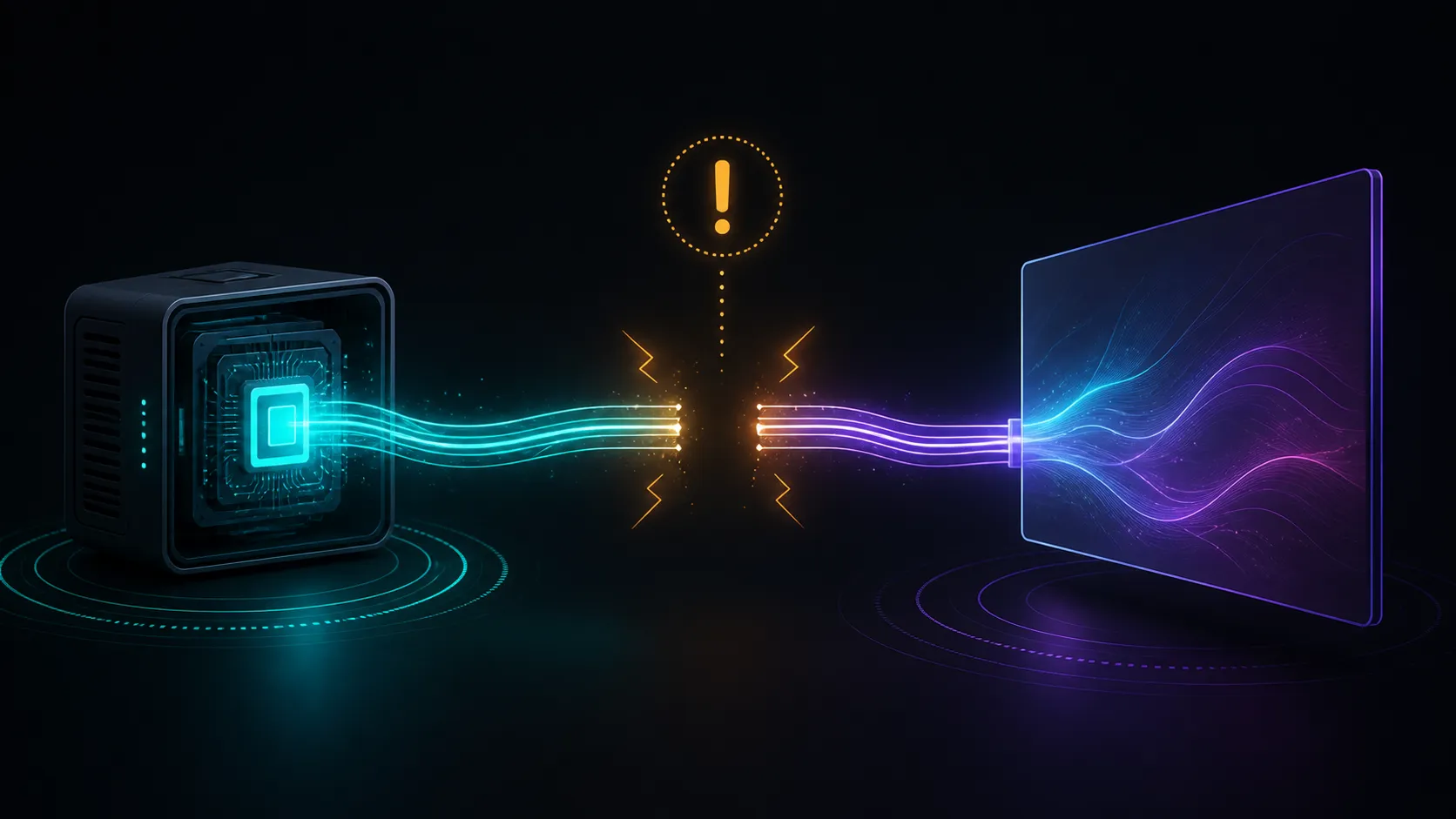
🔎 Prove that the source sends video
USB-C is a connector shape, not a guarantee of display output. Read the device manual or port documentation and look for external-display capability on that exact socket.
Phones need model-level checking. Two devices in one family can expose different wired-display behaviour, and application or operating-system restrictions may affect what appears.
If the laptop has several USB-C ports, document every socket's role instead of trying them in random order. A known video-capable port gives the rest of the test a stable starting point.
Browse the Evetech portable screen category after the source requirements are clear.
🧵 Replace assumption with a proven cable
A lead used successfully for charging may not carry display video. Select a cable documented for the signal and avoid adding adapters until the simplest route has been tested.
Inspect both plugs and sockets for damage or debris without using metal tools. Seat the connectors without force and keep heavy adapters from hanging on the monitor side.
Where possible, test the cable in another known display route. This isolates cable function without turning the NxtLED One Plus into the only test point.
⚡ Isolate picture and power behaviour
Do not infer one-cable operation from USB-C. Establish how the screen receives power and test that supply separately before expecting video detection.
Disconnect optional peripherals, start the source and monitor in a documented order, then wait for the operating system to detect an external display. Change one element before each retry.
If the screen powers but shows no picture, that result proves only the power stage. Return to source output, cable signal and display input selection rather than increasing unrelated picture settings.
🖥️ Build from a basic mode to 120Hz
Once detected, select extend or duplicate mode and establish a stable 1920x1080 image. Choose readable scaling and verify orientation before seeking the panel's 120Hz refresh option.
If 120Hz is missing, the source, cable or selected mode may be limiting the route. Save the working lower-refresh configuration before further changes so the original picture can be restored.
Use the Evetech monitor accessory department when the diagnosis identifies a precise cable, adapter or support need. Record the passing source model, port, lead, power plan and display mode for the next setup.
After the fault is resolved, reverse one harmless step to confirm the cause. Reinsert the suspect cable or return the previous port where safe, observe whether the symptom returns, then restore the passing route. This controlled confirmation prevents a coincidental restart from being recorded as the repair and gives future support a more reliable finding.
Date the final setup note and include the operating-system version. A later update can then be compared with a known configuration instead of being blamed without evidence.
The portable screen itself is designed for mobile use at only 2.79 pounds and ships with a protective case, so a proven cable set should stay with it. Test the laptop or phone's display-output support, then isolate power and signal rather than swapping everything together. Mini HDMI offers a separate video alternative when the source provides that output, but it does not remove the need to power the display correctly.
After the connection passes, mark the working port and cable instead of dismantling the route. That reference distinguishes a future source problem from a monitor that is already known to operate correctly.
Frequently Asked Questions
Why can one USB-C socket work while another fails?
Ports on the same device may expose different functions, so each socket's external-display capability needs confirmation.
What does a powered screen prove?
It shows that part of the power path works; it does not establish video output or cable signal support.
When should 120Hz be selected?
Seek it only after the display is stable at 1920x1080 and every part of the route supports the higher refresh.
Which details make a useful support note?
Include source model, exact port, cable, power method, operating-system version, chosen mode and observed symptom.
Ready to diagnose USB-C one link at a time?
Prove source, cable and power functions, then compare portable monitors and correctly specified connection gear at Evetech.