Quick Answer
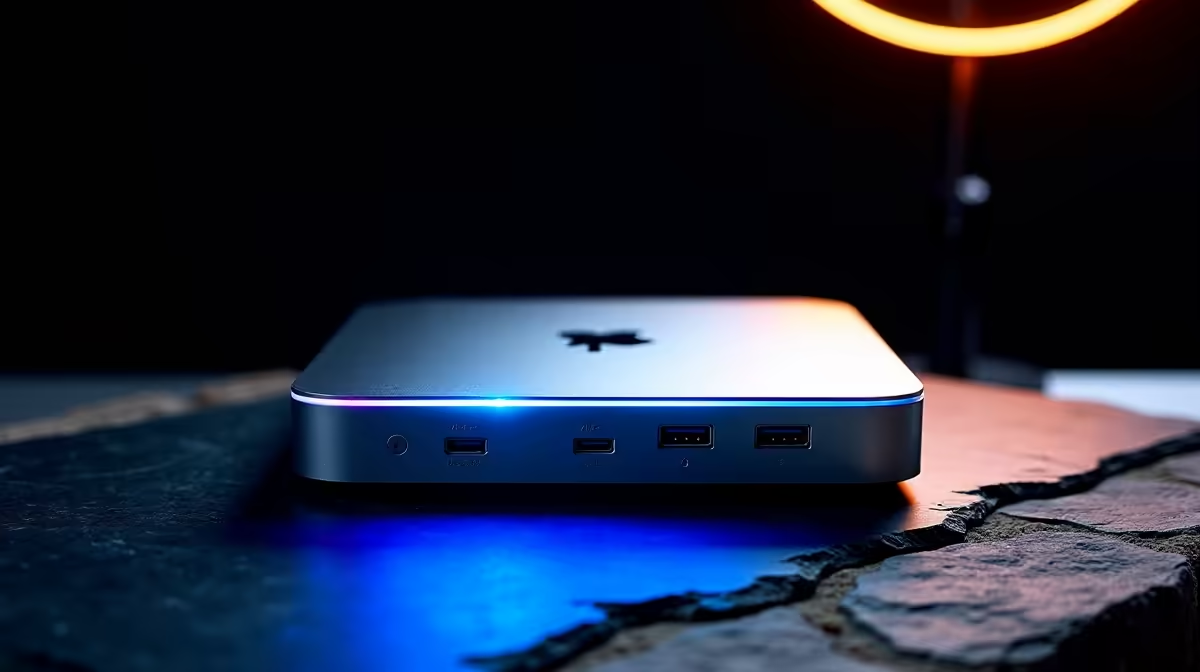
Ignoring dock compatibility can cost you a full second monitor or your gigabit Ethernet. Before you buy, confirm your laptop supports DisplayPort Alt Mode and check the wattage; a mismatched dock under R1,500 may charge slowly or refuse to drive dual displays at all.
The Hidden Costs Nobody Mentions
The classic trap is buying a dock rated for two 4K monitors, then discovering your laptop's USB-C port only carries one display stream. Many budget and older SA-market laptops route video through a single lane, so the second screen simply stays black no matter what the dock promises. That is money spent on ports you can never use.
The second hidden cost is power. A dock that delivers only 60W will trickle-charge a gaming or content laptop that wants 90W or more, so the battery drains while plugged in. Check your laptop's charger wattage and match or exceed it at the dock.
How To Verify Before You Pay
Look up whether your laptop's USB-C port supports DisplayPort Alt Mode and Power Delivery, and how many external displays it officially drives. Then match the dock's PD output to your charger. Keep the invoice so you can return a dock that does not behave as advertised within the test window.
FAQ
Why does my second monitor not work on a new dock?
Your laptop likely supports only one external display over USB-C, or the port lacks full DisplayPort Alt Mode. The dock cannot add display lanes the laptop does not have.
How many watts of power delivery do I need?
Match your laptop's bundled charger. If it ships with a 90W brick, a 65W dock will charge slowly under load and may even lose battery while gaming.
Are Thunderbolt docks compatible with USB-C laptops?
Often yes for basic data and charging, but Thunderbolt-only features and multi-display setups may not work fully on a plain USB-C port. Check both ends before buying.
laptop's exact charger wattage and supported external-display count first, then shop docks that meet both numbers rather than the headline port list.