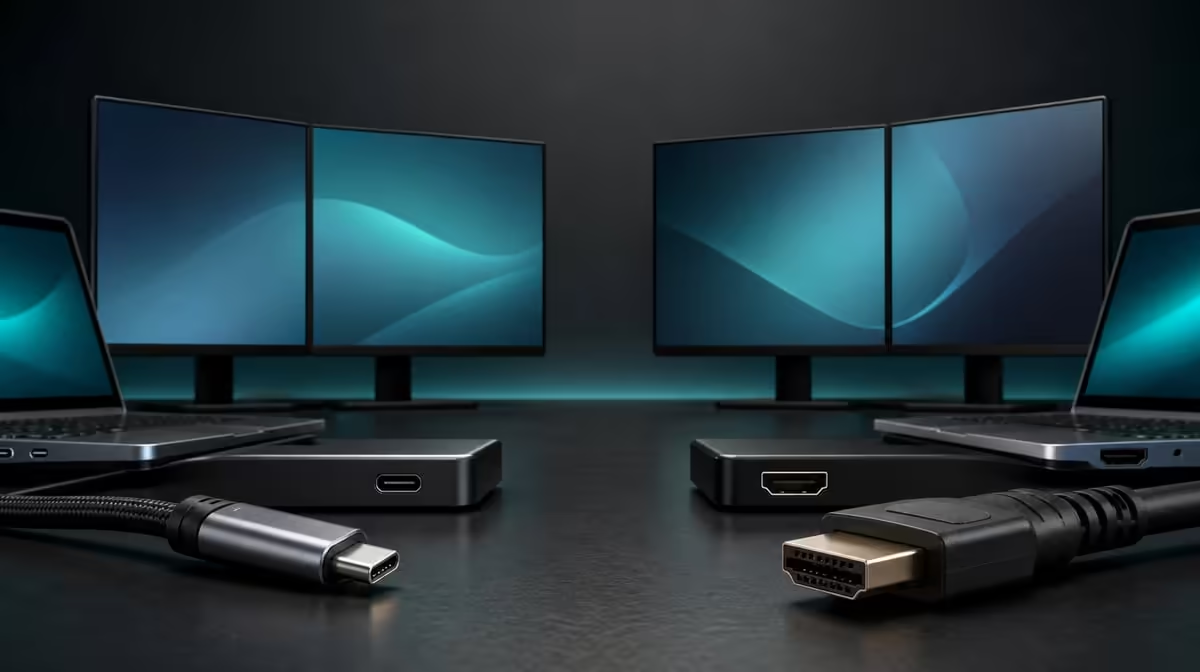
The practical connector is the one that lets the laptop expose both screens reliably. Type-C versus HDMI for dual business monitors compares a potentially consolidated route with a familiar video connection, while cable capability and display modes remain decisive.
Quick Answer
Use Type-C when the Windows or Mac laptop port and cable support the Delta Mega's intended dual-screen arrangement. Use HDMI when it provides the clearer compatible video route. The R6,899 monitor supports both, but neither connector universally guarantees two Full HD panels at 100Hz.
🔌 Type-C can reduce connection clutter
Type-C is useful when the laptop output and selected cable support the monitor's dual-display operation. Connector shape alone does not establish those capabilities.
Choose the documented laptop port, connect one known cable and detect both 23.8-inch panels. Start at 1920 x 1080 before attempting 100Hz.
Keep the cable clear of the 360-degree folding path. A neat connection loses value if it pulls when the screens stack or turn.
Compare flexible screens through Evetech's portable monitor collection with the exact laptop output noted.
🎞️ HDMI offers a familiar video route
HDMI can suit many Windows and Mac source arrangements. The actual computer output, cable and any necessary connection equipment still determine the result.
Build a separate known-good HDMI card. Detect both panels, select native resolution and confirm which refresh modes the laptop exposes.
Do not switch Type-C and HDMI repeatedly during the same fault check. Prove one route, record it and then compare the other.
🧪 Compare detection and 100Hz
Restart the laptop through each established route. Note whether both panels return, how they are numbered and whether the horizontal or vertical map remains correct.
Confirm 100Hz on each display independently. A stable Full HD image at another rate proves the connection works but not that the higher mode is active.
Move a scrolling document across the boundary and inspect for a refresh mismatch. Keep colour and scaling unchanged.
Use Evetech's PC monitor category when comparing fixed connection layouts.
🧵 Choose for ownership
Map the laptop position, cable slack and folding layouts. The chosen route should remain safe in the horizontal pair, vertical stack and sharing angle actually used.
Test speakers after connection because the operating system may select a different playback device. Low blue light remains a separate picture choice.
At R6,899, dual-input value comes from two proven laptop paths or one main route plus a useful alternative. Review Evetech's monitor best sellers after the device matrix is complete.
Create a matrix with one row per Windows or Mac laptop. Record the chosen output, cable, both-panel detection, native resolution, available refresh and audio route.
Leave an untested cell blank instead of assuming another computer behaves like the first. Platform support is broad, while port functions remain device specific.
Test wake, restart and reconnect for the route used every day. A connection that succeeds only during the first setup needs a clearer recovery note.
Check duplicate and extended modes separately. A presentation may need duplication, while normal business work usually benefits from distinct panel areas.
For no signal or one missing panel, return to the last-known-good card and change one component. Do not change Type-C, HDMI, refresh and scaling together.
Inspect the cable path through every folding arrangement used. A source route is not practical if the lead must be stretched or trapped to reach a vertical stack.
Finally, ask another user to connect the laptop from the matrix. If the port, input or mode is unclear, improve the labels before calling the route convenient.
Add a safe disconnect order to each card. Return important windows and audio to the laptop, close private content, then remove the cable by its plug.
Retest after the computer receives a major software update or a new dock enters the path. Keep the earlier direct connection as the reference.
The practical winner should be the route a second user can repeat while preserving both panels, their map and the required refresh.
Frequently Asked Questions
When can Type-C be the practical route?
When the laptop port and cable support the intended two-screen display operation.
When can HDMI be easier?
When the source provides a clear compatible HDMI video path and the cable arrangement suits the desk.
Do Windows and Mac both work with the Delta Mega?
Both platforms are supported, while exact ports, menus and exposed modes can differ.
Can connector choice affect 100Hz access?
Yes. Confirm the refresh options through the complete laptop and cable path.
Should both routes be changed during diagnosis?
No. Establish one stable connection before comparing another.
Which route is universally better?
Neither. The better route is the one that passes the intended laptop, display-mode and folding tests.
Ready to make the laptop port prove both screens?
Browse Evetech's dual monitor choices and record one clean Delta Mega Type-C or HDMI path before comparing convenience.