Ray tracing is often treated as if it were a switch that makes every image realistic. In practice, hardware-accelerated ray tracing is a way for compatible software to calculate some lighting, reflection and shadow work more efficiently. It is useful only where developers choose to use it and where the resulting trade-off suits the task.
Quick Answer
Hardware ray tracing accelerates supported lighting, reflection and shadow calculations. On the iPad Air, the 9-core M4 GPU provides that capability, but developers decide whether an app uses it and which image-quality or frame-rate trade-offs remain available. Treat it as one tool inside a graphics pipeline rather than a universal promise about games or creative apps.
💡 See the calculation behind the label
Traditional rendering often uses approximations to create light and reflections quickly. Ray tracing models paths of light to produce effects where the software supports them. That can improve the way a reflective surface, shadow or light source behaves, but the visual result still depends on the scene, the engine and the artist's choices.
The iPad Air listing gives the M4 a nine-core graphics section, neural accelerators and hardware ray tracing. That capability is real hardware context; it does not tell you which games, editors or visualisation tools use it. Check the application's own feature notes and settings instead of assuming it appears automatically.
🎛️ Compare settings as a complete experience
If an app exposes a graphics setting, test the same scene with one change at a time. Note image detail, motion, response, warmth and battery use over a normal session. A reflection effect may be worthwhile in a slower visual task. In a fast game, steadier movement and a useful frame-rate setting can matter more.
Do not use a menu screen as the only evidence. Move through a demanding level, export a representative project or play the kind of session you normally play. The setting that remains comfortable is usually more valuable than the setting that looks best in a still image.
🧪 Keep compatibility separate from performance
An application may not offer a ray-tracing option at all. That is a software design decision, not proof that the tablet has failed. Conversely, a feature can be present yet not be useful for the project. Confirm the app version, file type, export requirements and workflow before treating one graphics capability as a purchase reason.
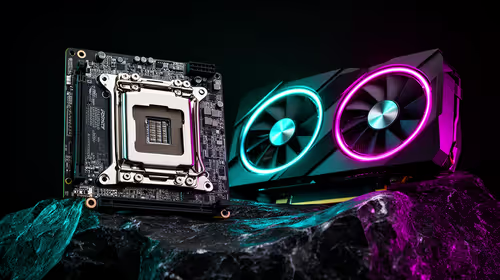
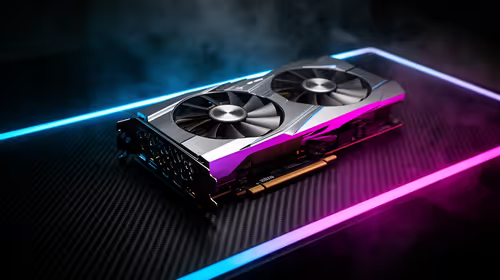
For a broader view of graphics hardware categories, browse graphics cards. Desktop components and tablet graphics are not direct substitutes, but the category can help explain why applications expose different visual controls.
✅ Choose the result that supports the job
For creative work, compare the feature with the output you must deliver. For games, compare it with responsiveness and sustained comfort. Keep a small note of the title, scene and setting so you can repeat the comparison after an app update. That turns a marketing term into a decision you can verify.
For a category comparison, start with iPads and then test the supported app's own visual settings. The M4's listed ray-tracing capability can help a compatible workload, but it does not compel every developer to enable the same effect.
Frequently Asked Questions
Does ray tracing make every app look better?
No. Developers decide whether to use it, and the scene or task may not benefit noticeably. It is one option among many graphics choices.
Does the iPad Air use ray tracing in every game?
No. The listed GPU can accelerate supported ray-tracing work, but each game chooses its own graphics features and presets.
Should I select ray tracing whenever it is offered?
Select it only when the complete experience remains comfortable. Compare image quality with frame rate, response, heat and battery over a normal session.
Ready to test a graphics feature instead of guessing?
Compare one familiar scene at two settings and keep the option that serves the work or game you actually run.