4K 120Hz console setup basics for South African gamers 🎮
Running your PS5 or Xbox Series X at 4K 120Hz can feel like the “next level”… until the screen refuses to cooperate. If you are buying a 4K 120Hz monitor in South Africa, your biggest enemy is usually not the GPU or console. It is the HDMI handshake, wrong cable, or the monitor running the wrong mode.
Let’s fix that properly, step by step, so your PS5 and Xbox Series X actually hit 4K 120Hz when the game supports it. 🔧
How to Connect PS5 and Xbox Series X to 4K 120Hz Monitors: start with the right gear ⚡
Before you plug anything in, check these three items:
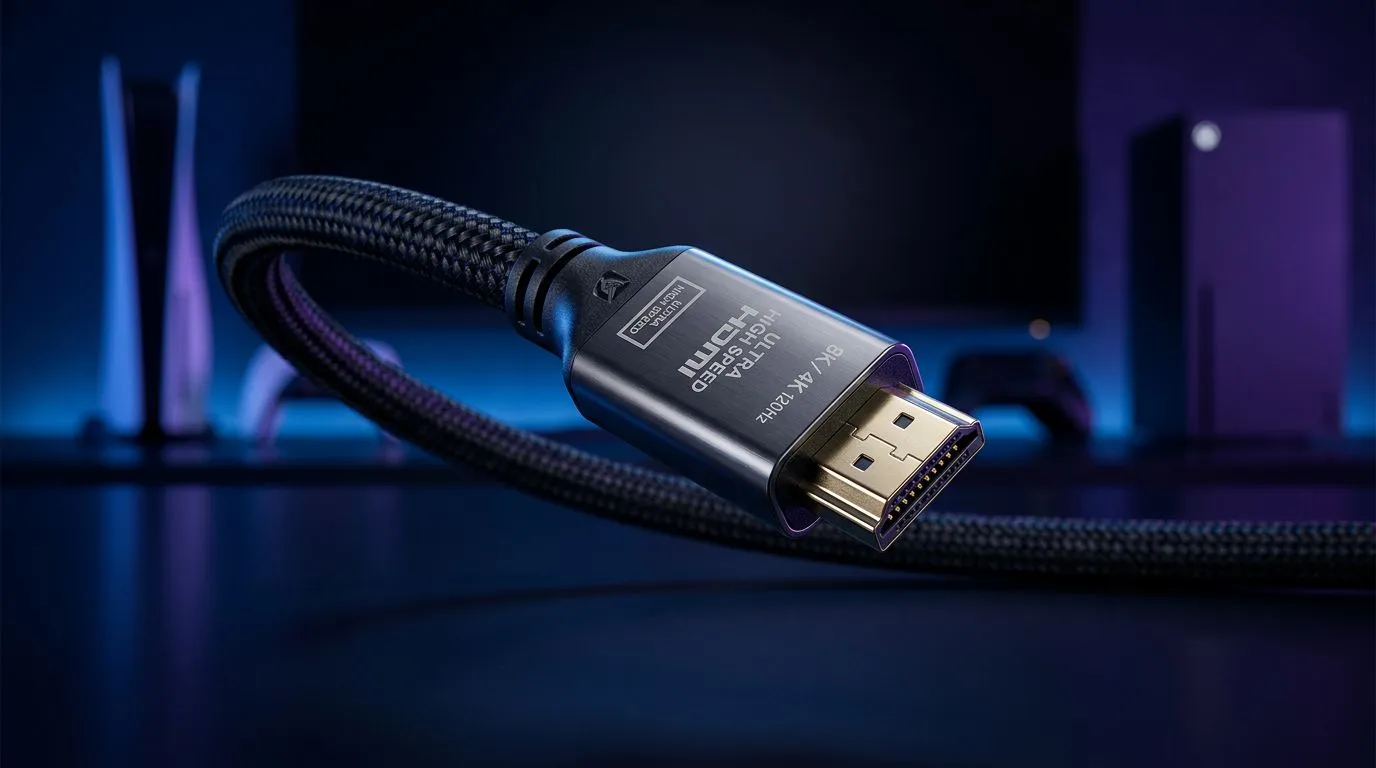
- HDMI cable: Use a High Speed HDMI cable that supports 4K at 120Hz. If you are unsure, upgrading the cable is cheaper than troubleshooting for hours.
- Console video output: You must enable 120Hz in the console settings.
- Monitor input mode: Many monitors label the correct port and refresh mode. If you pick the wrong input, 120Hz may be unavailable.
If you are still shopping, compare options in Evetech’s monitor range:
4K 120Hz: what “works” on consoles
Not every game runs 4K at 120fps. Consoles will often prioritise performance modes (sometimes at lower internal resolution) to reach 120Hz. Your goal is simple: ensure the display and console are capable, then let the game select the right mode.
Evetech’s monitor category pages are a good place to sanity-check spec language and current availability:
Connecting PS5 and Xbox Series X: HDMI ports, handshake, and settings 🔌
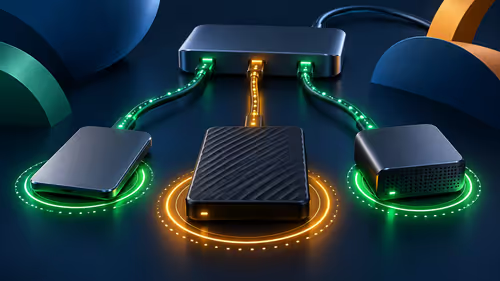
Once you have a 4K 120Hz-capable monitor and a proper HDMI cable, follow this order. It reduces “it works on one console but not the other” moments.
Step 1: Plug into the correct HDMI port
- Plug your console into a monitor HDMI port that supports 120Hz.
- If the monitor has multiple HDMI inputs, test the one that is typically labelled for higher refresh (often HDMI 2.0/2.1).
Step 2: Set the console to 4K 120Hz
On PS5:
- Settings → Screen and Video → Video Output
- Set Resolution to 4K
- Set 120Hz Output to Automatic (or On, if the console offers it)
- Keep HDR settings aligned with your monitor’s capabilities
On Xbox Series X:
- Settings → General → TV & display options
- Choose the display resolution and enable 120Hz refresh rate
- If there are advanced options, ensure they match what the monitor supports
Step 3: Confirm it on the monitor OSD
Most monitors show the active refresh rate in an on-screen display. After changing console settings, check that the monitor is actually receiving 120Hz.
Common troubleshooting (fast)
- No signal: Try a different HDMI port on the monitor.
- Stuck at 60Hz: Re-check console 120Hz setting, then confirm the monitor input mode.
- Flicker or weird colours: Confirm HDR settings and ensure the cable supports 4K 120Hz.
Choose the right monitor type: flat vs curved, portable vs big 4K ✨
Your monitor shape and size can affect immersion, but refresh rate is the non-negotiable piece for competitive play.
If you like the “wrap-around” feeling, start with curved options:
If you move consoles between rooms or you are building a flexible setup, consider portable displays:
And if you are going big on resolution and detail, compare the 5K/4K landscape:
What to look for in 4K 120Hz monitors (practical checklist) ✅
When you read the specs, look for:
- Explicit support for 4K at 120Hz (not just 4K60)
- HDMI version support that matches console refresh needs
- HDMI bandwidth / bandwidth mode wording (manufacturers sometimes hide details in notes)
If you want to tidy your setup, don’t forget accessories:
Productivity Pro Tip 🔧
If your monitor offers multiple HDMI modes (or “Game Mode” “Enhanced Mode”), enable the one that specifically boosts high refresh. Then, after you turn on 120Hz in PS5 or Xbox settings, power-cycle the monitor and console once so the HDMI handshake re-negotiates cleanly. This saves loads of time when you get stuck at 60Hz.
Performance expectations: what “4K 120Hz” feels like in real games 🚀
Here’s the honest South African gamer reality: once your setup is right, the difference is immediate. Mouse-like responsiveness, smoother motion, and more consistent aiming. But it still depends on:
- the game’s performance mode,
- whether it supports 120Hz,
- and whether it targets 4K directly or uses resolution scaling.
If you ever feel “this isn’t running 120”, don’t assume your monitor is wrong. First verify the active refresh rate with the monitor’s OSD, then confirm the console setting. Then check the in-game video mode.
The win is that you will stop guessing and start measuring.
Lock it in: your 4K 120Hz setup plan (PS5 + Xbox Series X) 🎯
Use this simple flow next time you set up:
- Confirm the monitor supports 4K 120Hz.
- Plug both consoles into the correct HDMI port.
- Set PS5 to 4K with 120Hz output enabled.
- Set Xbox Series X to 120Hz refresh rate for the display.
- Verify the actual refresh rate on the monitor OSD.
- If it fails, swap HDMI ports and re-handshake (power cycle).
Get it right once, and you will enjoy smoother gameplay every time. ⚡
Ready to Find Your Perfect Match?
If you’re shopping in South Africa and want maximum value for a 4K 120Hz setup, start with the right monitor category and then match the HDMI and settings. Take the shortcut: browse and compare options that fit your space and budget. Explore our massive range of laptop specials and find the perfect machine to conquer your world.