Why You Need to Move Your Game Library 🚀
Your C: drive is screaming for mercy because you just installed another 100GB update. We know the feeling. Instead of deleting your favourite titles, it's time to shift your library. Learning how to move Steam and Epic Games to a new drive is the easiest way to keep your rig running smoothly without losing progress or wasting data on redownloads.
As local file sizes swell... often exceeding 150GB for a single AAA title... standard SSD upgrades have become a necessity rather than a luxury for South African gamers.
Moving Your Steam Library the Easy Way 🔧
Steam makes the process incredibly simple with its built-in storage manager. You do not need to copy and paste folders manually in File Explorer.
- Open Steam and go to Settings > Storage.
- Select your new drive from the dropdown at the top. If it is not there, click the "+" icon to add a new library folder.
- Check the boxes next to the games you want to migrate.
- Click Move and select the target drive.
If you are using high-performance Western Digital storage, this process usually takes just a few minutes depending on the interface speed.
How to Move Epic Games to a New Drive ⚡
The Epic Games Launcher is slightly more stubborn than Steam. It lacks a direct "Move" button, but you can still do it without a fresh download.
- Close the Epic Games Launcher completely.
- Manually move your game folder to the new location.
- Rename the folder slightly (e.g., add "-temp" to the end).
- Open the Launcher and "Install" the game to the new location.
- Pause the download after 1% and close the Launcher.
- Move your files into the newly created folder, delete the "-temp" folder, and resume.
Epic Games Pro Tip ⚡
When renaming the folder back to its original name, ensure the Launcher is completely closed in the Task Manager. If Epic Games detects the files before you resume the download, it will verify the existing data instead of starting a fresh 100GB download... saving your monthly data cap!
Many users find that high-capacity ADATA drives offer the perfect balance of price and performance for these large secondary libraries.
Expanding Your Storage Options
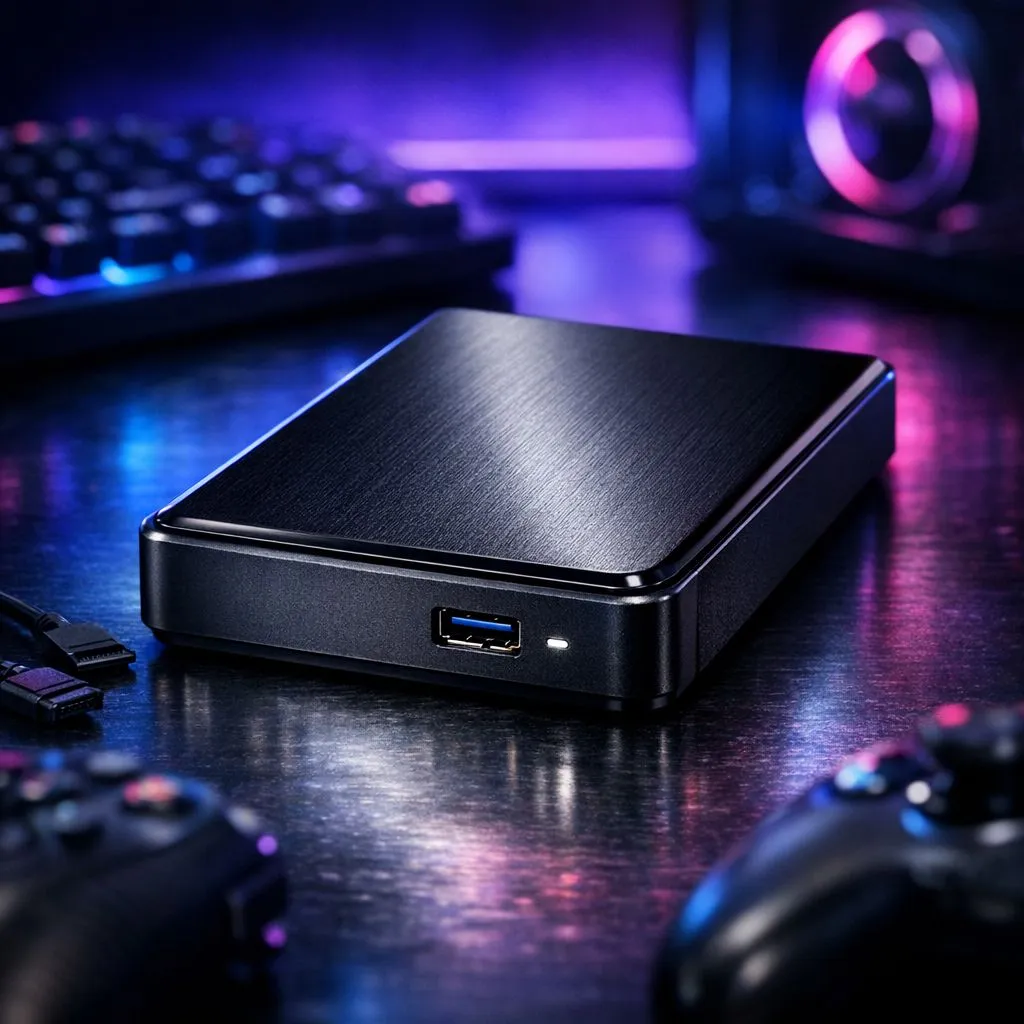
If you are gaming on a laptop or simply do not want to open your chassis, an external SSD is a brilliant alternative. Modern USB 3.2 interfaces provide enough bandwidth to play games directly off the drive without noticeable lag.
When browsing for external form factor drives, look for models with shock resistance... especially if you plan on taking your library to LAN events or a friend's house.
For those who demand the absolute lowest loading times, upgrading to Gen 5 NVMe speed ensures your system stays relevant for years to come. Moving your library to a faster drive can shave seconds off every loading screen in titles like Starfield or Ratchet & Clank: Rift Apart.
Ready to Find Your Perfect Match?
Running out of space is a choice, not a lifestyle. For maximum power, choice, and value in South Africa, a dedicated gaming drive is the ultimate upgrade. Explore our massive range of SSD specials and find the perfect hardware to expand your digital universe.