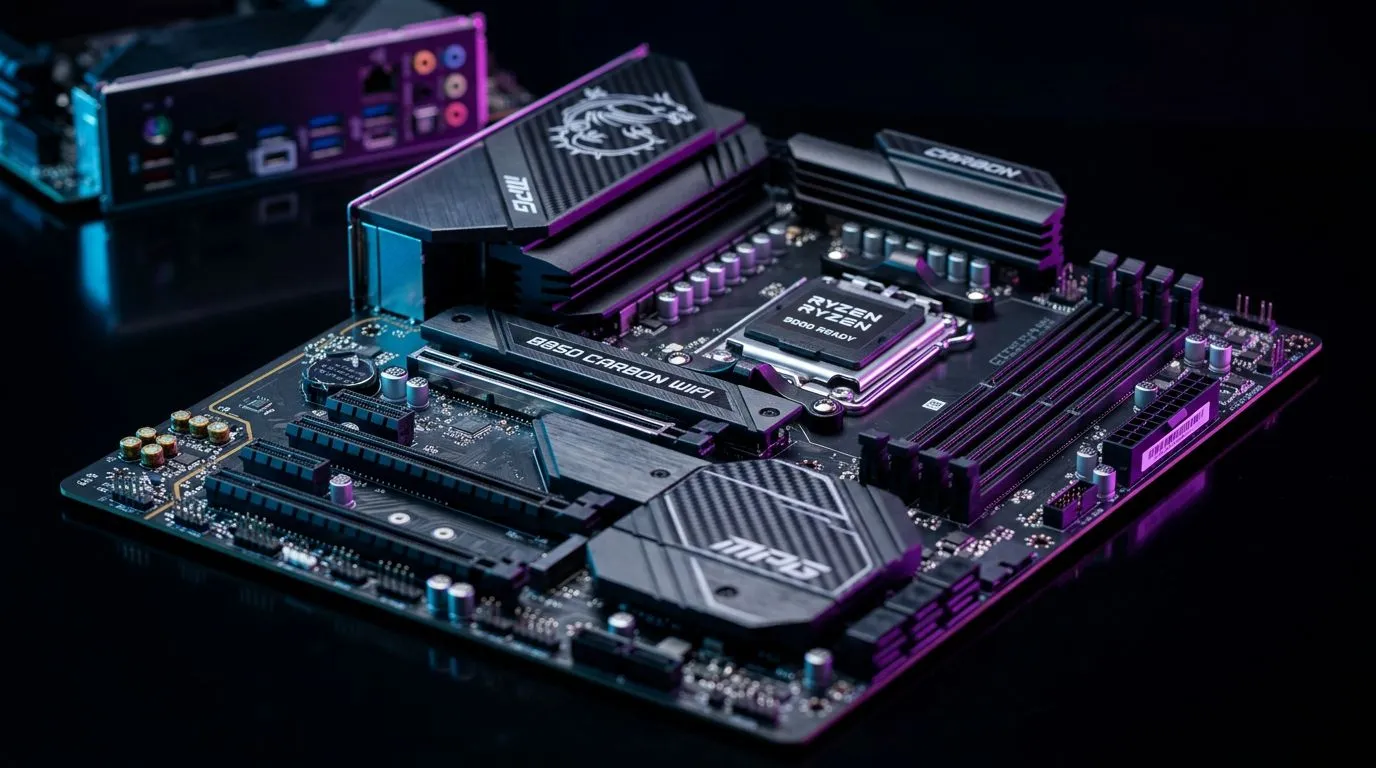
How to Update MSI B850 BIOS for Ryzen 9000 Series Support
If you’ve just grabbed a Ryzen 9 chip and dropped it into an MSI B850 board, you’re not alone. In South Africa, a lot of builders hit the same wall… the system powers up, but the BIOS won’t fully cooperate with newer CPU support. 🔧
The good news? Learning how to update MSI B850 BIOS for Ryzen 9000 series support is usually straightforward, as long as you follow the right order, use the correct firmware, and don’t cut power mid-flash. Let’s make it clean, safe, and fast.
How to Update MSI B850 BIOS for Ryzen 9000 Series Support: What You Need Before You Start
Before you flash anything, gather the essentials:
- Your exact MSI motherboard model (B850 board variant matters).
- A stable power source (UPS is ideal if you can).
- A USB flash drive formatted properly.
- The correct BIOS file from MSI’s official support page for your board.
- Patience… BIOS updates can take a few minutes, depending on the update method.
Why accuracy matters: flashing the wrong BIOS or the wrong revision can brick a board. So, double-check the model number printed on the board and listed in MSI’s download section.
Quick sanity check for SA power realities ⚡
If you’re in an area where load shedding is common, consider a small UPS for the PC during the update. It’s one of those “boring” purchases that saves major downtime.
Productivity Pro Tip ⚡
On Windows, keep the BIOS download folder open and write down the exact BIOS filename you downloaded. When you’re ready to flash, double-check the filename against the MSI instructions so you don’t accidentally pick the wrong file from the USB drive.
How to Update MSI B850 BIOS for Ryzen 9000 Series Support: Step-by-Step Flash Methods
There are usually a couple of supported approaches. Follow MSI’s guidance for your specific B850 model. The two most common methods are:
Method 1: Flash from BIOS using the USB drive 🔧
- Download the BIOS update for your exact MSI B850 motherboard from MSI.
- Copy the BIOS file onto a USB drive.
- Reboot and enter BIOS setup (often by pressing
Del or F2). - Look for M-FLASH or BIOS Flash (wording depends on firmware version).
- Select the BIOS file from the USB device.
- Start the flash and do not power off.
- After it completes, the PC may reboot automatically. If not, reboot manually and verify BIOS version.
What to verify afterward: confirm the BIOS version reflects the update you installed.
Method 2: Flash using MSI’s board features (if supported) 🚀
Some MSI boards include a dedicated flashing feature (for example, “BIOS Flashback” style support). If your board supports it, that can reduce risk because it’s designed for BIOS recovery scenarios.
The safest move: check MSI’s user manual for your exact model and follow the steps exactly as written.
Where to buy the right MSI board if you’re still choosing ✨
If you’re building from scratch or replacing an older platform, you might want to browse MSI options in Evetech’s motherboard catalog here:
And if you’re comparing other platform choices:
If you’re focused on value while still wanting reliable support, also consider:
How to Update MSI B850 BIOS for Ryzen 9000 Series Support: Common Mistakes (And How to Avoid Them)
Here are the most common issues South African builders run into:
1) Using the wrong BIOS file
This is the #1 avoidable problem. Make sure the filename and board model match exactly what MSI lists for your B850 variant.
2) Interrupting the flash
If the PC loses power mid-update, you can end up with an unusable BIOS. Use a UPS if possible, or flash during a stable power window.
3) Not checking CPU support notes
Even after you flash, always confirm the update notes indicate Ryzen 9000 series support for that BIOS version. MSI release notes are the source of truth.
4) Expecting miracles from a partially updated system
BIOS update is step one. After booting, also confirm chipset drivers are correct, and that your memory runs stable at the chosen profile.
How to Update MSI B850 BIOS for Ryzen 9000 Series Support: After the Update (Do This Next)
Once you’re in the BIOS successfully:
- Confirm BIOS version matches the one you installed.
- Load your preferred settings (fan curves, boot order, XMP/EXPO profile).
- Boot into your OS.
- Install chipset drivers recommended for your platform.
- Item
If something still feels off, revert to known-stable settings (especially memory timings) first. Ryzen stability issues are often memory and configuration related, not BIOS “mysticism.”
How to Update MSI B850 BIOS for Ryzen 9000 Series Support: Final Thoughts Before You Flash
Updating your MSI B850 BIOS for Ryzen 9000 support doesn’t have to be stressful. 🔧 The key is simple: use the correct BIOS file from MSI, flash using MSI’s recommended method, and avoid power interruptions.
Do it carefully now, and you’ll be gaming and compiling again soon, instead of troubleshooting for days.
Ready to Find Your Perfect Match?
The Mac vs Windows debate is complex, but for maximum power, choice, and value in South Africa, Windows is hard to beat. Explore our massive range of laptop specials and find the perfect machine to conquer your world.