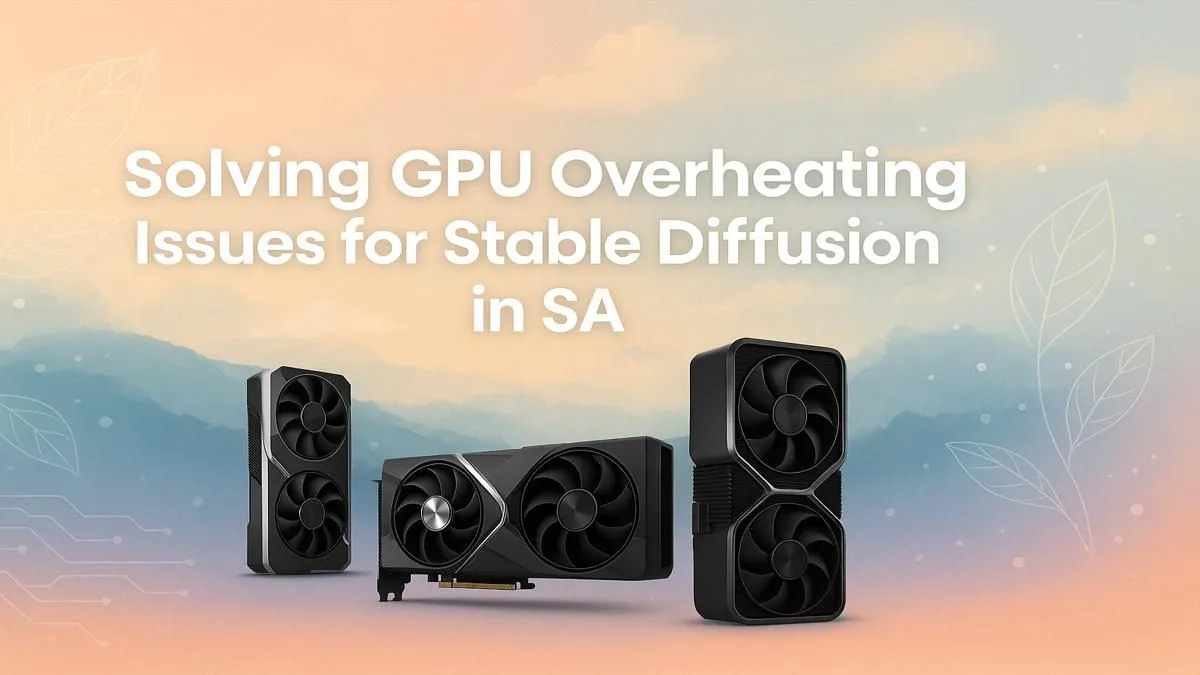
You're deep in the zone, generating incredible AI art with Stable Diffusion. The prompts are perfect, the images are stunning... and then you hear it. The tell-tale whine of your PC's fans spinning at max RPM. Your room starts to feel like a Durban summer afternoon. A classic case of GPU overheating Stable Diffusion can stop your creative flow cold. For South African creators, managing heat is crucial. Let's dive into how you can fix it.
Why Stable Diffusion Makes Your GPU Sweat
So, what’s causing this thermal meltdown? Unlike gaming, which has peaks and troughs of intensity, Stable Diffusion puts your Graphics Processing Unit (GPU) under a constant, heavy load. It's like asking your bakkie to drive up a mountain pass in first gear for hours on end.
The process involves millions of complex calculations per second, maxing out your GPU's cores and VRAM. This sustained demand generates a massive amount of heat. If your PC's cooling can't get rid of that heat fast enough, your card will "thermal throttle"—slowing itself down to prevent damage. This is why a powerful, well-cooled graphics card is essential for any serious AI work. When your GPU is overheating from Stable Diffusion, it's not just about noise; it's about losing performance.
Cool-Down Tactics: Immediate Fixes for GPU Overheating 🔧
Before you start pricing out a new liquid cooling setup, there are several simple fixes that can make a huge difference. Tackling GPU overheating with Stable Diffusion often starts with the basics.
Optimise Your Airflow
Your PC case needs to breathe. Dust is the enemy of a cool computer, as it insulates components and clogs fans.
- Clean Your PC: Get a can of compressed air and blow the dust out of your case, paying special attention to the GPU fans and heatsink fins.
- Check Your Fans: Ensure all your case fans are spinning and configured for a logical airflow path (usually in at the front/bottom, out at the back/top).
- Cable Management: Tidy up your cables. A rat's nest of wires can block airflow directly to your GPU.
Software Tweaks & Driver Updates
Sometimes the solution is just a few clicks away.
- Update Your Drivers: Both NVIDIA and AMD regularly release driver updates that include performance optimisations. Ensure you're running the latest version, especially if you have one of the newer NVIDIA GeForce graphics cards which are popular for AI tasks.
- Adjust Batch Size: In Stable Diffusion, try reducing the batch size or the resolution of the images you're generating. This will lessen the immediate load on your GPU, giving it more breathing room.
- Custom Fan Curve: Use software like MSI Afterburner to set a more aggressive fan curve. This tells your GPU fans to spin up faster at lower temperatures, preventing heat from building up in the first place.
Monitor Your Temps 🌡️
Download a free tool like HWMonitor or MSI Afterburner. These utilities let you see your GPU's temperature, clock speed, and fan speed in real-time. A good rule of thumb is to keep your GPU below 85°C under load. If you're consistently hitting 90°C or more, you're in the danger zone and need to take action.
Advanced Solutions for Serious AI Creators ✨
If the basic fixes aren't cutting it and you're still facing GPU overheating with Stable Diffusion, it might be time to consider more advanced options or a hardware upgrade.
The Undervolting Advantage
Undervolting sounds technical, but it's a fantastic way to reduce heat and power consumption without sacrificing much performance. Essentially, you're telling your GPU to use slightly less voltage to hit its target clock speeds. Less voltage means less heat. There are plenty of guides online for your specific card, whether it's from Team Green or one of the powerful new AMD Radeon graphics cards that offer great value.
Is it Time for an Upgrade?
Let's be honest... if you're using an older graphics card, you might just be pushing it beyond its limits. Consumer gaming cards are amazing, but the relentless, marathon-like workload of AI image generation can be too much. If you're running into constant thermal throttling and slow generation times, your hardware might be the bottleneck. For professional or heavy daily use, you may need to consider dedicated workstation graphics cards. They are built specifically for sustained, high-intensity compute tasks and often feature more robust cooling and VRAM.
Ready to Create Without Limits? Don't let an overheating GPU kill your creative spark. Whether you need a powerful new gaming card or a professional workstation solution, the right hardware makes all the difference. Explore our massive range of graphics cards and find the perfect GPU to power your AI ambitions.