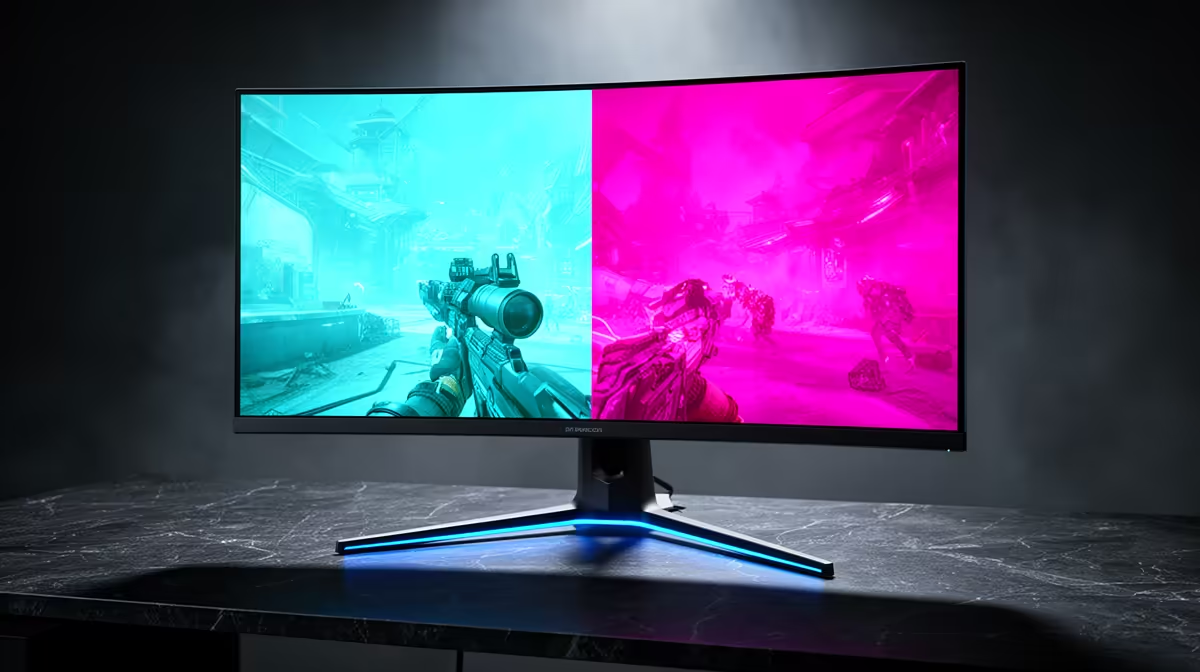
The RX 9070 gives you a clean choice between fast 1440p and sharper 4K. You can make it with one save file: test your heaviest game at both resolutions, keep the settings fixed and decide which compromise you notice. A 1440p or 4K monitor for the RX 9070 should follow that result.
Quick Answer
Choose 27-inch 1440p at 180Hz to 240Hz when frame rate and competitive play lead. Pick 32-inch 4K at 120Hz to 144Hz for visual games and sharp mixed work, using FSR or tuned settings when required. Evetech's in-stock gaming-monitor category showed a R4,499 median in July 2026, giving the two formats a dated South African reference point.
🎮 Test a game you refuse to compromise on
Load a demanding scene at 1440p High and record frame time, one-percent lows and image quality. Repeat at 4K without changing the preset. The difference shows the true pixel cost on your system.
Try an FSR Quality mode in the 4K run and inspect moving foliage, fine lines and disocclusion around characters. Keep it when the image survives your normal viewing distance.
Use Evetech's monitor category to compare size and refresh after performance narrows the format.
🏎️ Let 1440p deliver the easier high refresh
At 27 inches, 1440p looks sharp and leaves the RX 9070 more frame-rate headroom. A 180Hz screen covers mixed play, while 240Hz fits competitive games that hold the output.
Check CPU threads during esports. The processor can set the pace long before the card reaches full use. Base the refresh decision on the lowest sustained moments across a crowded round.
A 34-inch 3440x1440 ultrawide adds peripheral view for racing and exploration. It asks for more pixels than standard 1440p, though fewer than 4K.
4️⃣ Use 4K for the desk you keep through upgrades
A 32-inch 4K screen makes text and game detail easy to appreciate. New heavy games may live between 60 and 100fps, where FreeSync keeps motion smooth. Lighter titles can climb higher.
Start at High, preserve textures and reduce expensive lighting effects first. The monitor can stay through a later GPU upgrade, which gives those pixels value before every game reaches the ceiling.
🎨 Choose the panel around room light
OLED brings deep blacks and fast pixels to either resolution. Mini-LED suits bright HDR and a daylight desk. Fast IPS gives clear text and a lower entry cost, with weaker dark-room contrast.
Read model-level response and HDR measurements. A panel label cannot tell you how a 75fps dark scene looks.
Once the test decides the resolution, Evetech's monitor best-seller list provides current local models for the shortlist.
🧠 Check memory use before locking the 4K preset
Run a game with its intended texture pack and watch VRAM allocation as you enter a new area. Keep high textures when the card has room. If frame-time spikes appear as memory fills, lower the texture or ray-tracing setting that causes pressure instead of dropping the whole preset.
FSR reduces the internal rendering load, but textures and some ray-tracing data still occupy memory. Test the complete settings combination through traversal. A smooth benchmark loop can miss the hitch that appears when the game streams a new district.
Close a hardware-accelerated browser and capture software for one comparison. Those apps can use part of the same GPU memory pool and change the result.
🔌 Prove the display connection at full rate
Use the monitor input that supports the chosen resolution, refresh, HDR and colour depth together. Connect it straight to the graphics card with a cable rated for the mode. Add a dock or capture device after the direct path remains stable.
Check Windows Advanced display for the active signal. If the top rate disappears or the screen flashes black, try the other full-bandwidth input and a known-good cable before changing GPU drivers.
🔄 Set up FreeSync on the finished route
Activate Adaptive-Sync on the display and FreeSync through AMD Software. Select the panel's maximum rate in Windows. Test the game at your chosen cap and check for low-rate flicker.
Save a per-game 4K or 1440p profile. You do not need one resolution rule across a whole library.
Frequently Asked Questions
Should I choose 1440p or 4K for the RX 9070?
Choose 1440p for high refresh and 4K for detail and mixed work.
What refresh rate suits 1440p on this card?
180Hz covers mixed gaming, while 240Hz suits a competitive library.
Can this GPU sustain 4K at 60Hz reliably?
Many games can, with heavy titles requiring tuned settings or FSR. Test your own library.
Does FSR help push 4K further on this card?
Yes. Use a quality mode that remains clean on the panel from your normal distance.
Is a 1440p ultrawide a good option here?
Yes. It adds immersion with a pixel load below 4K.
What panel type gets the most from this GPU?
OLED suits contrast and motion, while mini-LED or IPS can fit brighter mixed-use desks.
Should competitive players avoid 4K on this card?
They should favour 1440p when high real frame rates matter more than extra detail.
Choosing the RX 9070 screen from a real game instead of a tier label?
Compare 1440p and 4K monitors at Evetech after the same save file shows which experience you prefer.