O-Week is easier when your technology has already survived a login, video call and file upload. A focused first-year tech checklist covers the laptop, protection, audio and required software without filling your bag with guesses.
Quick Answer
Before O-Week, you need a working way to reach university email and portals, a laptop that meets the faculty software floor, safe carry, earphones with a microphone and a tested backup. Buy textbooks after the module confirms editions and required items. A personal printer can wait unless the course or living setup makes campus printing impractical. The best checklist ends with a full login and submission test, not a pile of unopened accessories.
Confirm access before buying equipment
Activate the student account as soon as the university permits it. Set multi-factor authentication, add recovery details and save the IT support number on your phone.
Open the learning platform, email and registration portal. Download a module guide and check whether the faculty has published a software list. Course names are broad; the named applications decide Windows support, memory and graphics.
If the student is still waiting for final registration, research two laptop configurations and hold the purchase until the course is settled. A dependable household machine can cover account setup in the meantime.
Get the laptop ready for real work
Run operating-system and manufacturer updates. Confirm Windows activation when it was included. Test the keyboard, webcam, microphone, Wi-Fi, ports and charger.
Install software from the university or publisher's official source. Check whether the student account includes Microsoft 365 or specialist tools before buying a separate licence. Test examination software before a deadline.
Create a folder for each module inside the approved cloud-sync location. Upload one document and recover it from another device. Store recovery codes away from the laptop.
Carry and listen without drama
Use a padded bag or sleeve that fits the chassis. The charger should sit in another pocket so its plug cannot press against the screen. Put drinks where leaks cannot reach the electronics.
Earphones with a microphone cover online lectures, orientation calls and study spaces. They do not need gaming branding. Check comfort, connector type and whether the microphone works in the university meeting app.
A mouse can wait when the trackpad is comfortable. An adaptor belongs on the list only when the laptop lacks a port the course uses, such as HDMI for presentations or USB-A for lab devices.
Delay the purchases that need course evidence
Do not buy every textbook from a preliminary list. Confirm the edition, whether an electronic copy is supplied and how soon the module uses it. Ask the library about access.
A printer can become a maintenance job involving ink, paper and space. Campus printing may be enough. Buy one only after the student understands volume, deadlines and access hours.
Security subscriptions and paid cloud storage can also wait. Supported Windows includes built-in security, and the university may supply storage. Use those services well before adding another product.
Build the day-one hardware shortlist
For document and browser study, a current entry processor, 8GB memory and SSD storage are a sensible start. Technical modules can raise the memory, processor or graphics floor. Ask about the next two years rather than week one alone.
At R8,499 in July 2026, the HP 255R G10 offered a Ryzen 3 processor, 8GB RAM and a 512GB SSD. Use that named configuration as an entry reference after checking the course and exact product details.
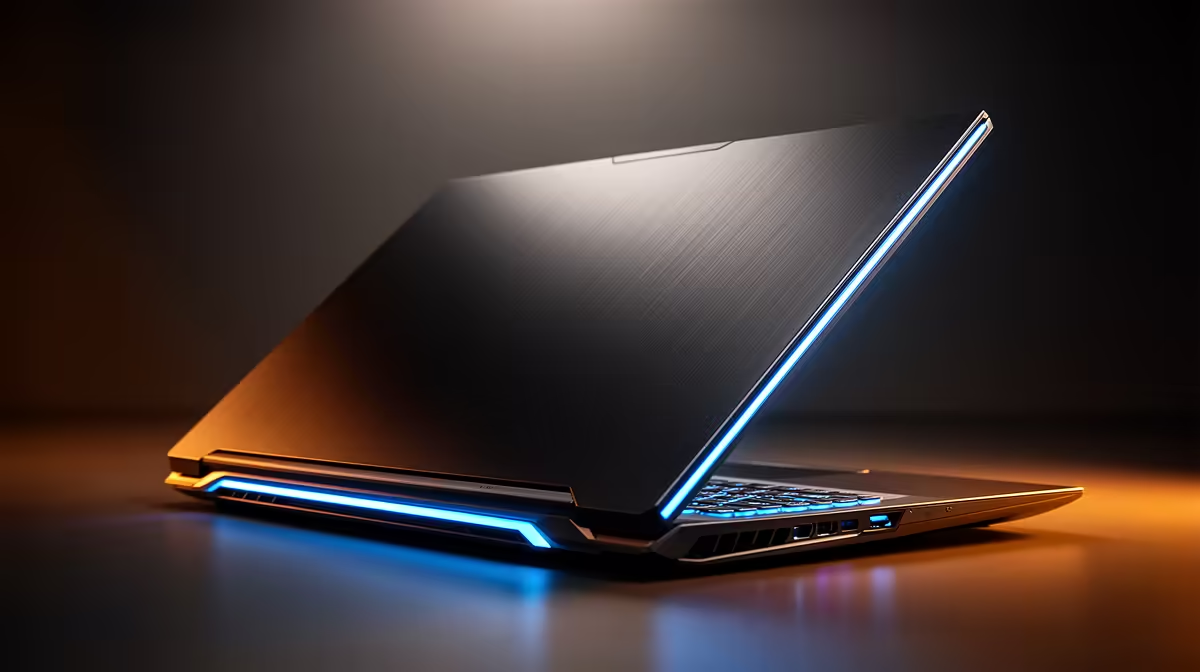
Compare popular first-year laptop models for everyday study. The performance laptop selection suits courses that name dedicated graphics or stronger sustained processing.
Pack one mock university morning
Put the charged laptop, correct charger, earphones, notebook and water into the bag. Carry it for twenty minutes. The test exposes excess weight, poor straps and a charger that presses against the machine.
Then join a test call, open a module guide, edit a document and save it to the synced folder. Send it to another account and reopen the attachment. O-Week feels much easier when the boring setup already works.
Put the admin in the same checklist
Save proof of registration, the timetable, residence contacts and emergency numbers in a protected folder that can be reached from a phone. Keep identity documents private and share them only through official university processes.
Add a small label inside the bag with a contact email that does not expose the student's home address or identity number. Photograph the laptop serial label and keep the image with the invoice.
Check transport and building access for O-Week. The student may spend more time walking between offices than using the laptop. Carry the machine only when it has a clear job, and keep it with you or locked out of sight.
Finally, agree on a weekly backup and update time. A first-year setup lasts longer when somebody owns the routine after the excitement of orientation fades.
FAQ
What is the most important item before O-Week?
A working route into university email and portals comes first. The laptop should then match the confirmed faculty software.
Does a first-year need a printer?
Often campus printing is enough. Wait until the student knows the volume, access hours and living arrangement.
Should textbooks be bought before orientation?
Wait for the confirmed module list, edition and lecturer guidance. Preliminary lists can change and libraries may provide access.
Test the student login, laptop, headset and backup as one complete O-Week setup before buying optional extras.