


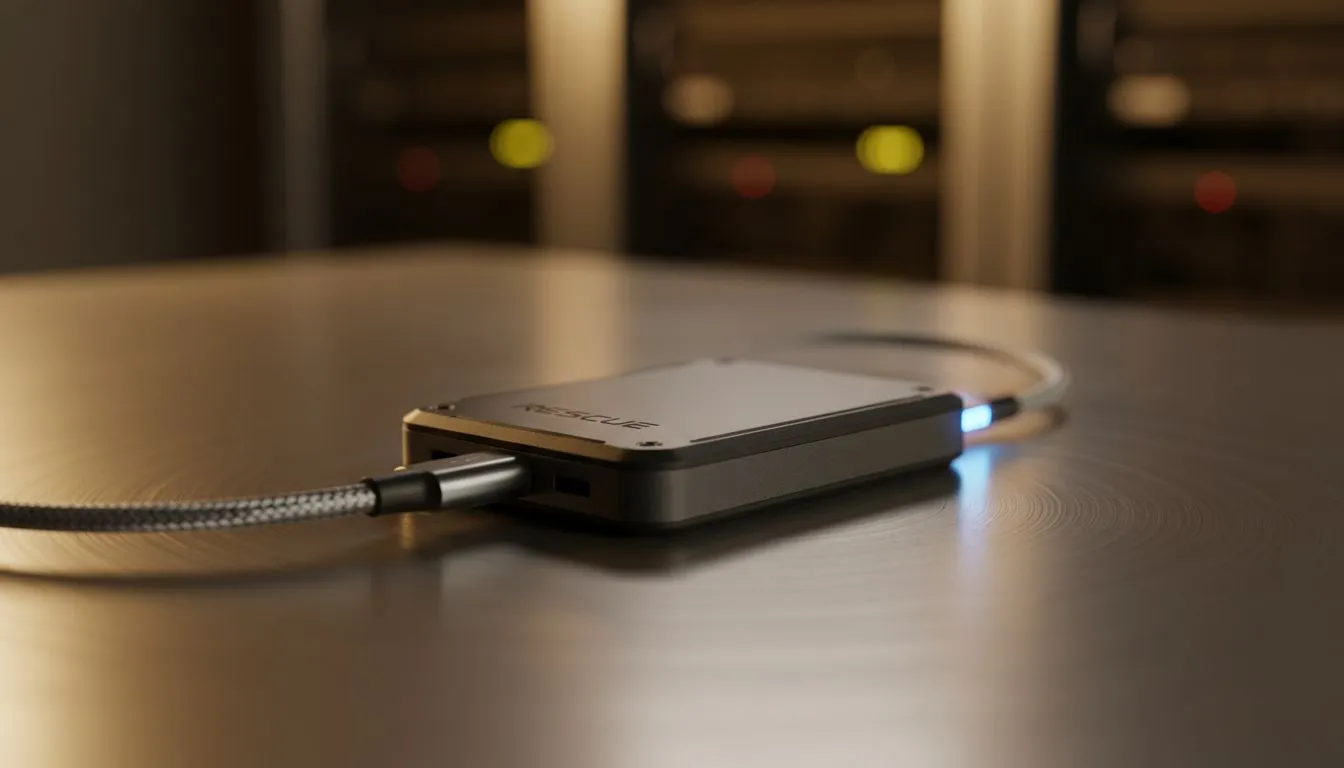
Why a Bootable Rescue Drive on Portable SSD is Essential
Imagine your PC fails right before a major tournament. Loadshedding just hit... and your Windows installation is corrupted. You could spend hours reinstalling everything from scratch. Or you could be back online in minutes. Creating a Bootable Rescue Drive on Portable SSD is the ultimate insurance policy for any South African gamer. Unlike flimsy USB sticks, these drives offer high-speed recovery and immense reliability.
When things go wrong, speed is your best friend. Choosing a high-performance external SSD ensures that your recovery environment loads instantly. This isn't just about fixing Windows... it is about having a portable toolkit that works every time. 🔧
Choosing the Best Hardware for Your Rescue Kit
Not all storage is created equal. While you can find many solid state drives on the market, your rescue drive needs to be rugged and portable. We recommend looking for devices in the External form factor to ensure they can survive being tossed in a laptop bag.
For those who value longevity and sustained read speeds, brands like ADATA offer fantastic value in the South African market. If you prefer a drive known for its thermal management and endurance, the options from Western Digital are hard to beat. While a rescue drive doesn't strictly need the blistering speed of Gen 5 (NVMe) technology, having that extra overhead means your backups and file transfers finish in seconds rather than minutes. ⚡
Rescue Drive Pro Tip ⚡
Use a tool like Ventoy instead of Rufus if you want to store multiple ISO files on one drive. This allows you to keep Windows 11, a Linux distro, and antivirus rescue tools on a single partition without reformatting every time you need a different tool.
How to Set Up Your Bootable Rescue Drive on Portable SSD
Setting up your Bootable Rescue Drive on Portable SSD is a straightforward process. First, download a reliable ISO of your preferred operating system or a dedicated rescue suite like Hiren’s BootCD. Connect your portable SSD to your fastest USB port to ensure the best write speeds.
Next, use a utility like Rufus to flash the image. Ensure you select the correct partition scheme... usually GPT for modern systems. Once the process is finished, you have a powerful tool that can bypass a broken OS to recover your precious gaming clips or work documents. It is a small investment of time that saves massive frustration later. 🚀
Ready to Secure Your System? Don't wait for a crash to ruin your weekend. A portable rescue drive is the smartest upgrade you can make for under R2,000. Browse our latest SSD deals and build your ultimate recovery kit today.











