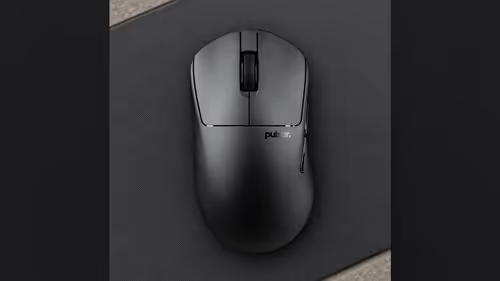
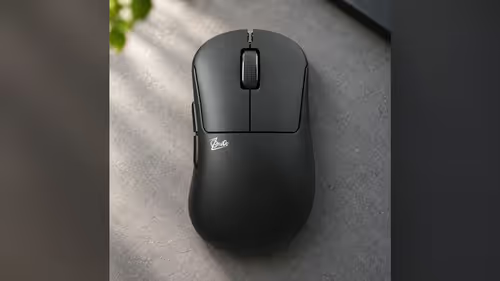
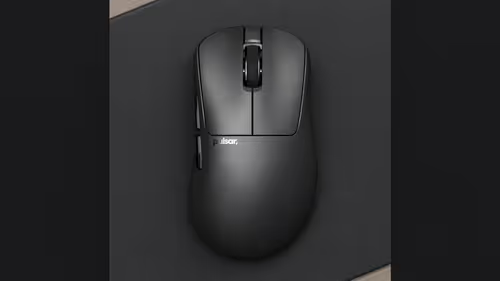
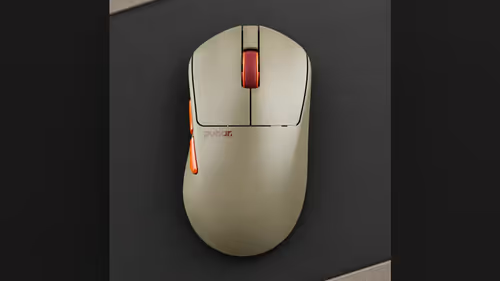
You carry your mouse to a mate's house for a weekend session, plug it into his PC and the cursor crawls across the screen at his sensitivity, not yours. Normally that means hunting for a download. Three Pulsar mice skip the hunt: the Link 8K Receiver has two buttons and an LED, and they change DPI right on the receiver, with no software on the borrowed machine.
Quick Answer
The Link 8K Receiver on the Pulsar ZywOo The Chosen Gen.2, Pulsar Pro Series CARPE-X and Pulsar Pro Series BUZZ-X carries two buttons with LED feedback. Press them to change DPI and other settings without software, which helps on a friend's PC at a LAN or a locked-down work computer where you cannot set the mouse up. Full control stays in Bibimbap web software.
🔘 What the receiver gives you
The product pages describe the Link 8K Receiver as a receiver with two buttons and LED feedback. The buttons change DPI and other settings, and the LED lets you see that a change has registered. That is the whole of the claim, and it is a useful one: the adjustment lives on the little receiver you plug into the PC, not inside an app on that PC.
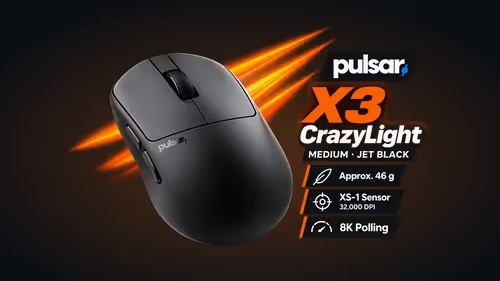
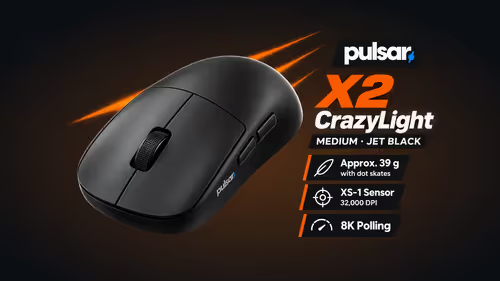
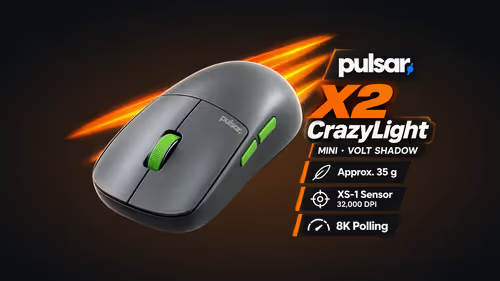
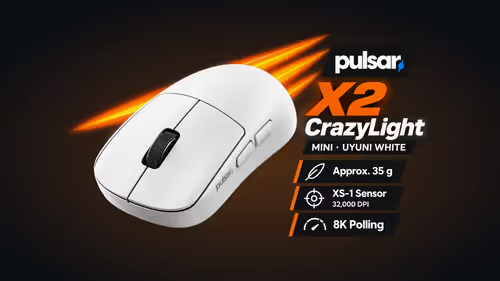
The sensor behind it is the XS-1, which tracks to 32,000 DPI and lets you set DPI in steps of 10. So the receiver buttons are a quick way to reach a setting that you have already tuned elsewhere, and the sensor has plenty of range.
Which three mice
- Pulsar ZywOo The Chosen Gen.2 Medium, 62g, an ergonomic palm shape with a 5.8g weight module.
- Pulsar Pro Series CARPE-X Medium, 60g, symmetrical palm and claw.
- Pulsar Pro Series BUZZ-X Medium, 61g, symmetrical claw and palm.
The other Pulsar mice in this range come with an 8K dongle. The pages describe the two-button, LED behaviour only for the Link receiver, so do not expect it from the dongle models.
🖥️ When this earns its keep
A LAN is the obvious case. Each player brings their own mouse and plugs it into a table PC they have never used. Re-installing a driver on every machine is not realistic, and some machines are locked down so that software cannot be set up at all. In both situations the receiver's buttons let you pull the DPI towards your habit before the first round.
The same applies to a work PC where you want to use your own mouse in a lunch break, or a relative's family computer. You are changing a setting on the hardware you brought, not on the host.
🌐 Where the full settings live
The buttons are for quick moves. For the complete picture, Bibimbap web software sets DPI, polling rate and button mapping from a browser. Use it on your own PC to set the mouse up the way you like, and keep the receiver buttons for the moments when the software is out of reach.
The receiver also carries the mouse to 8000Hz. On an older host PC, use a USB 3.0 socket, and do not be surprised if a processor below Core i5 or Ryzen 5 level cannot keep up with that top rate.
🧠 What the buttons do not replace
Treat the receiver as a shortcut, not a control panel. Button mapping, polling rate and the finer DPI settings still belong in Bibimbap web software, which runs in a browser on the PC you own. The receiver's two buttons and LED are there for the moment you cannot reach that software, such as a borrowed desk ten minutes before a match.
It also helps to know your own numbers before you leave home. If you know the DPI you play at, you will know when the LED feedback has taken you back to it.
✅ A pre-LAN checklist
- Install nothing; plug the receiver into a USB 3.0 socket.
- Watch the LED while you press the buttons, to see the change register.
- Note the DPI you normally use so you can match it.
- Keep the receiver and USB-C cable in the same pouch as the mouse, because the receiver is what makes the trick work.
- Browse the wireless mice listing and the wider gaming mice range to compare these three with the rest.
Evetech lists these three for South African players. The three mice with the receiver are listed with the other shells in the Pulsar range.
Frequently Asked Questions
What do the two Link receiver buttons do?
They change DPI and other settings, with LED feedback so you can see the change. No software is needed to use them.
When is that useful?
On a friend's PC at a LAN, or a work PC where you cannot set up the mouse's software, you can still adjust sensitivity from the receiver.
Which mice have the Link 8K Receiver?
The Chosen Gen.2, CARPE-X and BUZZ-X. The other Pulsar mice here use an 8K dongle, which the pages do not describe with such buttons.
Where do I go for the full settings?
Bibimbap web software sets DPI, polling rate and button mapping. The receiver's buttons cover quick changes without it.
Does it matter which USB port I use?
For 8000Hz, yes. Use a USB 3.0 socket, and expect the PC's CPU class to matter as well.
Ready to take your settings with you?
Look at the Link 8K Receiver mice in the Evetech gaming mice category and choose the shape that fits your grip.