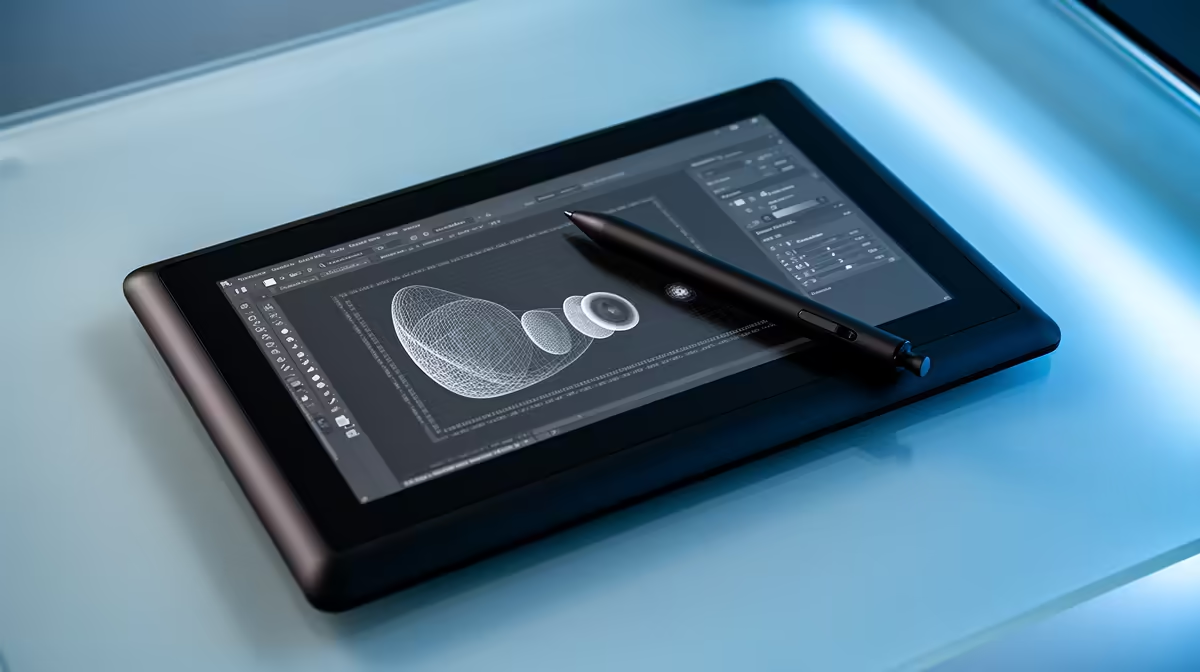
Common drawing tablet problems include a missing cursor, wrong screen mapping, lost pen pressure, offset strokes and intermittent USB connection. Fix one layer at a time: hardware, operating-system driver, application settings and display mapping. The factpacks do not verify a drawing tablet or price.
Establish a known-good input
Reconnect the tablet directly to a supported port with a known-good cable. Remove an unpowered hub during diagnosis. Confirm the pen has the required battery or nib and that the cursor moves in a basic system test before opening the art application.
For pressure loss, verify the official driver, restart after installation and check whether the app uses the expected pen-input mode. Avoid running drivers from several tablet brands together. For offset or wrong-monitor behaviour, set the correct display arrangement and map the active area again after changing scaling. Recalibrate only through supported tools.
The ASUS ExpertBook P1503 laptop is verified at R9,858, but buyers must confirm current design-software, driver, port and memory requirements. The computer cannot repair a damaged pen or cable. Save custom shortcuts and application brushes in approved backups before removing drivers. Test a slow line, pressure ramp and edge-to-edge stroke after every change. If the fault follows the tablet to another supported PC, use warranty or manufacturer support. Randomly reinstalling the operating system should be the last step, not the first response to one input device.
Building a digital-art computer? > Compare verified laptops with Evetech while diagnosing tablet hardware separately.