Tired of the cable spaghetti turning your dream PC build into a nightmare? We've all been there. That rat's nest of wires doesn't just look messy… it can choke your airflow and make upgrades a mission. But what if one system could solve it all? The Corsair iCUE LINK TITAN 360 RX LCD setup is here to deliver that clean aesthetic and elite thermal performance South African gamers demand. Let's get your CPU chilly. 🥶
Why the iCUE LINK Ecosystem is a Builder's Dream
Before we get our hands dirty, let's talk about what makes this cooler so special. The traditional AIO cooler setup involves connecting multiple fan cables, RGB headers, and a pump tach cable to your motherboard. It's a recipe for clutter.
Corsair's iCUE LINK system changes everything. It uses a revolutionary single-cable standard to connect all your components—fans, AIOs, and more—in a simple daisy chain. The smart connectors click together effortlessly, passing both power and data through one tidy cable that plugs into a central System Hub. This makes the Corsair iCUE LINK TITAN 360 RX LCD setup one of the cleanest and most straightforward installations on the market.
Pre-Installation Checks and Unboxing
Inside the box, you’ll find the 360mm radiator pre-fitted with three RX120 RGB fans, the stunning LCD pump head, the iCUE LINK System Hub, and all the necessary mounting hardware for modern Intel and AMD sockets.
Before you start, do a quick check:
- Case Compatibility: Ensure your PC case has space for a 360mm radiator, either at the top or front.
- Clearance: Check for RAM and VRM heatsink clearance around the CPU socket.
- Plan Your Route: Think about where you’ll mount the small System Hub for the cleanest cable runs.
A little planning now saves a lot of hassle later. A clean interior also means more space and fewer obstructions for your other gear, from your GPU to your essential gaming keyboards.
Step-by-Step Corsair iCUE LINK TITAN 360 RX LCD Setup 🔧
Ready to build? Let's break down the process into simple, manageable steps for achieving peak cooling.
Mounting the Radiator and Fans
Since the RX120 fans come pre-installed, this part is a breeze. Decide on your radiator's home—top-mounting as an exhaust is usually ideal for thermal performance. Secure the radiator to your case using the included screws. The fans are already connected to each other, so there's no need to wrestle with individual fan cables. This streamlined design philosophy is something we see in other premium products, like the minimalist chassis of many Glorious gaming keyboards, where form and function meet.
Connecting the System Hub
The System Hub is the brain of your iCUE LINK setup. Find a discreet spot for it (usually on the back of the motherboard tray) and secure it. It requires just two connections from your PC: a single 6-pin PCIe power cable from your PSU and a USB 2.0 header on your motherboard. From there, you'll run the single iCUE LINK cable from the radiator to one of the ports on the hub. That’s it. Seriously.
Installing the Pump Block
Corsair’s new QuikTurn mounting system is fantastic. The pump head twists and locks onto the mounting bracket with a simple, satisfying motion.
- Select the correct mounting bracket for your CPU (Intel LGA 1700/1200 or AMD AM5/AM4).
- Apply a pea-sized amount of the pre-applied thermal paste or your preferred compound.
- Secure the pump head over the CPU, ensuring even pressure.
- Plug the final iCUE LINK cable from the pump head into the daisy-chain port on the radiator.
This level of thoughtful engineering allows your high-end components to shine, creating a build aesthetic that pairs perfectly with other top-tier peripherals, like the iconic designs of Razer gaming keyboards.
Bringing It to Life with iCUE Software ✨
With the hardware installed, it's time for the fun part. Power on your rig, install the latest version of Corsair's iCUE software, and watch it instantly detect all your LINK components. This is where your Corsair iCUE LINK TITAN 360 RX LCD setup truly comes alive.
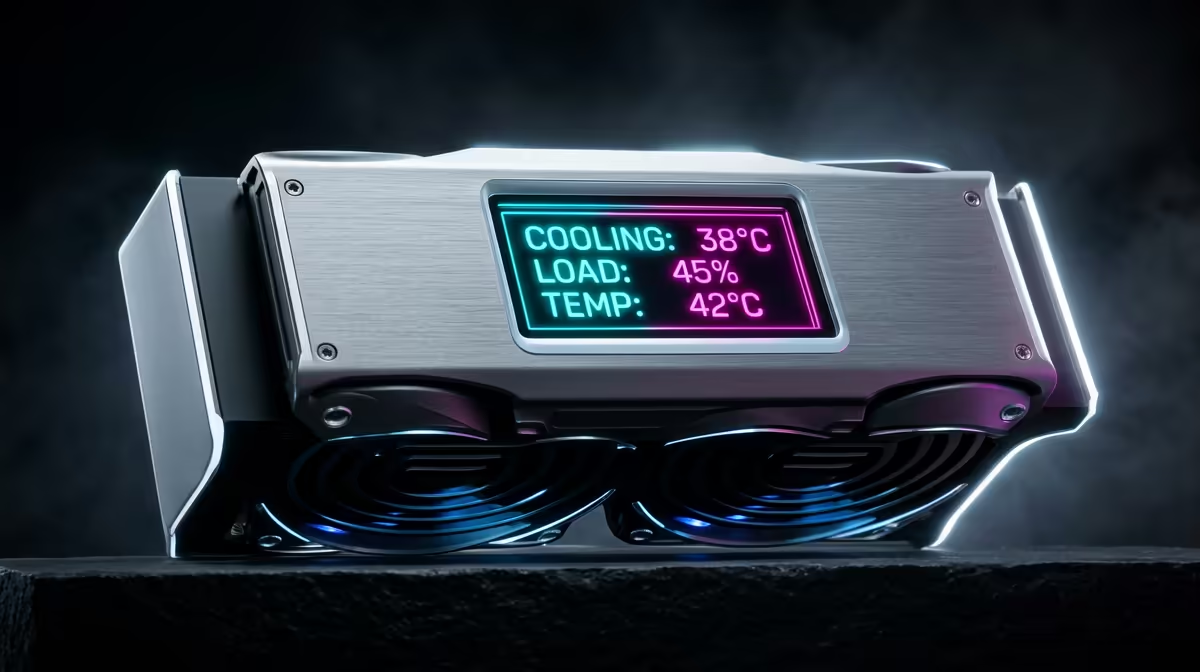
You can set custom fan curves, like the "Quiet" profile for browsing or a more aggressive one for intense gaming sessions. The real star, of course, is the 2.1" IPS LCD screen. Display real-time CPU temperatures, show off a custom logo, or even play your favourite animated GIF right on your CPU cooler. The customisation can extend across your whole desk, especially when you synchronise the lighting with vibrant Razer RGB keyboards for a fully immersive battle station.
iCUE Pro Tip ⚡
Use the 'Time Warp' lighting effect in iCUE Murals. It creates a stunning, system-wide reactive lighting effect that makes your fans look like they are spinning backwards or standing still. It's a simple way to give your build a unique and professional look without any extra effort.
The entire process, from unboxing to full software customisation, is designed to be empowering. It transforms a task that was once intimidating into an enjoyable part of the PC building experience, delivering peak cooling performance without the chaos.
Ready to Build Your Ultimate Rig?
The Corsair TITAN AIO is a huge step towards a clean, powerful PC. But it's just one piece of the puzzle. Explore our massive range of PC components and build the machine you've always dreamed of.