


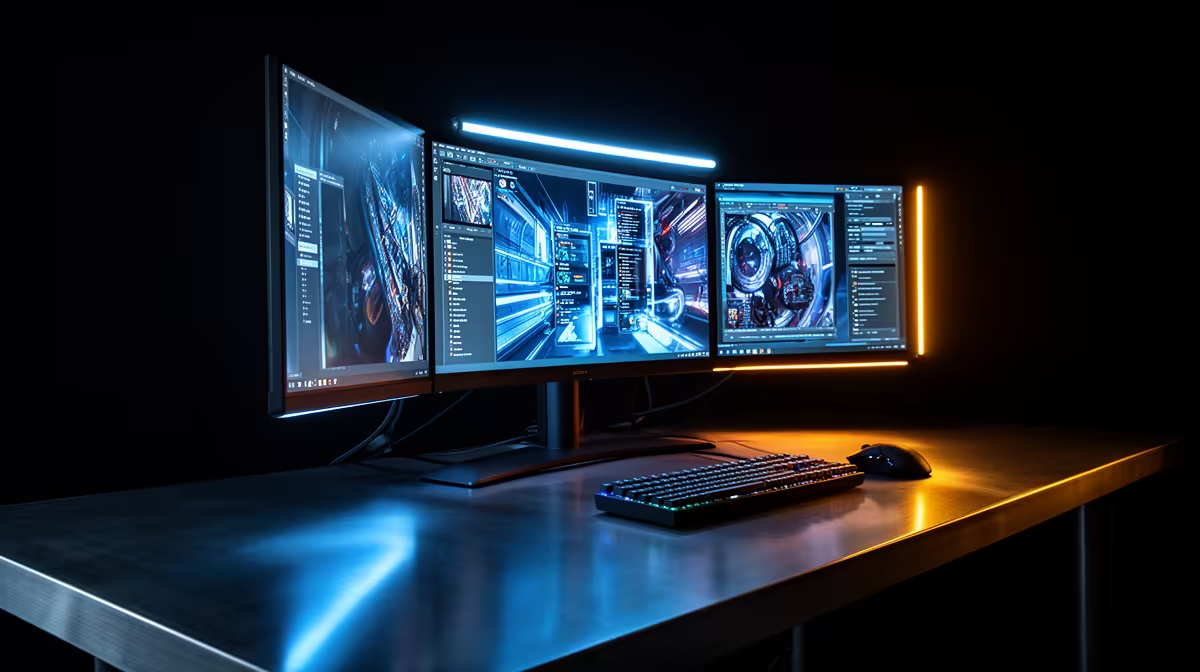
Start building a clean, lag-free multi-monitor rig without the guesswork. Whether you're a Cape Town streamer or a Jozi content creator, mastering a DisplayPort daisy chain unlocks tidy desks, fewer cables and smoother workflows. This step-by-step guide gets you from ports to pixels fast—no mystery, just practical steps and pro tips to get your DisplayPort daisy chaining setup humming. 🔧✨
DisplayPort daisy chaining setup: Multi-monitor step-by-step — quick overview
DisplayPort daisy chaining setup: Multi-monitor step-by-step is a reliable way to extend screens without a separate GPU port for each monitor. The trick is using monitors and GPUs that support DisplayPort Multi-Stream Transport (MST) and the right cabling. If your GPU and monitors support MST, you can connect one DisplayPort output to the first monitor, then use that monitor’s DisplayPort OUT to feed the next display.
Preparations: what you need before you start
- Check that your GPU supports DisplayPort MST. If unsure, consult the GPU spec from the manufacturer.
- Verify each monitor has both a DisplayPort IN and a DisplayPort OUT; not all screens include the output.
- Use high-quality DisplayPort cables and avoid passive adapters where possible.
- Update GPU drivers to the latest version to ensure MST is properly recognised.
If you’re also tidying exterior cables, consider premium sleeved cables for visible runs like these NZXT individually sleeved premium cables for a cleaner finish: NZXT individually sleeved premium cables. 🚀
Step-by-step: chain your monitors correctly
- Power off the PC and all monitors.
- Connect the GPU’s DisplayPort output to Monitor A’s DisplayPort IN.
- From Monitor A’s DisplayPort OUT, connect to Monitor B’s DisplayPort IN. Repeat for more displays that support daisy chaining.
- Power on monitors and the PC.
- In Windows, open Display Settings and arrange displays. For macOS or other OSes, use the native display arrangement controls.
- Fine-tune resolution and refresh rate per display to avoid bandwidth limits.
Tip: if a monitor drops resolution or refuses to display, reduce the refresh rate or resolution temporarily to confirm bandwidth is the issue.
Troubleshooting common issues
- No signal on second monitor: confirm Monitor A’s DisplayPort OUT is enabled in its on-screen menu.
- Only mirror displays: change the display mode to extend in your OS.
- Unexpected frame drops: check combined bandwidth—higher refresh rates and 4K panels can exceed a single DisplayPort lane’s capacity.
For tidy cable runs and RGB continuity between components, a dedicated ARGB extension can help. Check this Gamemax ARGB extension option for neat lighting and cable management: Gamemax 12VHPWR cable & ARGB extension.
Productivity Pro Tip ⚡
On Windows, use the PowerToys FancyZones utility to create custom snap layouts for your windows. It's a lifesaver for managing multiple apps on a daisy-chained multi-monitor setup, letting you assign hotkeys and keep Discord, streaming software, and the game in dedicated zones.
Expert notes and local context
South African builders often prioritise value and cable longevity. Investing in well-made cables and sleeved harnesses keeps your rig looking pro and reduces replacements. Evetech stock and support make it easy to match the right components for local needs.
Ready to Find Your Perfect Match? The Mac vs Windows debate is complex, but for maximum power, choice, and value in South Africa, Windows is hard to beat. Explore our massive range of laptop specials and find the perfect machine to conquer your world.











