An external microphone not working in Windows 11 is almost always a connector, a mute or a setting problem rather than a dead mic. Check the jack type first, then pick the mic as the default input in Sound settings, then confirm the privacy switch is on. Those three steps fix most cases in under five minutes.
Quick Answer
Open Settings, System, Sound, choose your external mic under Input and speak while watching the volume bar. If nothing moves, check the plug type, since a combo-jack laptop needs a four-pole TRRS plug. Then switch on microphone access in the Windows privacy settings. A USB mic should appear as its own device and often works after trying another port.
🔌 Start with the plug and port
Many laptops have a single combo jack for headphones and a mic. It expects a four-pole TRRS plug, the type used on headsets and phone earphones. A standard studio or lapel mic with a three-pole TS or TRS plug fits the socket but sends no signal.
Desktop PCs normally have a pink mic socket on the back panel and sometimes a matching one on the front. Try the rear port, as front-panel leads are often loose or not wired. If your mic is XLR, it cannot plug into the jack at all and needs an audio interface.
If you hit a plug mismatch, the cheapest fix is a TRRS splitter lead or a USB microphone.
⚙️ Set the default input and check levels
Go to Settings, System, Sound. Under Input select your external microphone, then speak and watch the "Volume" bar. If the bar jumps, Windows hears you and the problem is in the app.
If the mic shows but records nothing, click it to open its properties. Raise the volume slider on the Levels tab and check the speaker icon is not crossed out. Some mics also need a boost setting turned up a notch.
Disabled devices
Open Sound settings from the taskbar, then More sound settings and the Recording tab. Right-click an empty area and tick Show disabled devices. If your microphone appears greyed out, right-click it and choose Enable.
🔒 Privacy, apps and drivers
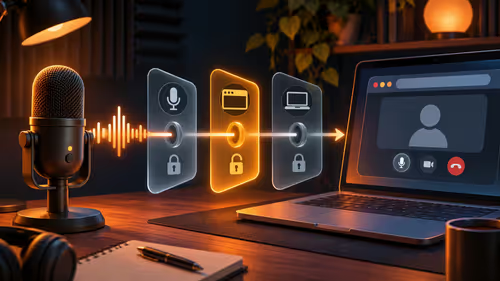
The Windows privacy toggle blocks every microphone, internal or external. The Microphone page under Privacy and security needs both its switches on. Browser-based calls need a second permission, so click the padlock in the address bar and allow the site.
Then check inside the app itself. Zoom, Discord and OBS each have their own input list, and they will not always follow the Windows default. Select the same device manually.
For driver problems, open Device Manager and expand Audio inputs and outputs. Right-click the microphone and choose Uninstall device, then restart. For a USB mic, look under Sound, video and game controllers as well.
🧪 USB mics, hubs and a final test
A USB microphone behaves as its own audio device. Use a USB socket on the back of a desktop and avoid unpowered hubs, which can cut the current it needs. Under Input in Sound settings you should see the mic's name appear within a few seconds.
Finish with a real test. Join a quick call over fibre or LTE and ask a friend to listen, or record a short clip in Voice Recorder and play it back. If the clip is clear, the hardware is fine and any trouble is the app or the connection.
If you decide to replace the mic, streaming essentials lists options from about R200 upwards, and you can see webcams in the same range of desk gear for a full setup.
Frequently Asked Questions
Is my microphone plugged into the right jack?
Many laptops have one combo jack and need a four-pole TRRS plug. A standard mic with a three-pole plug fits but sends no signal, so use a splitter or USB mic.
Where do I make the external mic the default?
Open Settings, System, Sound, and under Input select the external microphone. Speak and check the volume bar moves before blaming the app.
Why does the mic show but record nothing?
The level may be at zero or the mic muted. Open the device Properties, Levels tab, raise the volume and make sure the speaker icon is not crossed out.
Do privacy settings block external mics too?
Yes, the Windows microphone privacy switch affects every microphone, internal or external. Make sure access and app access are both on.
Does a USB microphone work differently from a jack mic?
A USB mic appears as its own audio device with its own driver. Try another USB port and look for it under Input in Sound settings.
Could Windows disable the device by itself?
Occasionally. Open More sound settings, Recording, tick Show disabled devices and enable the mic. Then test on a Meet call over fibre or LTE in South Africa.
Ready to replace a mic that keeps failing?
Browse the streaming essentials category at Evetech for USB and headset microphones that Windows recognises straight away.