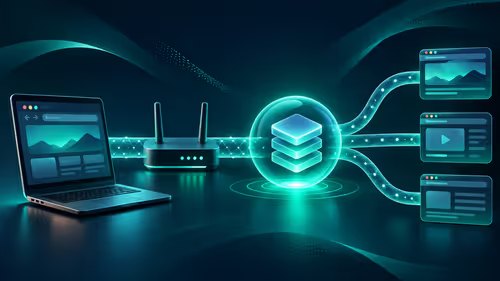
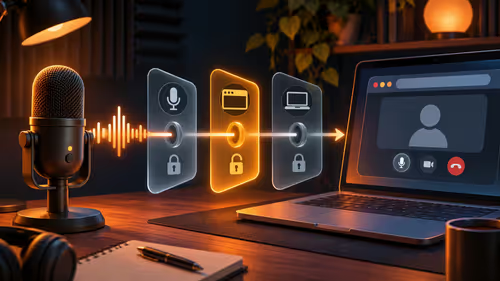
A Facebook Gaming setup needs only three things: a Page or profile you can go live from, a stream key copied out of Live Producer, and OBS Studio on your PC to send the picture. Get those lined up and a first private test broadcast takes about fifteen minutes, even on a modest rig.
Quick Answer
Open Live Producer from your Page, choose Streaming software, copy the stream key and paste it into OBS under Settings, Stream. Press Start Streaming in OBS, wait for the preview to appear in Live Producer, then click Go Live. Set the audience to only me for the first run. A usable starter kit of a clip-on or USB microphone and a 1080p webcam costs roughly R900 to R2,500 together.
🎛️ Getting Your Page and Live Producer Ready
Facebook lets you stream from a personal profile or from a Page, and a Page is the better choice if you want the stream to look like a channel. Create one from the Pages menu, give it a plain gaming name and a profile picture that reads clearly at thumbnail size, because most viewers will see it on a phone.
Once the Page exists, open it and choose Live Video, then pick Streaming software. This is Live Producer. It shows a stream key, a server URL and a preview pane that stays blank until your encoder connects. Keep this tab open while you configure OBS.
Facebook has changed its gaming programmes more than once, so the monetisation and creator tools you see may differ from older tutorials. Treat any screenshot older than a year with suspicion and follow what your own Creator tools page offers today.
Keys that expire
Some stream keys are single use. If Live Producer says the key is no longer valid, generate a fresh one for each broadcast and paste it again. Never post the key in a chat or screenshot, since anyone holding it can stream to your Page.
🔧 Wiring OBS to Facebook
Install OBS Studio, run the auto-configuration wizard and choose optimise for streaming. In Settings, Stream, pick Facebook Live from the service list or Custom if it is missing, and paste the key. Under Output, set the encoder to NVENC if you have a GeForce card, or x264 on a CPU-only machine, and start near 4500 kbps for 1080p at 30 frames per second. Facebook generally prefers 30 fps, and a steady 720p picture beats a stuttering 1080p one.
Build one scene with your game capture and a second with a Just Chatting layout using your camera. Name them clearly so you can switch without fumbling mid-stream. Add a microphone source and watch the meter: peaks should sit between roughly minus 12 and minus 6 dB, with no red.
If you are still choosing a microphone, the streaming essentials range groups the audio and capture gear that streamers usually buy first.
📶 Your Connection and the South African Viewer
Upload speed matters more than download. A 4500 kbps stream needs about 5 Mbps of steady upload, and you want double that for headroom. On a shared fibre line with a household watching video, run a speed test during your planned stream hour rather than at midday, because evening congestion is the usual culprit when a stream drops frames.
Wired Ethernet beats Wi-Fi for streaming every time. If your PC sits two rooms from the router, a powerline adapter or a cable run is cheap insurance. LTE can work as an emergency backup, but a capped data bundle disappears fast: an hour at 4500 kbps uses roughly 2 GB.
Many South Africans watch Facebook on Android phones over mobile data, so keep your title short, put the game name first and make your overlay text large enough to read on a small screen.
🎥 Camera, Audio and a Private Test Run
A decent webcam makes a Just Chatting segment feel finished. Look at the webcam range for 1080p models, and expect a sensible entry point at around R500 to R1,200. Put a lamp behind the camera so your face is lit from the front, and keep a window to one side rather than behind you.
Before the first public stream, set the post audience to only me. Start streaming from OBS, wait for the preview, then check three things: game audio and microphone are both audible, your voice is not drowned by the game, and the picture does not buffer. Record the test locally in OBS too so you can listen back with headphones.
When it sounds right, end the test, create a new broadcast with the audience set to public, add a title and a category, and click Go Live. Announce the time on your Page a day ahead so people can arrive on schedule.
Frequently Asked Questions
What do I need to stream to Facebook?
You need a Facebook Page or profile, OBS or another encoder, a stream key from Live Producer and an upload connection that stays stable for the whole session. Do a private test broadcast before you announce anything.
Where do I find my Facebook stream key?
Open Live Producer from your Page, choose Streaming software and copy the key it displays. If Facebook rejects it later, generate a new key, since some keys are valid for one broadcast only.
How do I connect OBS to Facebook?
In OBS go to Settings, then Stream, choose Facebook Live or Custom and paste the key. Click Start Streaming, then press Go Live in Live Producer once the preview shows your picture.
Are Facebook gaming features the same as before?
No, the programmes have shifted over the years. Read the Creator tools and monetisation pages on your own account instead of relying on a guide written long ago.
Is Facebook a good fit for South African viewers?
It has a large local audience and many people watch on phones, so a short title and a bold thumbnail help. Plan for viewers on mobile data who may leave if the stream buffers.
Can I test a stream without viewers seeing it?
Yes. Set the audience to only me in Live Producer, confirm that video and audio are right, then start a fresh public broadcast.
Ready to put your first Facebook broadcast on a proper kit?
Browse the streaming essentials and webcam categories at Evetech to pick a microphone and camera that match your budget, then run your private test tonight.