When Streamlabs throws the failed to update settings for YouTube Streamlabs error, three culprits cover nearly every case here: a lapsed account link, a channel not yet cleared for live, or the wrong YouTube identity picked at sign-in. Tackle them one by one and a stream usually returns within ten minutes.
Quick Answer
Log out of Streamlabs from the profile menu, close the app, reopen it and sign in with YouTube again, accepting every permission. Then open YouTube Studio, choose Create, Go live, and confirm the channel is verified and live is enabled. If you have a brand account, pick that one at sign-in. A basic USB microphone and webcam for a clean first stream cost around R900 to R2,500.
🔑 Refresh the Account Link First
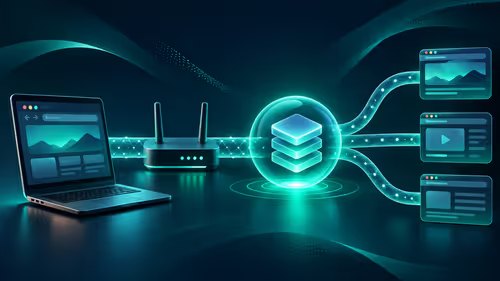
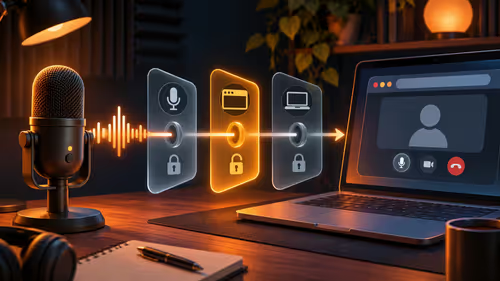
Streamlabs talks to YouTube through a token that can expire or be revoked. When the token goes stale, the app can still show your name while every attempt to change the title or category fails with this message. The fix is a clean re-link, not a reinstall.
Click your profile icon in Streamlabs, log out, then fully close the program so no background process holds the old session. Reopen it and choose YouTube on the sign-in screen. When Google shows the consent page, tick every box. If you skip one, Streamlabs gets a partial token and fails again later with the same error.
Check the permission list in Google
If a re-link does not help, open your Google Account, go to Security, find third-party access and remove Streamlabs. Sign in again from scratch so the app asks for a full set of permissions.
📺 Confirm YouTube Live Is Actually Enabled
Streamlabs cannot edit a broadcast on a channel that is not allowed to stream. In YouTube Studio click Create, then Go live. If YouTube asks you to verify your phone number or shows a message about a waiting period, finish that first. Activation may take as long as a day once requested, so sort this well ahead of a planned stream.
Also look at the channel for a live restriction. Restrictions appear under the channel's status in Studio and block any tool from changing stream settings until they lapse. Nothing in Streamlabs can override that.
Once live is enabled, return to Streamlabs and set the title and category again. Pick the game from the list instead of typing a custom name, because a mismatch in the category field can also cause the update to be refused.
If you are building a stream setup from scratch while you wait, the streaming essentials category collects the microphones and capture gear most new streamers start with.
👤 Brand Accounts, Version and Connection
Many channels run on a brand account rather than a personal one. At the Google sign-in step you choose which identity to use, and picking your personal profile while the channel lives on a brand account makes Streamlabs try to edit a channel you have no live access to. Sign in again and select the brand account explicitly.
Next, check the version. Open the app's settings and look for updates. An old build can call outdated YouTube interfaces, which produces exactly this failure after a Google-side change. Install the latest release, restart and try again.
Then rule out the connection. The update call times out on a poor line, especially in the evening when shared fibre in a block of flats or an LTE tower is busy. Try again on a wired connection and compare. If it works on cable but not on Wi-Fi, the network was the issue, not your account.
🛠️ If It Still Fails, Work Around It
You can skip Streamlabs's settings update entirely. Create the broadcast in YouTube Studio first, set the title, category and thumbnail there, then copy the stream key into the encoder and start. The video goes out the same way; you simply managed the metadata yourself.
While you are testing, run an unlisted stream so nobody sees a rough start. Watch your own feed on a phone to check the delay and the audio level. If your voice is faint or crackly, a dedicated microphone fixes more than any setting, and a webcam from the camera range will beat a laptop's built-in lens for a face cam, with decent 1080p models at around R500 to R1,500.
Frequently Asked Questions
What causes this Streamlabs YouTube error?
Most often the saved connection has expired, live streaming has not been enabled on the channel, or a live restriction sits on the account. Re-linking and checking Studio covers all three.
How do I re-link my YouTube account?
Log out from the profile menu in Streamlabs, close the app completely, reopen it and sign in with YouTube. Accept every permission on the Google consent screen so the new token is complete.
How do I confirm live streaming is enabled?
In YouTube Studio choose Create, then Go live. If it asks for verification or shows a waiting period, finish that step, since Streamlabs cannot change anything until the channel is cleared.
Could a brand account be the cause?
Yes. If the channel belongs to a brand account, select that one when signing in. Otherwise the app targets a channel that has no live access.
Does a slow connection play a part?
It can. Time-outs happen while the settings are pushed, so retry on a wired line and avoid the busy evening peak on shared fibre or LTE.
Will updating Streamlabs help?
Often. Old builds can use outdated calls. Install the newest version, restart, and try updating the title and category again.
Ready to stream without fighting your setup?
Look through the streaming essentials and webcam categories at Evetech for audio and video gear that makes a stable YouTube broadcast easier to run.