A study laptop can run games well, but dedicated graphics change weight, heat, battery life and price. The best gaming-capable study laptop is honest about those trade-offs and still fits the work you must do away from a plug.
Quick Answer
One laptop can handle study and gaming when you choose around the games, course software and daily carry. A dedicated GPU gives modern games the clearest headroom, while 16GB memory, a capable processor and a 512GB or larger SSD support both uses. You will carry more weight, a larger charger and shorter unplugged runtime than with a pure study laptop. Light or older games can run on strong integrated graphics, so define your target before paying for a gaming chassis.
Start with two requirement lists
Write down the course applications for the next two years. Note the supported operating system, memory, processor and graphics. Then choose the three games that matter and set a realistic resolution and frame-rate target.
The overlap becomes the laptop floor. A coding or commerce course may add little beyond the gaming requirement. Engineering, design, GIS or media tools can have their own GPU, memory or driver needs.
Avoid buying from a game name alone. Competitive titles at modest settings can run on lighter hardware, while a new visual showcase can demand much more. Check current requirements and independent tests for the exact laptop GPU.
Understand laptop graphics names
A mobile GPU with the same family name as a desktop card can perform differently. Laptop power limits and cooling affect sustained speed. Compare the exact GPU, configured power where published and tests of the actual model.
Dedicated graphics uses its own video memory and improves support for demanding games and visual workloads. Integrated graphics shares system memory and can suit light gaming with less heat and weight.
Sixteen gigabytes of system memory is a sensible dual-use target. More can help large creative or technical projects, but games and coursework should justify it. A 512GB SSD fills fast when several modern games sit beside course applications; check upgrade options.
Accept the campus trade
Gaming cooling needs air, so the chassis and power brick tend to be larger. Measure the full bag with charger, books and water. A machine that stays in residence because it is unpleasant to carry becomes a poor study tool.
Battery figures from light video tests do not describe gaming. Even lecture work can run for fewer hours than on an efficient ultraportable. Use hybrid or integrated-graphics mode where the laptop supports it, lower brightness and carry the correct charger.
Fans can become audible during updates, rendering or games. Quiet or balanced modes help in lectures, though they may reduce performance. Test them before class.
Keep gaming from disrupting study
Create separate Windows accounts or at least separate storage folders for course work and games. Put active assignments in approved cloud sync. Keep enough SSD space free for updates and temporary files.
Schedule game downloads outside assessment periods and trusted campus network rules. Large updates can consume bandwidth and storage when you need both for a submission.
Use the laptop on a hard desk during gaming. Bedding blocks vents and raises heat. Clean surface dust according to the manufacturer guidance and do not use an unknown power adaptor.
Compare the right range
Use popular everyday laptops when light gaming and long battery matter. The gaming laptop selection is the better starting point for dedicated graphics, with the exact GPU, memory, SSD and display checked on each listing.
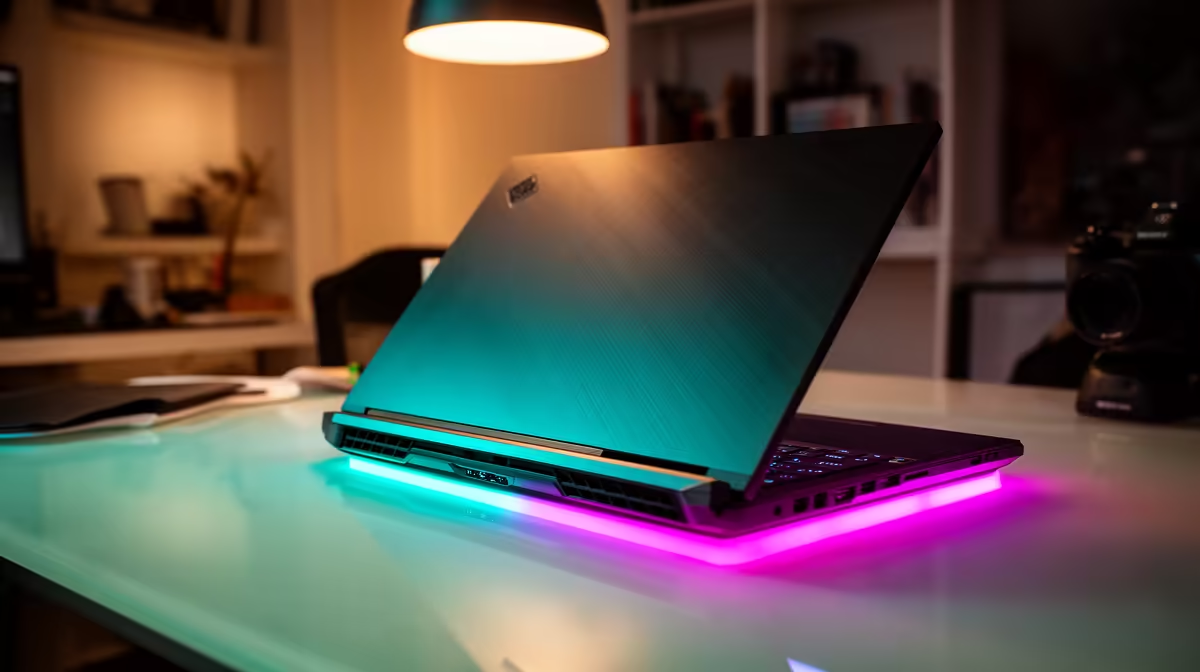
Do not infer gaming ability from RGB lighting, a high-refresh screen or a gaming word in the name. The GPU and cooling decide the hard part. In the same way, a powerful GPU cannot fix a poor keyboard, weak webcam or unsupported course application.
Make a three-mode test
Test the shortlisted laptop in lecture mode, project mode and gaming mode. Lecture mode checks battery, fan noise, webcam and carry. Project mode opens the heaviest course application with normal multitasking. Gaming mode runs the target title at the settings you intend to use.
Check temperatures and fan behaviour through the manufacturer's tools. Confirm that the charger sustains performance and that the display response, resolution and refresh suit the game.
The honest dual-use choice passes all three without pretending it will match the lightest student notebook or a full desktop gaming system.
Check the display output and network connection as part of that test. A wired Ethernet port or suitable adaptor can help at a residence desk, while the correct display port matters if you plan to use a monitor. These small details decide how comfortably one laptop switches between campus and gaming.
FAQ
Does a gaming-capable study laptop need dedicated graphics?
For demanding modern games, dedicated graphics gives the safer headroom. Light and older games can run on capable integrated graphics.
Will it last a full campus day?
Some can under light settings, but gaming hardware and larger displays often reduce runtime. Check tests for the exact model and plan charging.
What is the biggest downside?
Weight, charger size, fan noise and unplugged runtime are the common costs. Accept them only when the graphics performance has real value.
Match one shortlist to your hardest course app and three real games, then carry the full bag before choosing a dual-use laptop.