When Google Meet headphones not working is the problem, you can see the other person talking but hear nothing, and the cause usually sits in one of four places: Meet's own speaker choice, the Windows output device, the Bluetooth link, or a muted browser tab. Checking them in order takes about two minutes.
Quick Answer
In Meet click the three dots, open Settings, then Audio, and choose your headphones under Speakers. Press Test to hear a sample tone. If it stays silent, set the headphones as the output in Windows Sound settings and check that the browser tab is not muted. Reasonable USB or wired headsets with a microphone cost around R300 to R1,200.
🔊 Choose the Speaker Inside Meet
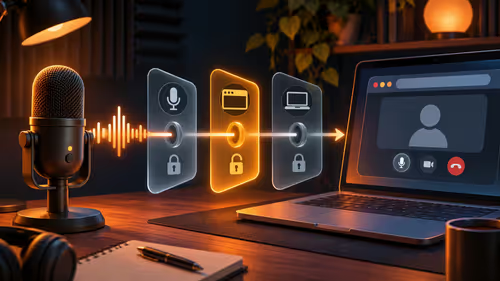
Meet remembers a speaker per device, and it often defaults to the laptop speakers or an HDMI monitor. Click the three dots at the bottom of the call, choose Settings, then Audio. Under Speakers pick your headphones by name, then press Test. You should hear a short sound in your ears.
If you do not see them in the list, the browser has not detected them yet. Unplug and replug, wait a few seconds, and reopen the Audio panel.
Check the tab itself
Right-click the Meet tab in Chrome or Edge. If the menu says Unmute site, the whole tab has been muted. Also open the volume mixer in Windows by right-clicking the speaker icon in the taskbar and choosing Open Volume mixer. Make sure your browser's slider is not at zero.
🎧 Windows Output and the Right Device
Windows decides where sound goes. Open Settings, System, Sound and look under Output. Select your headphones, then play a sound with the test button. If your headset shows up twice, once as Headphones and once as Headset hands-free, choose the Headphones entry for listening, as the hands-free one can sound thin or cut out.
A USB headset can lose its place when unplugged. After you plug it back in, the browser may keep the old device selected, so reload the Meet tab or reselect the headset in Audio settings.
For a headset that stays dependable across calls, the streaming essentials range is a good place to see USB options that carry a microphone and speakers in one cable.
📡 Bluetooth Headphones That Connect but Stay Silent
Bluetooth is the most common source of silent Meet calls. The headphones show as connected, yet Windows keeps sending sound to the speakers. Open Sound settings and choose the headphones as the output. If they appear as paired but inactive, remove the device in Bluetooth settings, put the headphones back in pairing mode and add them again.
Watch the battery too. Many earbuds go quiet or stutter below ten percent. And remember that using the headset microphone over Bluetooth drops audio quality, because the link switches to a narrower call profile. If your voice sounds muffled, use the laptop mic or a separate USB microphone.
On a Mac
Open System Settings, Privacy and Security, Microphone, and tick your browser. Then in Meet choose the same microphone under Audio settings. Output is controlled from the Sound pane, where you select the headphones under Output.
🛠️ Hardware Tests and Quick Fixes
Plug the headphones into a phone or another PC. If they stay silent there, the cable, jack or drivers are at fault, not Meet. Try a different port, since front-panel jacks on desktops are often loosely wired, and rear ports behave more reliably.
Restart the browser, then the PC if the problem persists. A call that works for a student in a quiet res room can fail in a noisy office, so check the headset in more than one place. If you often join calls and need a clear picture too, the webcam category lists cameras that pair neatly with a USB headset.
Frequently Asked Questions
Where do I pick my headphones in Google Meet?
Click the three dots, then Settings, then Audio. Choose your headphones under Speakers and press Test to hear a short sound through them.
Why can I hear everything except Meet?
Meet may be set to another speaker, or the browser tab is muted. Check the Audio setting, the tab's mute icon and the Windows volume mixer for the browser.
What if my Bluetooth headphones connect but stay silent?
Windows may be playing sound through the speakers. Open Sound settings, choose the headphones as output, and re-pair them if they show as paired but inactive.
Why does a USB headset stop working after unplugging?
The browser may keep the old device selected. Reload the Meet tab or reselect the headset in Audio settings once it is plugged in again.
On a Mac, why is my microphone not working in Meet?
Open System Settings, Privacy and Security, Microphone and tick your browser. Then choose the same microphone in Meet's Audio settings.
Could the headphone cable or jack be faulty?
Test them on a phone or another PC. If they fail there too, the headphones themselves are the problem and need replacing or repairing.
Ready to hear every word on your next call?
Browse the streaming essentials category at Evetech for headsets and microphones, and the webcam range if your video needs a lift too.