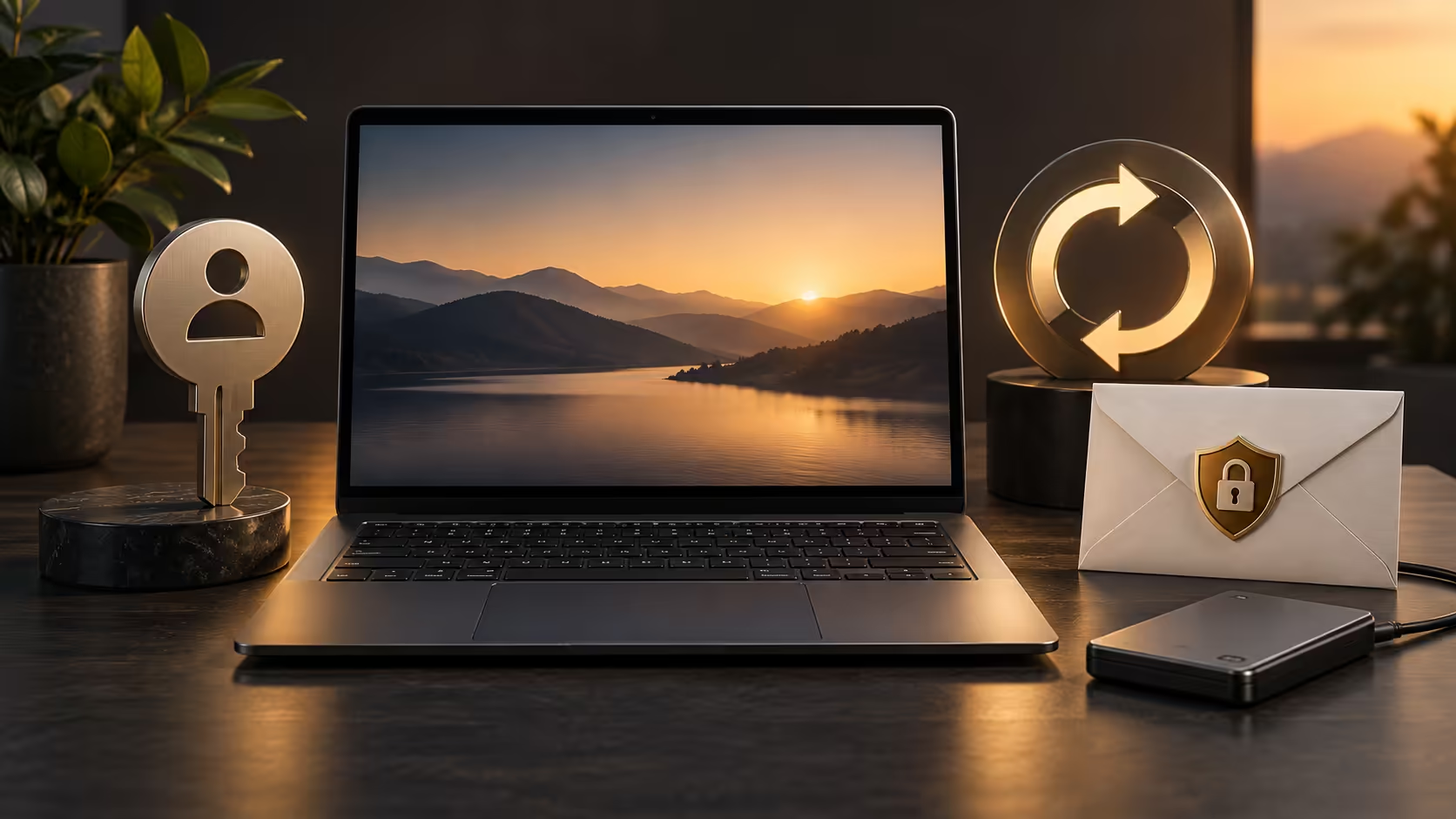
The first day with a laptop is a good time to establish habits that will be difficult to untangle later. Googlebook first-day setup should give you a trustworthy baseline before you install everything or move the only copy of your work. Start with identity, updates and one complete task.
Quick Answer
Choose the intended account, follow the supported update process and confirm recovery methods before adding your essential apps. Move a small set of files, complete a normal task and reopen the saved result. These R0 checks establish a useful foundation without turning the first session into a rushed migration of your entire digital life.
👤 Choose the identity and recovery route
Decide whether the machine is primarily personal or governed by a school or organisation. Use the appropriate account and understand any managed-device requirements before proceeding. A personal account and a school identity may grant access to different services, subscriptions and policies, so choose deliberately rather than accepting whichever login is easiest to remember.
Check the account recovery email and phone while you have normal access. Confirm that you can reach them independently of the new laptop. If your usual sign-in depends on a phone, consider the supported alternatives for the day that phone is lost or unavailable. Recovery is much easier to prepare before it becomes urgent.
Store recovery material privately and separately. A code saved only in a document on the locked laptop is a circular plan. Do not put passwords or backup codes into a shared setup checklist. The checklist should record that the recovery route was checked, not expose the secret itself.
Read the prompts that link services or devices. Browser synchronisation, phone pairing and app permissions are separate choices. Enable what you intend to use and understand where the data comes from. You can build a useful laptop setup without accepting every optional connection during the first few minutes.
🔄 Create a current, simple baseline
Follow the device's current supported instructions for software updates. Keep it connected to suitable power and allow required restarts to finish before judging everyday performance. Initial downloads and indexing can make the first hour unrepresentative of normal use. Do not diagnose the whole machine while it is still completing setup tasks.
Install only the applications needed for one ordinary workflow first. For example, choose the document editor, communication service and file destination required for a routine study session. A smaller starting set makes it easier to identify which app causes a problem and which permission belongs to which activity.
Select the actual supported edition of each app. A familiar desktop product name may also refer to an Android or web version with different functions. Check that the required task works in that edition before migrating complex projects. Browser bookmarks arriving successfully do not prove that a desktop application has migrated too.
Try the built-in input devices and display at a comfortable position. If desk typing needs adjustment, compare keyboard options at Evetech after establishing the supported connection. Avoid filling the desk with accessories before you know which part of the working arrangement needs improvement.
📄 Complete one file journey
Move a small, non-sensitive document into the location you intend to use. Open it, edit a copy, save it and close the application. Reopen the saved result from that location. This reveals whether you understand the file path and whether the chosen app preserves the features that matter to you.
If the destination synchronises online, confirm the upload has completed and inspect the result through the intended service. A local save and a cloud copy are different events. Keep the source on the old device until the new route is proven, rather than deleting it as soon as a thumbnail appears.
Create an independent copy of the important material before expanding the migration. Evetech's external SSD range can help with portable storage planning, subject to the laptop's supported connection and file system. Open a sample from the copy so the backup is more than an untested transfer.
Set a small list of unresolved items aside for later: printer support, a particular creative project or a phone integration feature. Record the exact requirement and the evidence still needed. This keeps optional experimentation from delaying the basic tasks you bought the laptop to perform.
Finish with a restart and an ordinary sign-in, then repeat the essential file task. That final pass checks the experience you will meet tomorrow morning, not only the state left open during setup. If it works, you have a stable basis for adding more applications and moving further files in manageable groups.
Frequently Asked Questions
Which account should I use first on a Googlebook?
Use the identity intended for the laptop and its daily work. Keep personal and managed school or work contexts distinct.
Should I copy every file during initial setup?
Start with a small verified set of essential files, then expand once you know where they are stored and how recovery works.
What should I do before adding many apps?
Complete the supported update process, check account recovery and verify a simple document workflow.
Where should recovery details be stored?
Keep them privately accessible outside the laptop so losing the device does not remove your only recovery route.
Build the new setup one proven task at a time.
Explore keyboards and portable storage at Evetech once your account, apps and file locations are working as intended.