An app can fill a laptop screen without becoming a desktop application. Googlebook Android app windows depend on how the developer adapts layout, input and state to a larger environment. When something feels awkward, separate those three questions before deciding the app is unusable.
Quick Answer
Check whether the app lays out content sensibly, accepts the keyboard actions you need and preserves work when its window changes. Android developer guidance encourages adaptive layouts, but implementation differs between apps. A R0 trial with a disposable document can reveal those limits before you commit an important project to the application.
🪟 Distinguish a larger view from an adaptive layout
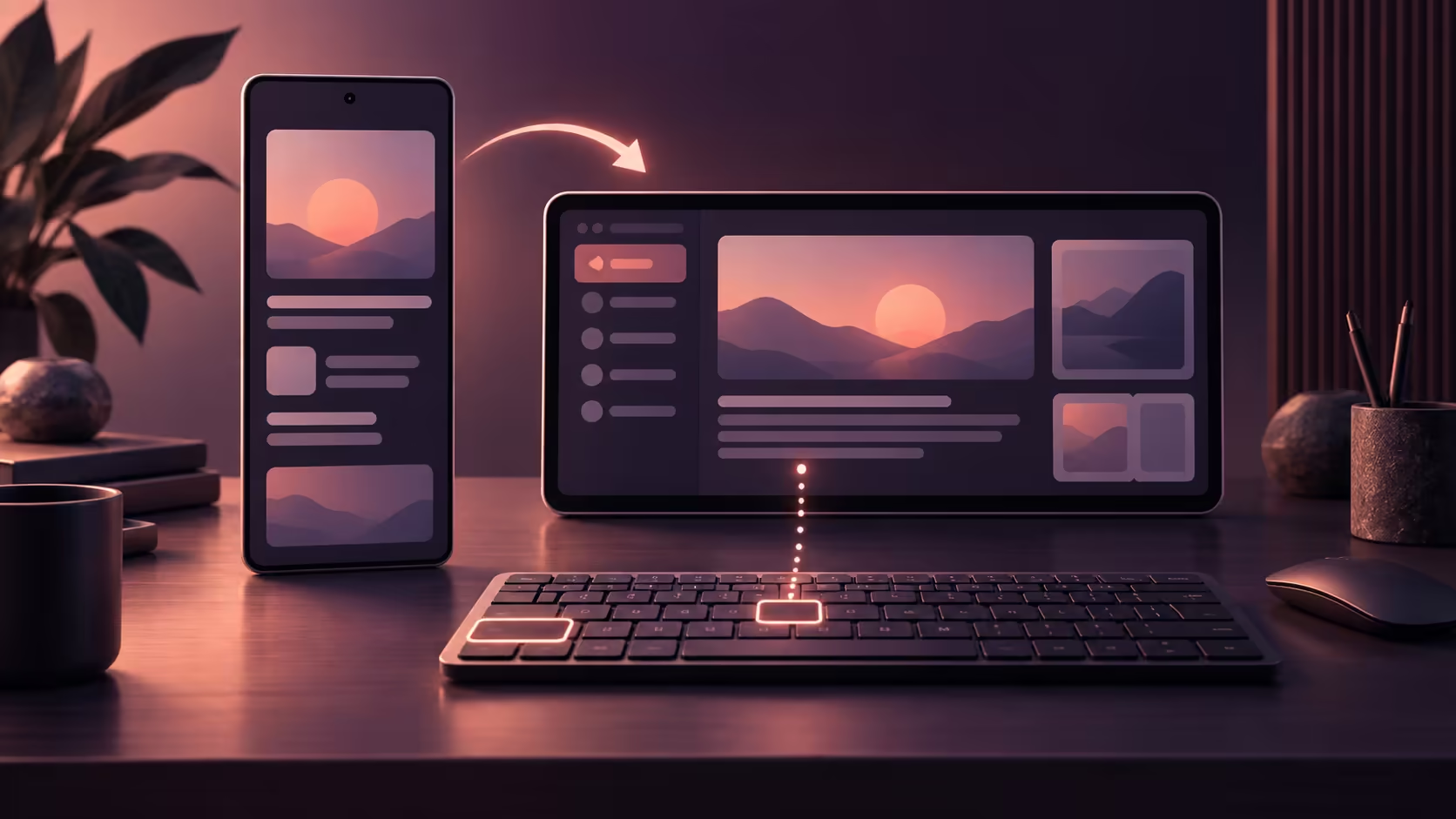
An adaptive application changes how it arranges information as the available space changes. It might place navigation beside content instead of above it, or show a list and its selected item together. Merely enlarging the same narrow view is a different result, even if the window technically resizes.
Android's desktop-windowing guidance explains that apps need to consider variable window sizes and different input devices. That is guidance for developers, not a promise that every Play Store app has completed the work. A legacy layout can remain awkward on a large screen without there being a fault in the display itself.
Try the window sizes you will actually use. A full-screen layout may behave acceptably while a narrow side-by-side arrangement hides a required button. Record the action and the approximate arrangement that causes the problem. Avoid changing several display settings at once, because that makes the cause harder to identify.
If a panel is clipped, look for the app's own documented layout controls and updates. Do not assume there is a universal Googlebook switch that converts every application into a desktop edition. The feature belongs partly to the application's design, which may require a developer fix or an alternative workflow.
⌨️ Test input beyond ordinary typing
Typing into a text box is only one part of keyboard support. Try selecting text, moving between controls, opening a menu and performing the shortcut you use frequently. A shortcut familiar from a Windows version may differ in the Android or web edition, so consult the help for the edition in front of you.
Pointer behaviour deserves a separate look. Check selection, scrolling and any context menu required for the task. A touch-first interface can expose an action differently from a desktop interface. If you need to use touch to complete one step, decide whether that is an acceptable occasional action or an obstacle in your normal arrangement.
External input devices add their own requirements. Browse keyboard choices for layout and connection, but verify specialised configuration utilities if you depend on them. The keyboard sending ordinary keystrokes does not establish that its companion macro application runs on the laptop.
For an illustrative task, open a copied note, select a paragraph, paste it elsewhere and save the file. Repeat with the window beside a browser reference. That sequence checks useful interaction more effectively than typing a few words into an empty field and declaring keyboard support complete.
💾 Watch what happens when the window changes
Applications need to preserve useful state when their environment changes. Android developer guidance discusses handling resizing and configuration changes, but the quality of that handling varies. Save valuable work before investigating an app that reloads or loses position when resized.
Use a disposable project and make a small edit. Change the window arrangement, return to the app and confirm the edit and cursor position where relevant. Close and reopen the saved copy. You are checking the workflow's resilience, not conducting a performance benchmark or proving that every Android app behaves the same way.
If the application repeatedly fails at a specific point, record the version and exact sequence. Remove private information from screenshots or sample files before sending a bug report. A reproducible example with ordinary content gives the developer a much better starting point than a general complaint about laptop support.
A browser edition may offer a different layout or feature set. Compare it using the same task and output requirement rather than assuming the website is automatically better. Check where each edition saves files and whether switching between them preserves the project format you need.
An external screen can make a supported layout more comfortable, but it cannot repair missing controls in the application. Compare monitor options after establishing the display connection and proving that the app uses the extra space productively.
Choose the route that completes your work reliably. Sometimes that means a different window arrangement; sometimes it means another supported edition. Keeping layout, input and state separate makes that decision clearer and prevents a simple app limitation from becoming an expensive hardware guessing exercise.
Frequently Asked Questions
Why can an Android app look stretched on a laptop?
App layouts vary in how they adapt to large or resizable windows. A bigger display does not automatically add a desktop layout.
Does resizing prove an app has desktop features?
No. Window size and feature availability are separate; the same mobile edition can occupy a larger window.
Should keyboard shortcuts match the Windows version?
Only if the app documents that behaviour. Android and web editions may expose different shortcuts and functions.
Can changing window size affect unsaved work?
Poorly handled configuration changes can affect app state. Save a copy before investigating repeatable layout problems.
Give your apps the workspace they can use well.
Compare keyboards and monitors at Evetech after confirming the layout and input behaviour of your essential applications.