When a Ryzen 7 9800X3D build refuses to climb past 60Hz, treat it as a configuration chain: display mode, cable, monitor menu, then driver, in that order.
Quick Answer
Set the rate in Windows first: Advanced display settings, choose 144Hz, 165Hz, or 240Hz, apply. If the option is greyed out, the cable is the most common culprit, then the monitor's internal overclock or rate setting, then a GPU driver that needs a clean reinstall via DDU. Treat it as the anchor of the whole check, not an afterthought.
Enable the panel's own high-rate mode
Many monitors ship with their high-refresh or overclock mode switched off in the on-screen menu, and Windows can only offer rates the panel reports. Open the monitor menu, turn on the high-rate or OC option, save, then set the rate again in Windows. Adaptive sync or FreeSync settings live in the same menu and often need enabling for a smooth result. On a Ryzen 7 9800X3D build, a calm second test beats a panicked parts order every time.
Use a cable rated for the refresh you want
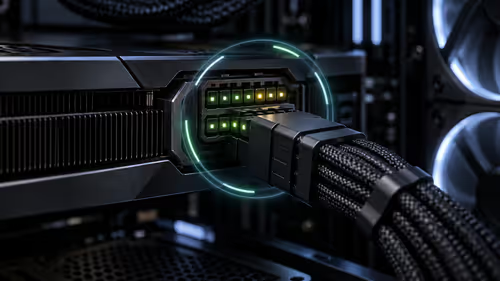
Bandwidth is the silent killer of high refresh. A 1440p 165Hz panel needs DisplayPort 1.4 or HDMI 2.1; an older HDMI lead trains down to 60Hz to stay stable. A proper cable runs roughly R450 to R1,200, far cheaper than the GPU or monitor people replace by mistake. Plug into the dedicated GPU ports, never the motherboard, when a card is installed. For a Ryzen 7 9800X3D build, that ordering is what saves you from chasing the wrong fault.
FAQ
Why does one monitor run high while the other stays at 60Hz?
Each display has its own refresh setting in Windows. Select the second monitor in Advanced display settings and raise its rate separately. A weaker cable or port on the second screen can also force it down to 60Hz. For an SA a Ryzen 7 9800X3D build setup, that is the cheapest, fastest move available.
Why is my refresh rate option greyed out?
A greyed-out rate almost always means the cable cannot carry it or the panel's high-rate mode is off. Swap to a DisplayPort 1.4 or HDMI 2.1 lead, enable the OC mode in the monitor menu, then reopen Advanced display settings and the higher rates should appear. This matters more on a Ryzen 7 9800X3D build than the spec sheet ever suggests.
Will a higher refresh rate hurt performance?
A higher refresh rate only shows frames the GPU already produces, so it does not reduce performance; it just removes the artificial 60fps ceiling. If frame rate is the limit, lower a few settings rather than the panel's refresh. On a Ryzen 7 9800X3D build specifically, this step pays off more than any quick part swap.
Get a panel that hits the rate out of the box
If your screen tops out below what your GPU can drive, compare Evetech high-refresh monitors so the cable, panel, and card all support the same rate. Small as it sounds, it is the step most people rush past.